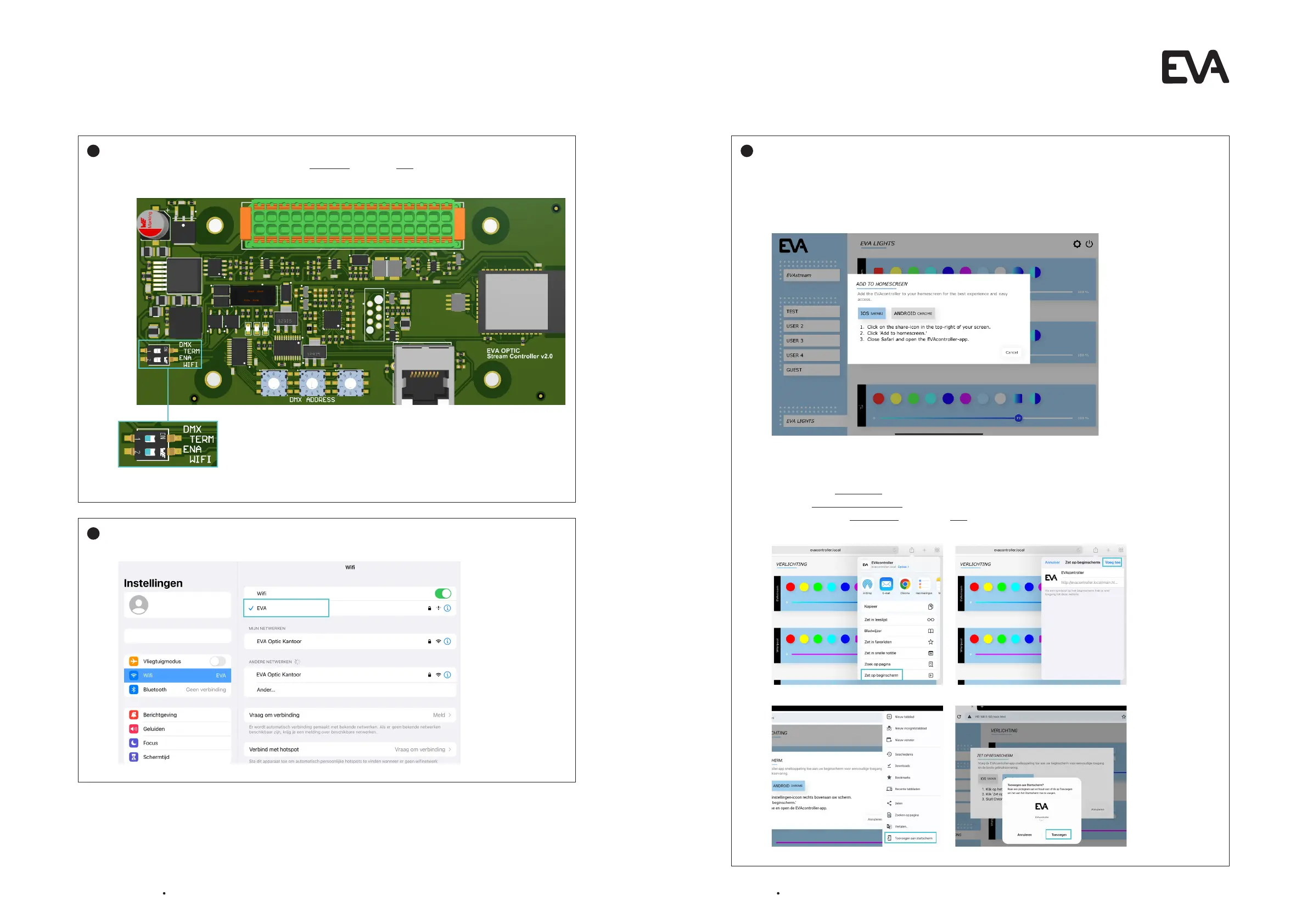
EVAstream Electrical connections - PCB Settings EVAstream Electrical connections - PCB Settingswww.evaoptic.com18 19
Connect the tablet to home network:
Open the screen with WiFi connections on the tablet and connect to the new network.
4
Disconnect the wifi connection on the Printed Circuit Board (PCB):
On the Printed Circuit Board (PCB), set the ENA WIFI button to OFF again (slide switch 2 back to the
left). The PCB is now connected to the new network.
WIFI
turn Off
3
Connect tablet to EVA Experience web app environment:
Go to your internet browser and enter the following address in the address bar:
http://evacontroller.local (or via IP 192.168.4.1)
You will see the following screen:
The pop-up provides instructions for creating an EVA shortcut icon on your tablet’s desktop
(for easy access to the EVA Experience web app environment in the future).
1. Click on the share icon to the right of the address bar.
2. Select Add to Home Screen.
3. Name the icon EVAstream and select Add.
4. The icon is now added to your tablet’s desktop.
5
Apple IOS
Android


 To Next Page