EVAstream Electrical connections - PCB Settings EVAstream Electrical connections - PCB Settingswww.evaoptic.com24 25
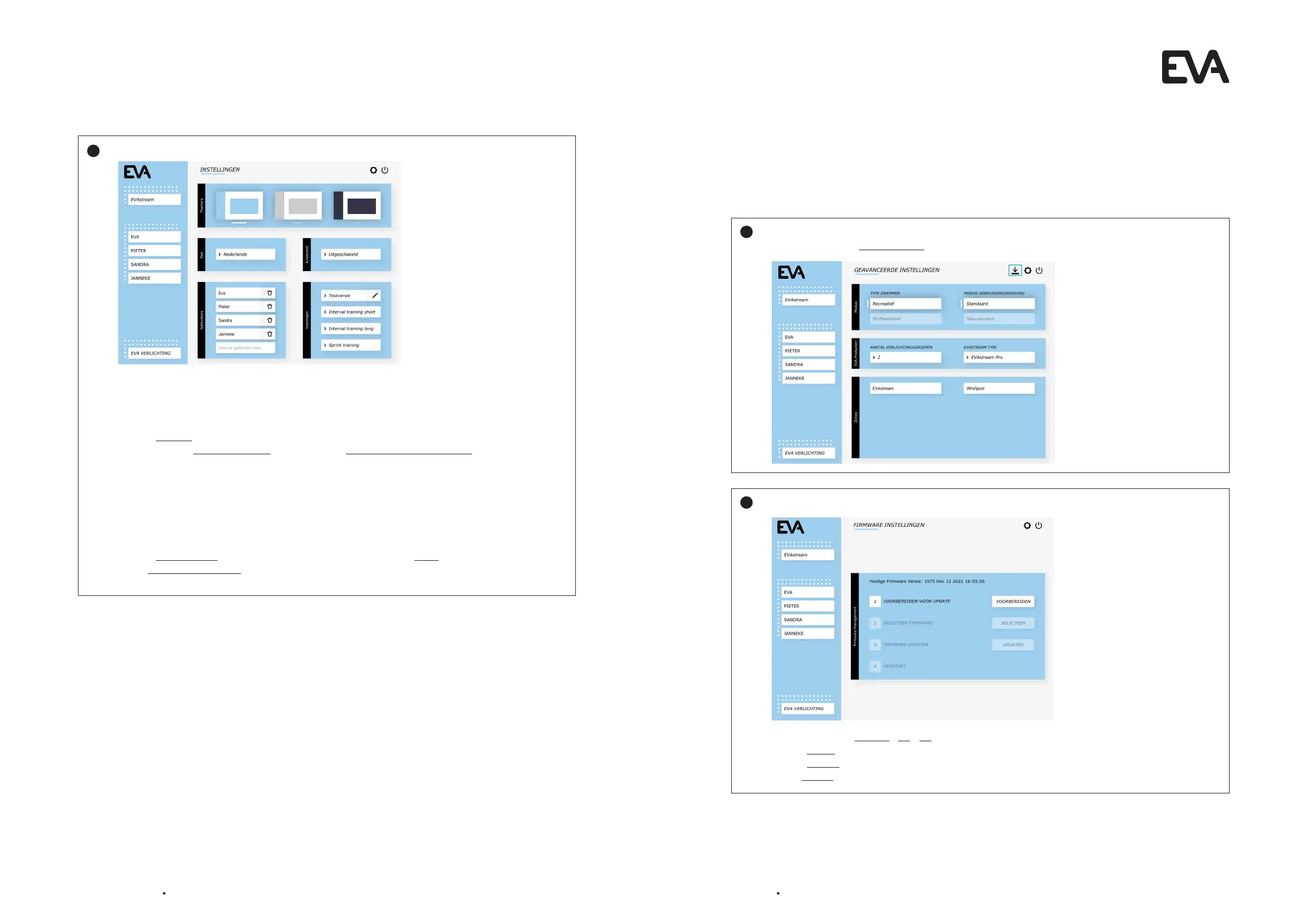
Click once on the gear icon at the top right of the screen to go to the basic settings:
On this page you can select the color scheme of the web environment, set your language, set a child
lock, create users and link EVAstream training courses to the users:
Setting parental control Select
1. Select Enabled at parental control.
2. Enter first the Mastercode 6738 and after that a own choosen code (4 digits).
From now on you can use both codes (master code and your own code). If you forget your own code,
you can always use the master code to create a new own code.
When the child lock is enabled, you will be asked to enter the code at various times, before use of
the EVAstream.
Set users
1. Select Add New User and enter the name of the user followed by Enter.
2. Add workouts to the user by selecting them in the right menu Programs.
3
Click twice on the gear icon at the top right of the screen to go to the advanced settings. In this
screen click on the download icon at the top right of the screen.
Now follow the steps on the next screen:
1: Click the button Prepare > Ok > Ok
2: Click Select and select the firmware file you saved at 1.
3: Click Update. The new firmware is now installed on your tablet.
4: Will Reboot to restart the EVA Experience web app environment.
1
2
6.7 Update Firmware
It is possible that the EVA Experience web app needs a firmware update, for new or additional
functionality, or to fix any errors in a current firmware version. New versions will be available on our
website.


 To Next Page