OWNER MANUA L
EVOLUTION
Read carefully all the safety statements before attempting any procedure.
EVOLUTION
PAG E 38
OWNER MANUA L
Read carefully all the safety statements before attempting any procedure.
touchsc reen oper ation
1
2
touchsc reen oper ation
BT PHONE OPERATIONRADIO
MUSIC MOVIE & PICTURE
Radio
FM 1
89.0MHz
1 2
3 4 5
6
Band
23
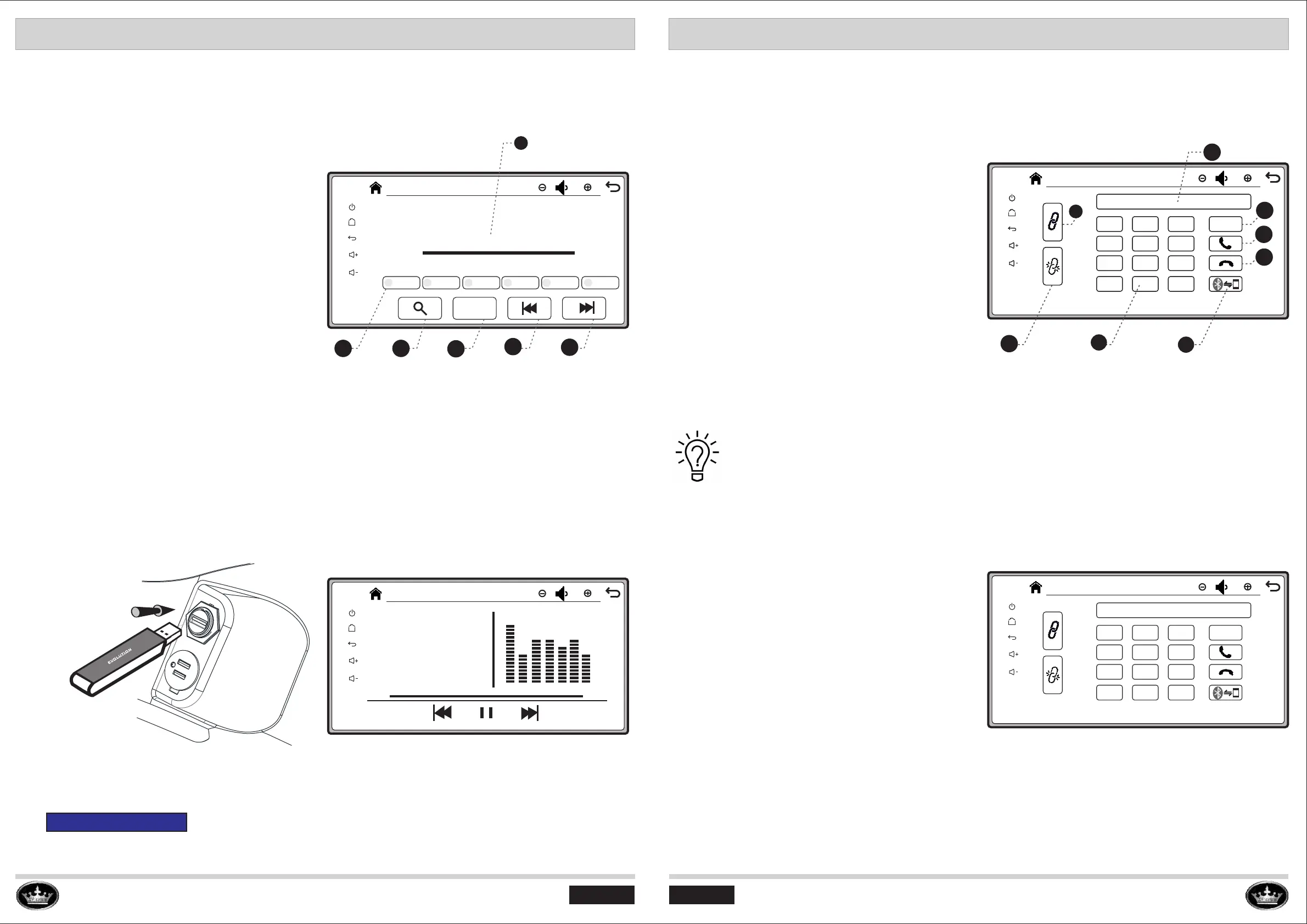
>Radio stations displayingShow present
radio channel Hz.
>Radio stations store:
After getting a channel, press any square buttons
for 5s, then the channel will be stored in the tablet.
>Automatically radio channel searching:
Press the button, the radio will search the
channel automatically.
>Band switch:
There are three bands of stations, press this
button, the radio will be switched over during
FM1/FM2/FM3.
>Manual channel tuning backward.
>Manual channel tuning forward.
89.087.5 90.7
105.5
112.0
120.2
Press the “ Music” or “ Movie” or “Picture” button, the screen will enter into the “Movie” or “Picture”
interface as pictured below. Before pressing the button, be sure to plug into the USB flash drive first.
The music/movies/pictures must be prestored in the USB flash drive disk.
These music/movies/ pictures will be played after you press the buttons on the touchscreen.
NOTICE
1
2
Music
23
1
2
Bt Phone
23
1
2
3
c
4
5
6
7
8
9
*
0
#
No Connection
Press the “ Bt Phone ” button, the screen will get into the “Bt Phone” interface as pictured below.
① Connect the bluetooth with cell phone.
② Disconnect the bluetooth with cell phone.
③ Connecting status of cell phone display window:
Four different status:
-No Connection
-Connection
-Call out
-Speaking
④ Delete button
⑤ Call button
⑥ Ending call button
⑦ Switch the speakers of calling between cell phone
and vehicle-mounted bluetooth
⑧ Dial keypad
1
2
Bt Phone
23
1
2
3
c
4
5
6
7
8
9
*
0
#
Connection
(1)Open the cell phone bluetooth function.
(2)Press the button to enter into the “Bt Phone”
interface.
(3)Search the available bluetooth device on the cell
phone, in the touchscreen bluetooth named
“ DTLY-JYT”.
(4)Press the “ DTLY-JYT”, the cell phone will jump
out the interface of “ bluetooth pairing request”, and
request the user to enter the pairing PIN code
(The PIN code is “0000”).
(5)After pairing successfully, it will show “connected”
under the “DTLY-JYT” on the cell phone, and the
status display window on the touchscreen will show
“Connection”. That means the bluetooth is connected
successfully.
How To Connect the bluetooth between cell phone and vehicle?
PAG E 37
1
2
3
4
5
6
1
2
Bt Phone
23
1
2
3
c
4
5
6
7
8
9
*
0
#
No Connection
1
2
3
4
5
6
7
8


 To Next Page