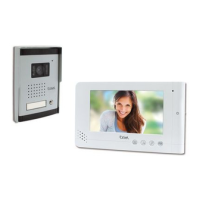
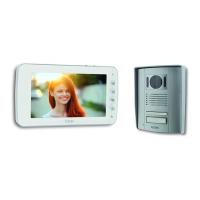
EXTEL - CONNECT 2 - 720324
fr - 4
D - INSTALLATION
E - MONITOR USER MANUAL
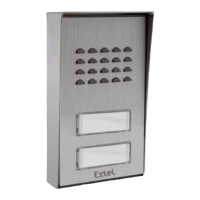
Connect the strike plate directly to terminals 3 and 4 at the back of the intercom panel (no need to observe
polarity).
Note that this function is only valid if the screen is on. The unit may buzz at the time the command is given.
For wiring, refer to the reverse of the panel and the diagram in Fig. 7.
Important:
• The maximum distance between the intercom panel and the electric strike plate or electric lock is 50 m
maximum. The wire size to be used is 0.75 mm².
• The use of a 12 V/1.1 A max. strike plate with mechanical memory is recommended.
4 - CONNECTING A MOTOR DRIVE
Directly connect the strike plate or lock wires to terminals 5 and 6 on the back of the panel (no polarity to adhere
to).
Note that this function is only valid if the screen is on. The intercom panel provides a ‘dry’-contact connection,
without an electric current, to connect to the button for your automated gate. For wiring, refer to the reverse of the
panel and the diagram in Fig. 7.
Important:
• This function is only valid if the screen is on.
• The maximum distance between the intercom panel and the gate motor drive is 50 m maximum. The wire size
to be used is 0.75 mm².
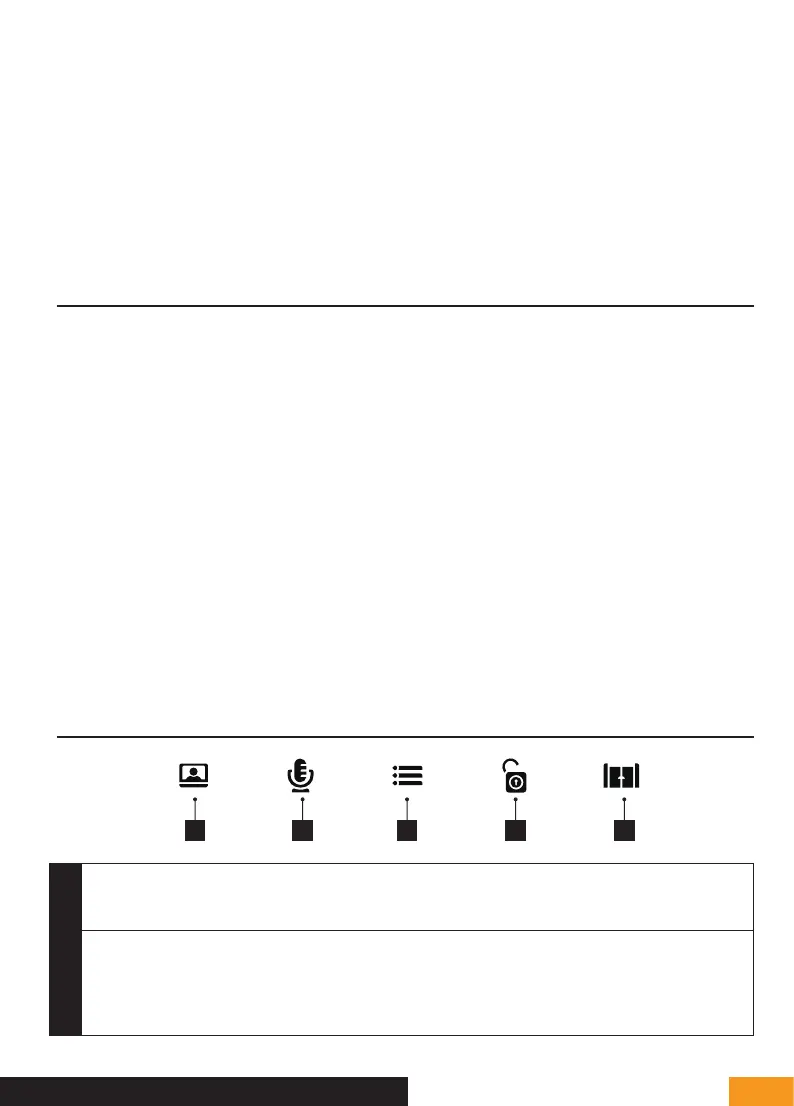
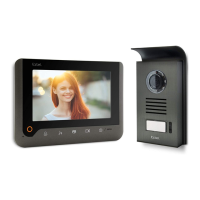
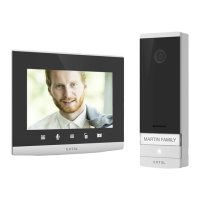
The Extel Connect 2 videophone is controlled through touch-sensitive keys. The button functions vary depending on the
menu accessed. The icons at the bottom of the screen help guide you as to their use.
1 - BUTTON FUNCTIONS
1 2 3 4 5
1
Screen off: Access to time screen
Time screen: Intercom panel preview (surveillance mode)
Menu: Left arrow or up arrow
2
During communication: Starts/Ends a call (where applicable: this action will automatically turn off the
second family screen)
In surveillance mode: Initiates communication
Menu: Right arrow or down arrow


 To Next Page