EXTEL - CONNECT 2 - 720324
fr - 17
5. SETTINGS ACCESSIBLE IN THE APPLICATION
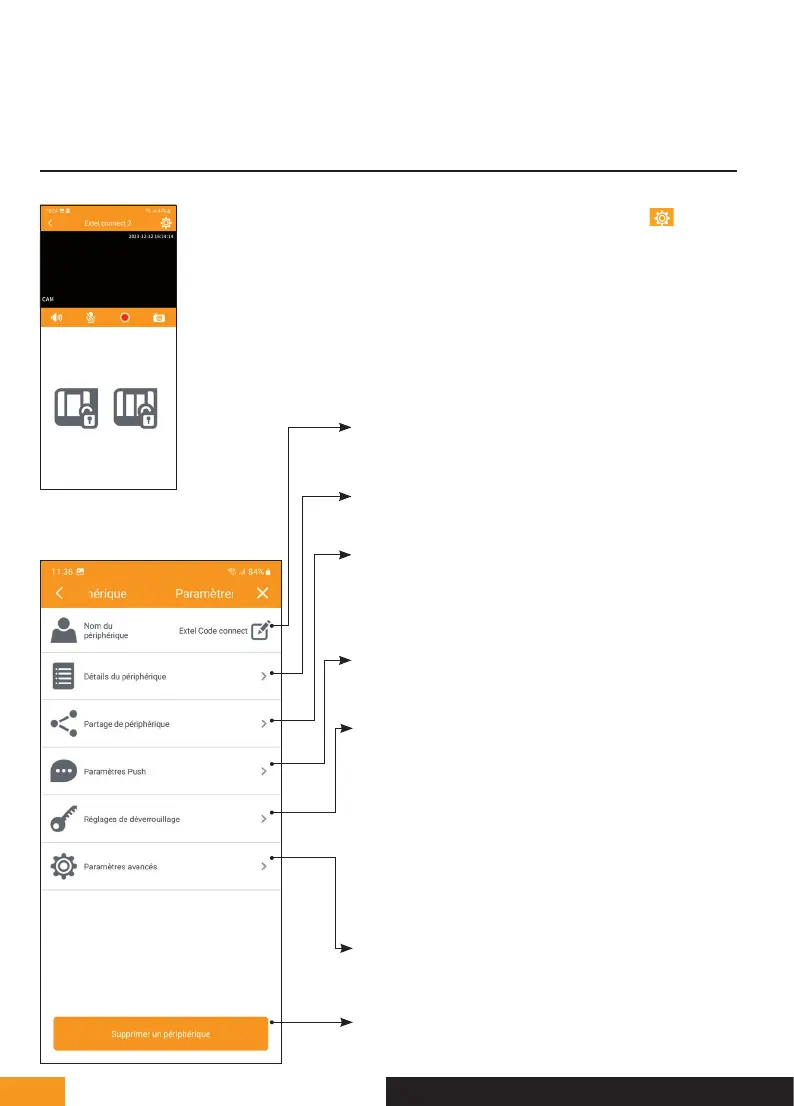
Many configuration options can be accessed by clicking on the icon at the
top right of the live image screen.
Allows you to change the name of
the intercom in the application
Allows you to see the monitor’s UID
and firmware
Allows you to share the intercom’s
functions by generating a QR
code or a connection link
Allows you to enable or disable call
notifications
Allows you to manage locking settings for the electric
strike plate or gate:
- Fast unlocking (no need to enter the
password for each opening request)
- Biometric unlocking (secure access with a
fingerprint or facial recognition)
- QR code to unlock (used to create a QR
code to be scanned by the intercom panel to unlock
access)
Allows you to change the intercom password and
synchronise the time on the monitor
Deletes the intercom from the application
F - CONNECTING YOUR EXTEL CONNECT 2 VIDEOPHONE TO YOUR SMARTPHONE


 To Next Page