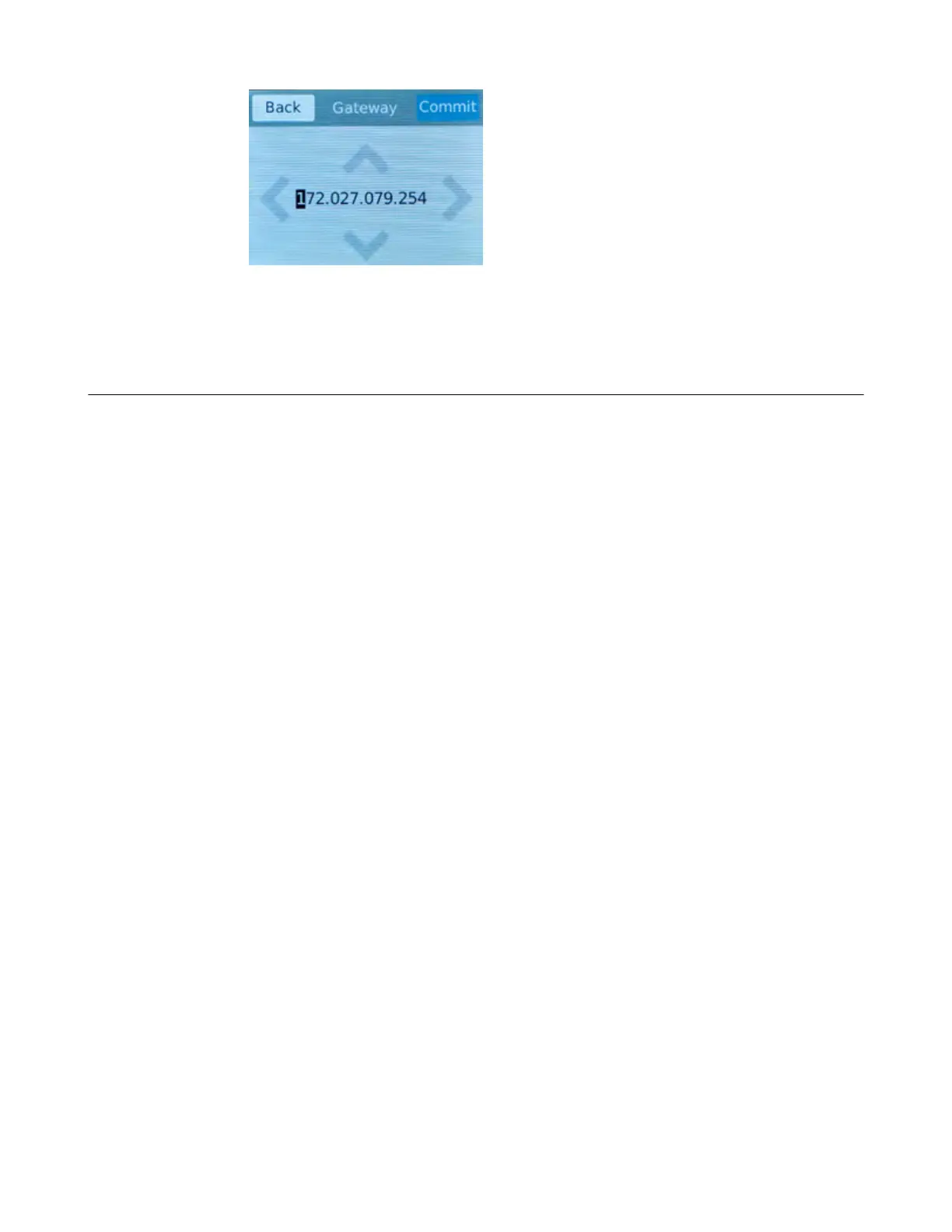
i) Tap Commit to save your changes.
Y
ou can now access the browser-based Configuration utility using the IP address that you configured.
License the platform
Once the management IP address is configured for the platform, you can use the Configuration utility to
license the appropriate
F5
®
software.
1. Using a Web browser, navigate to the management IP address that you assigned to the platform.
Use this format where <mgmt_ip_address> is the management IP address that you assigned:
https://<mgmt_ip_address>
For example, type an IPv4 management IP address like this: https://192.168.0.22. For an IPv6
management address of 2001:0DB8::f5f5/64, type the address like this: https://
[2001:0DB8::f5f5].
2. Type admin as the user name and admin as the password.
If this is the first time you have accessed the Configuration utility, the first screen you see is the
Introduction screen.
3. Click Next to view the License screen.
4. Follow the instructions in the Configuration utility to license the platform.
For more information about licensing your platform, see BIG-IP System: Essentials at
support.f5.com.
Platform Installation
32



 To Next Page