Mounting Multi-user Write volumes
Once the volume has been automatically created or changed to Multi-user Write, and
displays a ‘W’ in the Sys column, the user is free to mount the volume with Write or
Read-Only access. If desired, on Windows clients prior to mounting the volume, use
the volume ‘Mount Properties’ setting in TerraBlock Manager to set up a mount
location (drive letter or C:\Volumes). For Windows, Mac and Linux clients, Persistent
Mount, a mount attribute that will persist (Read/Write), can also be set.
On Windows and Mac clients, the TerraBlock Manager “File System
Emulation” setting is set to “ON” by default. “File System
Emulation” is required whenever an Avid application is accessing a
Multi-user Write volume.
Once the Mount Properties are set, select the volume from the list and then
press the ‘Mount’ button. The volume should turn bold green and display a
‘W’ in the local user column. In Windows Explorer, Mac OS Finder and Linux
Filesystem, the volume will appear as a network drive. Verify that the
contents of the volume are consistent with the previous known contents.
Working with Multi-user Write volumes
Windows
Multi-user Write volumes set to a drive letter mount point will appear as Network
volumes in Window Explorer under “Computer” upon mounting. All Multi-user Write
volumes will additionally get a mount point in the C:/Volumes directory.
Macintosh
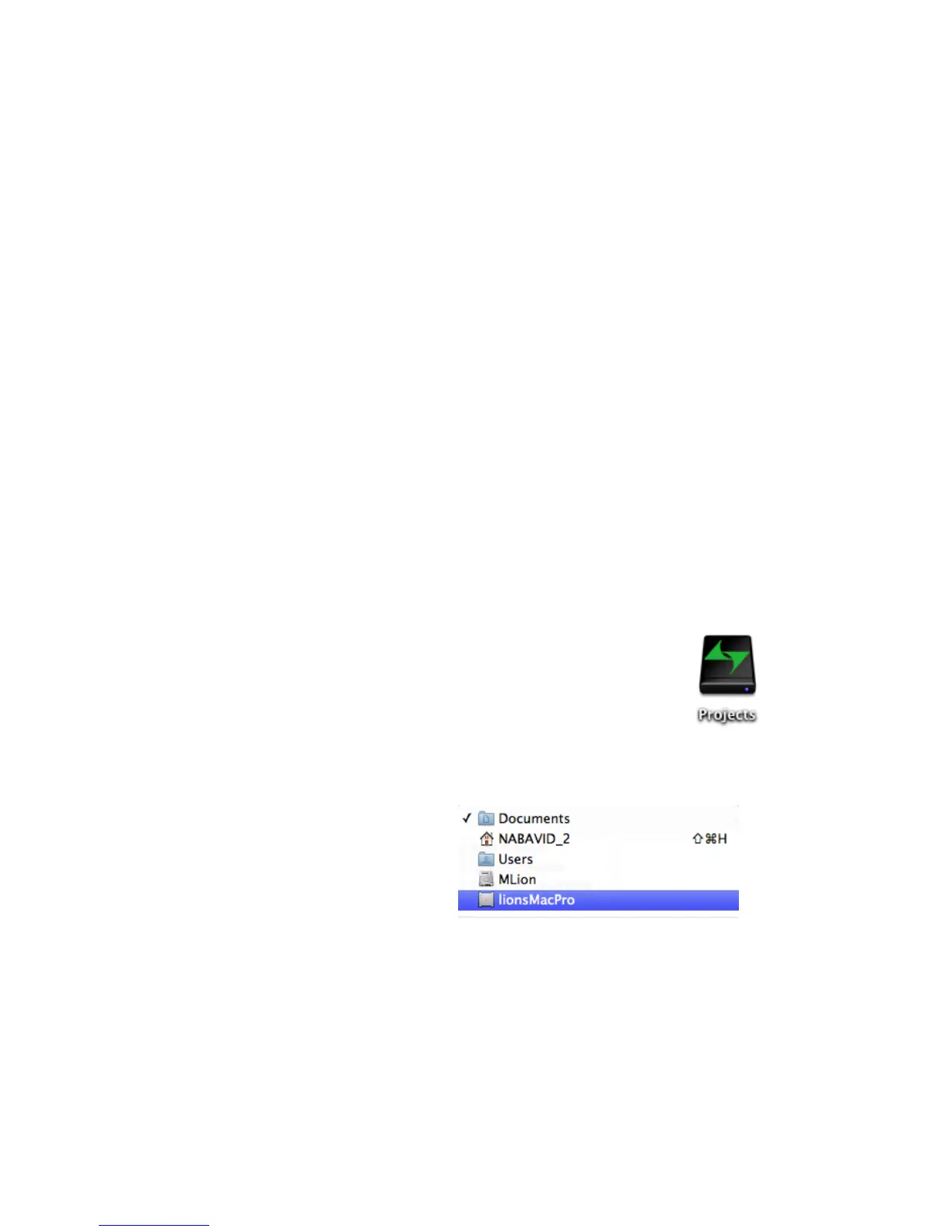
After a Multi-write volume is mounted on a client and the Finder
Preferences are set to view Connected Servers, the volume will
mount on the Desktop as a Network Drive. All volumes will also
appear under /Volumes.
To set the Mac OS Finder display preferences, select
Preferences from the Finder menu or click on the Mac OS Finder icon in the
Doc and press the ‘Command + ,’ keys on the keyboard.
To choose this Multi-user Write Drive
as a usable drive in an application,
select the Computer Name to list
connected drives.
Linux
When a Multi-user Write volume is mounted on a Linux client, the volume will
automatically mount to a mount-point in the Linux Filesystem. When working with
Multi-user Write volumes, no additional manual steps are needed to mount volumes.
To un-mount Multi-user Write volumes, use the Unmount button in the TerraBlock
Manager ‘Volumes’ tab. Unlike Single-user Write volumes, Multi-user Write volumes
do not require you to manually un-mount them from the filesystem prior to un-
mounting them with the TerraBlock Manager.


 To Next Page