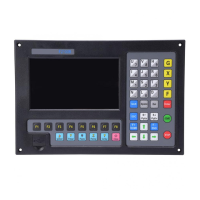
Chapter 12 Use of BIOS
109
12.1 System Upgrade
After entering BIOS, press【F1】to upgrade the system, it should satisfy the
following conditions:
Flash Disk is connected to the system.
There should be the upgrade file UserApp.exe in the root folder of the flash disk.
Under the circumstance of above two conditions satisfied, Press 【F1】to upgrade
system, when completing the upgrading, press【F6】to reboot.
12.2 Welcome Interface Upgrade
After entering BIOS, press 【F2】to upgrade the welcome interface completely, it
should satisfy the following conditions:
Flash Disk is connected to the system.
There should be the upgrade file WELCOME.bmp in the root folder of the flash
disk.
Press【F2】to upgrade when the conditions are satisfied, when completing the
upgrading, press 【F6】to reboot.
12.3 Movement Control Upgrade
After entering BIOS, press 【F3】 to upgrade the movement control completely,
it should satisfy the following conditions:
Flash Disk is connected to the system.
There should be the MOTION.DSP upgrade file in the root folder of the flash
disk.
Pressed 【F3】 to upgrade when the conditions are satisfied, when completing the
upgrading, press 【F6】to reboot.
12.4 System Backup
After entering BIOS, press 【F4】 to backup system. It only backups OS, but no
parameter, IO ports configuration, coordination configuration and so on.



 To Next Page