Chapter 2 Starting up of System
12
Note: the system type “F2200T” shown in “FLSK F2200T” at the left and up
corner of above figure shows different contexts, the following is the same, it will
not be interpreted repeatedly. For example, it will show “FLSK F2100T” in the
system of F2100T.
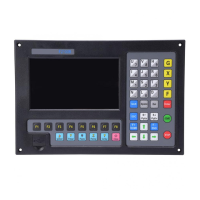
In the main interface, press 【F1】-【F8】for the following functions:
【F1】ShapeLib: Pressing F1 to enter the Shape Library including 45 common
shape, and most of them have plate size and hole size.
【F2】Files: You can load local files, U disk files or edit, import, export and
delete codes.
【F3】PartOption: Make actions of mirroring, rotation, plate adjusting, plate
arraying, selecting row and hole or code edition etc.
【F4】Setups: Setting all parameters.
【 F5 】 Diagnose: Including input ports diagnosis, output ports diagnosis,
keyboard diagnosis, system self check, date setting and system self defines.
【F6】ZoomIn: Zoom in the shape in full screen.
【F7】ManualMove: Manually move the machine.
【F8】Zero: Clear the coordinate of X and Y before starting cut or after cutting
over.
【X】CutSpeed: Setting the cutting speed.
【Y】ManualSpeed: Setting the manual moving speed.
【Z】Kerf: Setting the kerfs’ compensate value.
【F】Manual: Setting the mode of manual movement including keepMov(keep
movement), StepMov(step movement), ContiMov(continue movement). The
selected mode is black background.
【G】StepDis: Setting the distance of the fixed-length.
【N】Before the cut running starts, set kerf’s size
【M】Selecting the cutting mode including Flame Cu(flame cutting), Plasma
Cu(plasma cutting), Demo run.
【START】Begin to cut
【SPACE】 Enter cutting interface



 To Next Page