110
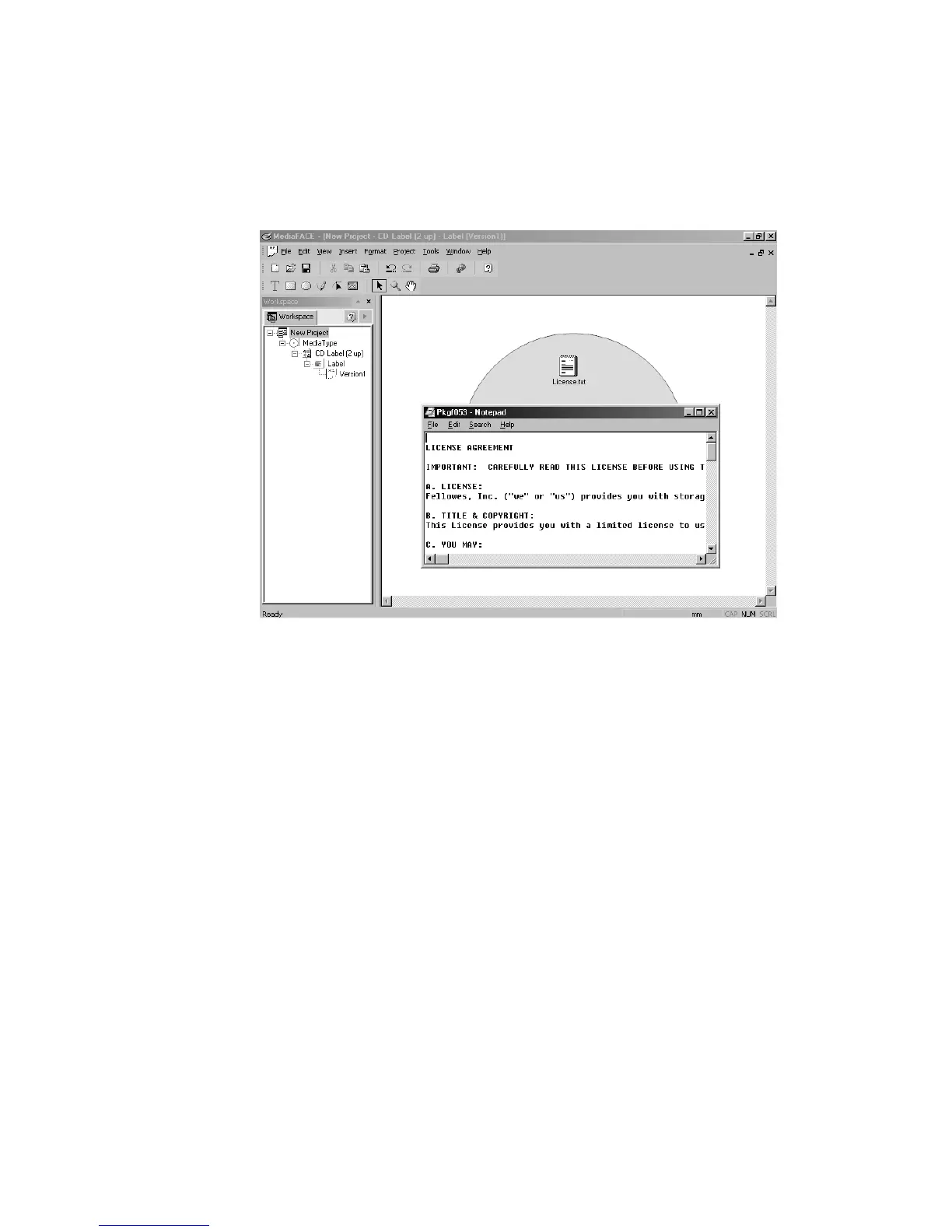
Right-click the object and select Action. Another pop-up menu opens with Edit Object
and Open Object as options. Selecting either option allows you to view or edit the file in
its native program. You can also right-click and select Properties to view and edit the
object’s properties, such as angle rotation and scaling. Here, we selected Action>Open
Object and the text file we inserted was opened within Notepad.
Figure 5.40 – Opening file object
Working with Layers
Layers provide additional flexibility when designing a label. The layers act as a hierarchy
that helps to determine the vertical arrangement of objects on a label. The objects are
arranged in a stacking order that has objects on the top layer always overlaying those on
the layer below. Placing objects on different layers allows you to better organize and edit
objects as you design the label. Each layer can contain a different section of the label
design.
The Layers Palette includes a list of all existing layers in your label. It allows you to
view, edit or print specific layers or combinations of layers. To view the Layers Palette,
select View>Palettes>Layers. The Layers Palette is shown below:



 To Next Page