49
label itself. As you scroll through the project tree structure in the top portion of the
Preview window, the corresponding label is displayed. Please note that project templates
can be designed in the Advanced Interface only and cannot be run through the New
Project Wizard. If you highlight a project template, you will notice that the ‘Run through
wizard’ checkbox is grayed out. Project templates are discussed in more detail in the
Advanced Mode section of this chapter.
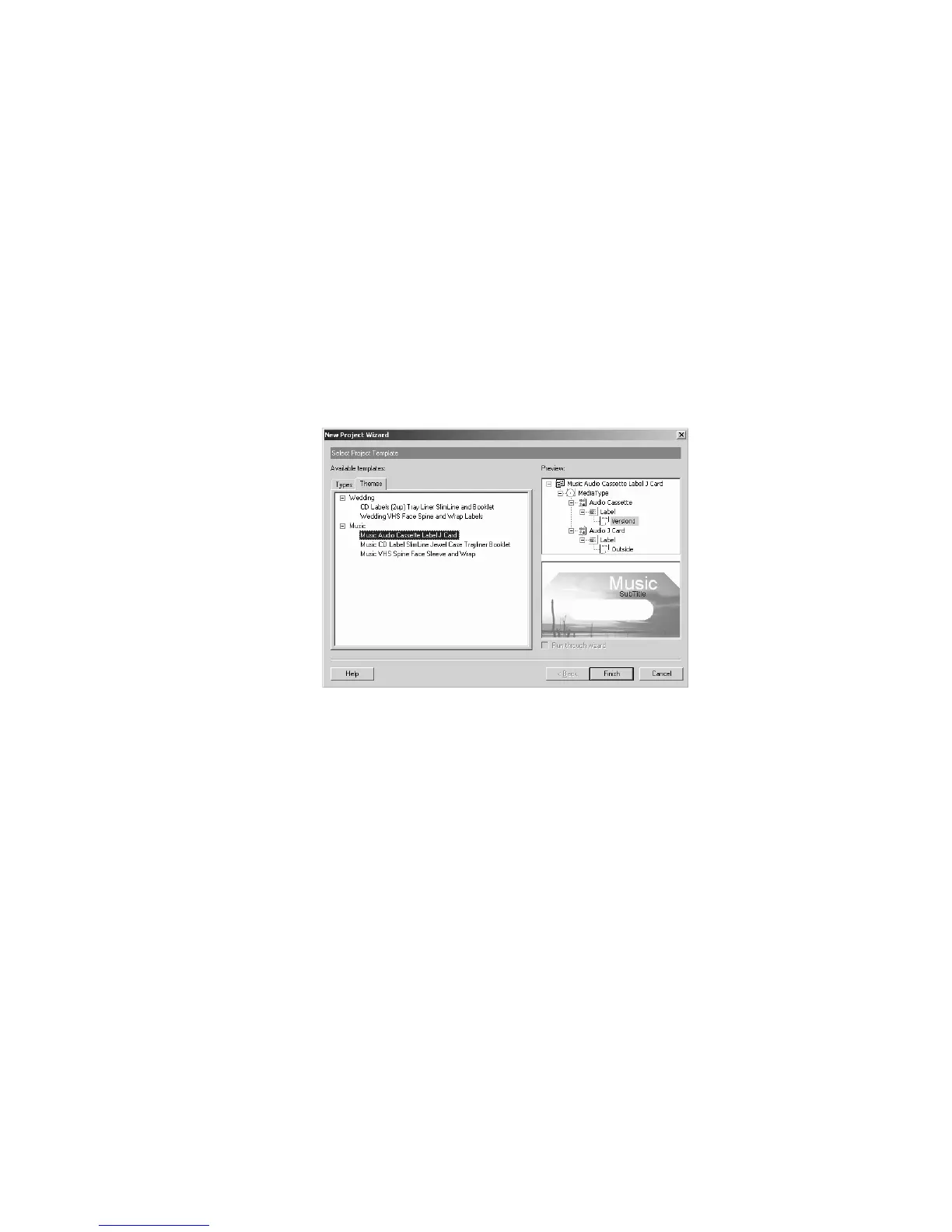
Themes – this tab contains ready-made project themes grouped by keywords. The project
themes include labels with predefined backgrounds and text layouts. Only the text on the
label needs to be modified before printing.
Figure 5.3 – Theme template window
Now that the template options have been discussed, you have the option of designing
your label in the New Project Wizard or directly in the Advanced Interface. If you choose
to work directly in the Advanced Interface, please see the Advanced Mode section in this
chapter.
New Project Wizard
First, we will create a standard CD/DVD label using the New Project Wizard. The
Wizard walks you through the main steps of creating a label, including selecting a
background, adding an image, adding text and printing.
Before we begin, you should still be on the opening screen for the New Project Wizard.
Be sure that the Types tab is selected and the Label Template tree is expanded. From the
list of available label templates, select the ‘CD Label (2 up)’ template. The ‘Run through
wizard’ checkbox should be selected by default. If it’s not, then select it now by clicking



 To Next Page