48
Selecting a Project Template
Selecting a project template is the first step in creating a label in MediaFACE® 4.01.
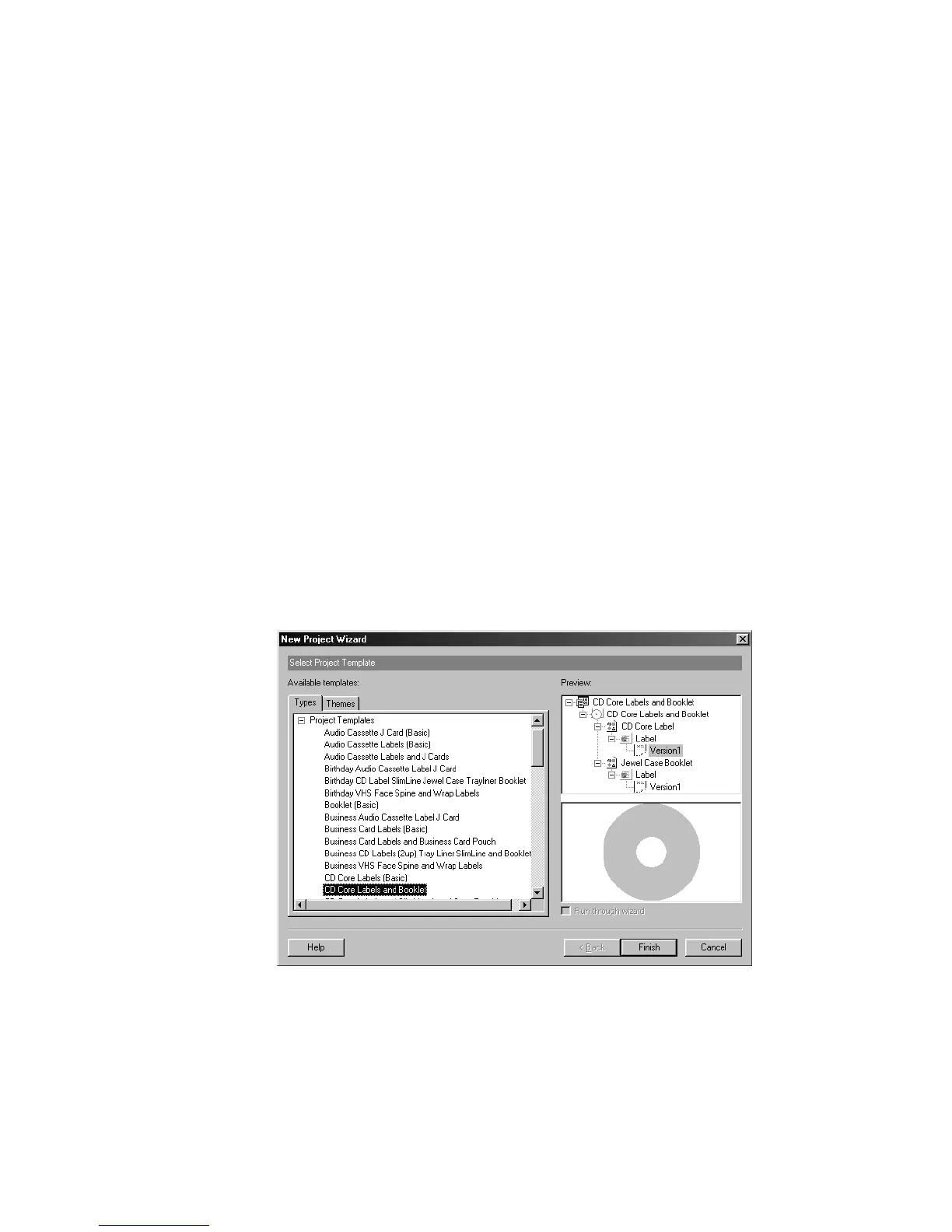
This screen includes the New Project Wizard dialog box, which contains the following
tabs:
Types – this tab displays the template options available in MediaFACE® 4.01. Please
note: the Label Templates tree may be expanded on default. To view all options within
this tab, collapse the tree by left-clicking once on the small box to the left containing the
‘-’ symbol. To expand the tree, left-click once on the small box to the left containing the
‘+’ symbol.
Label Templates - a label template is the starting point for creating a label in
MediaFACE® 4.01. It is essentially a copy of a blank label to which you can add
text and pictures. Label templates can be designed through the New Project
Wizard or directly in the Advanced Interface. (A complete list of
Fellowes/NEATO media products appears at the end of this chapter.
Project Templates - If you expand the Project Templates tree, you will see a list of
all available project options. Each option is a project template, which contains all
of the labels on a specific sheet of paper. For example, the CD Core Labels and
Booklet project template includes a CD Core label and Jewel Case Booklet. (A
complete list of Fellowes/NEATO media products appears at the end of this
chapter.) Highlighting this project template in the list displays a preview of the
project in the Preview window as shown below:
Figure 5.2 –Project templates preview
The top portion includes a graphical representation of the project tree structure, as it
would appear in the Workspace Navigator window (discussed later in this chapter) of the
Advanced Interface. All the label types that are included in a particular project are listed
here. The lower portion of the Preview window includes a graphical representation of the



 To Next Page