41
Curved Effect – Applies the curved effect to text fields.
Object Properties – Displays the property dialog box for a selected object.
Project Toolbar
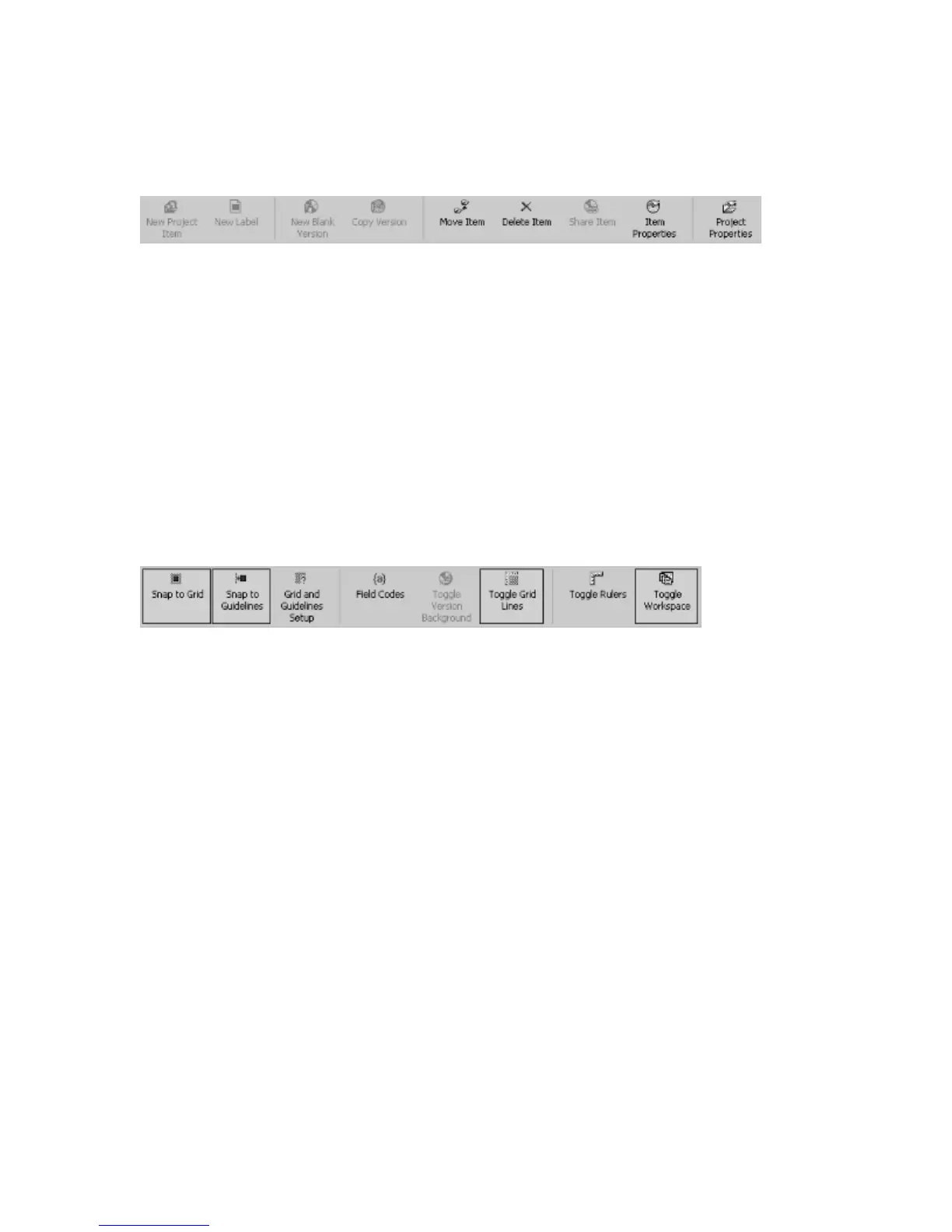
The following icons are on the Project Toolbar:
New Project Item – Allows you to add a new project item to the project tree.
New Label – Allows you to add a new label to the project tree.
New Blank Version – Allows you to create a new version of the current label
template.
Copy Version - Allows you to create a new version of the current label as either a
copy of the default label version or a copy of the currently selected version.
Move – Allows you to move the saved folder location of a project.
Delete – Deletes a selected project.
Share – Allows you to share a selected project.
Item Properties – Displays the project properties.
Project Properties – Allows you to view a project’s properties.
View Toolbar
The following icons are on the View Toolbar:
Snap to Grid – Snaps an object (text or image) to the nearest grid line for
alignment.
Snap to Guidelines – Snaps an object (text or image) to a guideline for alignment.
Grid and Guidelines Setup – Allows you to create and edit grid and guideline
settings.
Field Codes – Shows the field codes instead of text.
Toggle Version Background – Allows you to turn the background for a label
on/off.
Toggle Grid Lines – Allows you to turn the grid lines on/off.
Toggle Rulers – Allows you to turn the rulers on/off.
Toggle Workspace – Allows you to display the Workspace palette.
Customizing Menus and Toolbars
MediaFACE® 4.01 allows you to customize the appearance of the main window. Right-
clicking in the menu bar and toolbar area opens a pop-up menu that allows you quick
access to the toolbar viewing selection. Simply selecting or deselecting a toolbar from the
list will turn the given toolbar on/off. By selecting Customize from the pop-up menu, you
can customize toolbars, menus, options, keyboards and commands. The Customize dialog
box is shown below:



 To Next Page