40
Standard Toolbar
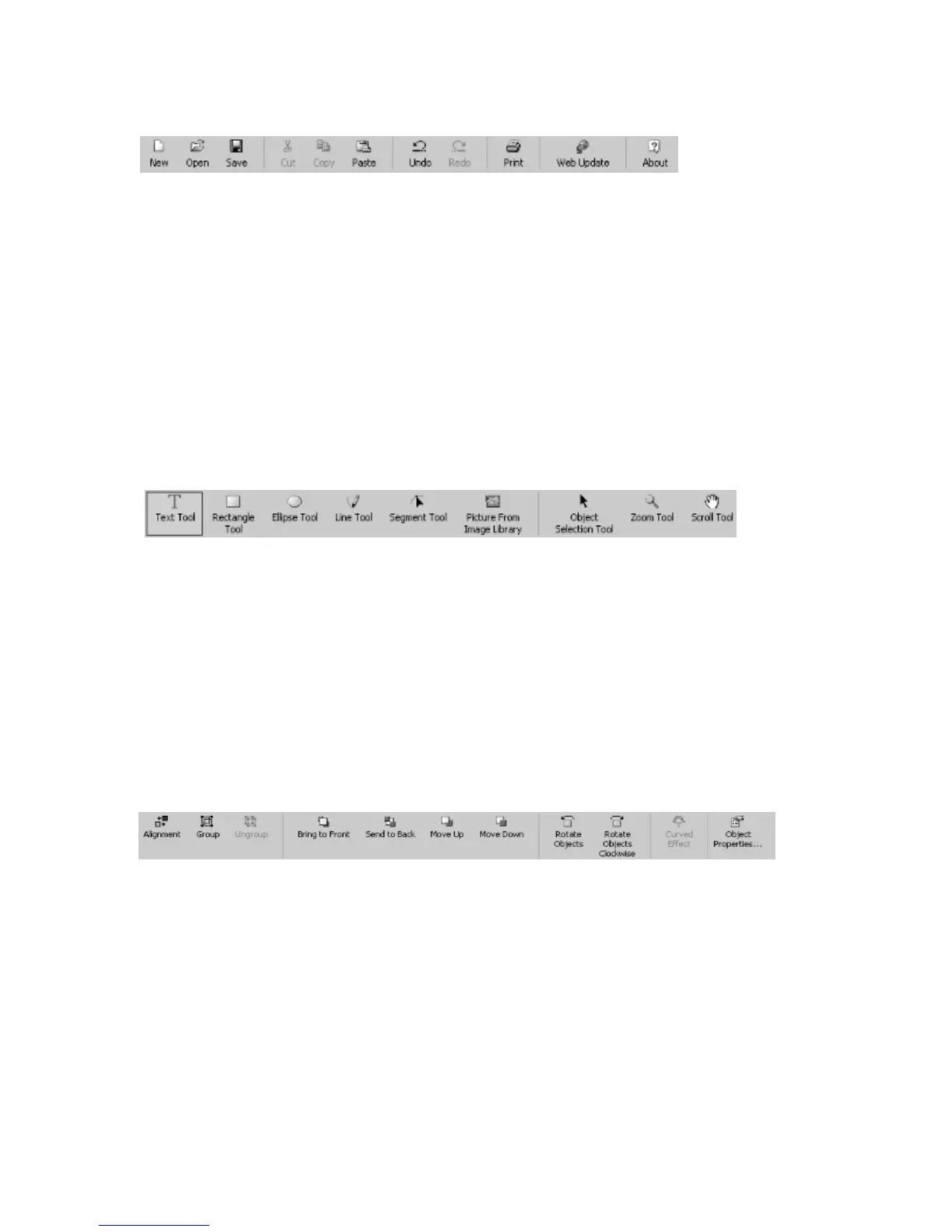
The following icons are on the Standard Toolbar:
New - Allows you to create a new project based on a label template, project template or
theme.
Open - Allows you to open an existing project.
Save - Saves the current project under the existing name.
Cut - Removes selected object (text or image) and copies it to the clipboard.
Copy - Copies the selected object (text or image) to the clipboard.
Paste - Pastes the contents of the clipboard to a selected location on your label.
Undo - Allows you to undo the last action.
Redo - Allows you to return the document to its state before the last undo.
Print - Prints the current label project.
Web Update - Allows you to download new templates, images and software updates.
About - Displays important licensing and contact information.
Object Tools Toolbar
The following icons are on the Object Tools Toolbar:
Text Tool – Inserts a text field onto the label.
Rectangle Tool – Inserts a rectangle onto the label.
Ellipse Tool – Inserts an ellipse onto the label.
Line Tool – Inserts a line, or series of lines, onto the label.
Segment Tool – Selects a specific segment of a line and applies changes.
Picture From Image Library – Inserts an image from the image library.
Object Selection Tool – Selects an object on the label.
Zoom Tool – Allows you to change the magnification of the label.
Scroll Tool – Allows you to scroll the label around in the Label Workspace.
Format Toolbar
The following icons are on the Format Toolbar:
Alignment – Aligns multiple objects together.
Group – Groups multiple objects together so they can be easily moved on the
label.
Ungroup – Ungroups objects that were previously grouped together.
Bring to Front – Brings the selected layer to the top.
Send to Back – Sends the selected layer to the bottom of the stack.
Move Up – Moves selected layer up one position in the stack.
Move Down – Moves selected layer down one position in the stack.
Rotate Objects – Rotates selected objects in a counter-clockwise direction.
Rotate Objects Clockwise – Rotates selected objects in a clockwise direction.



 To Next Page