150
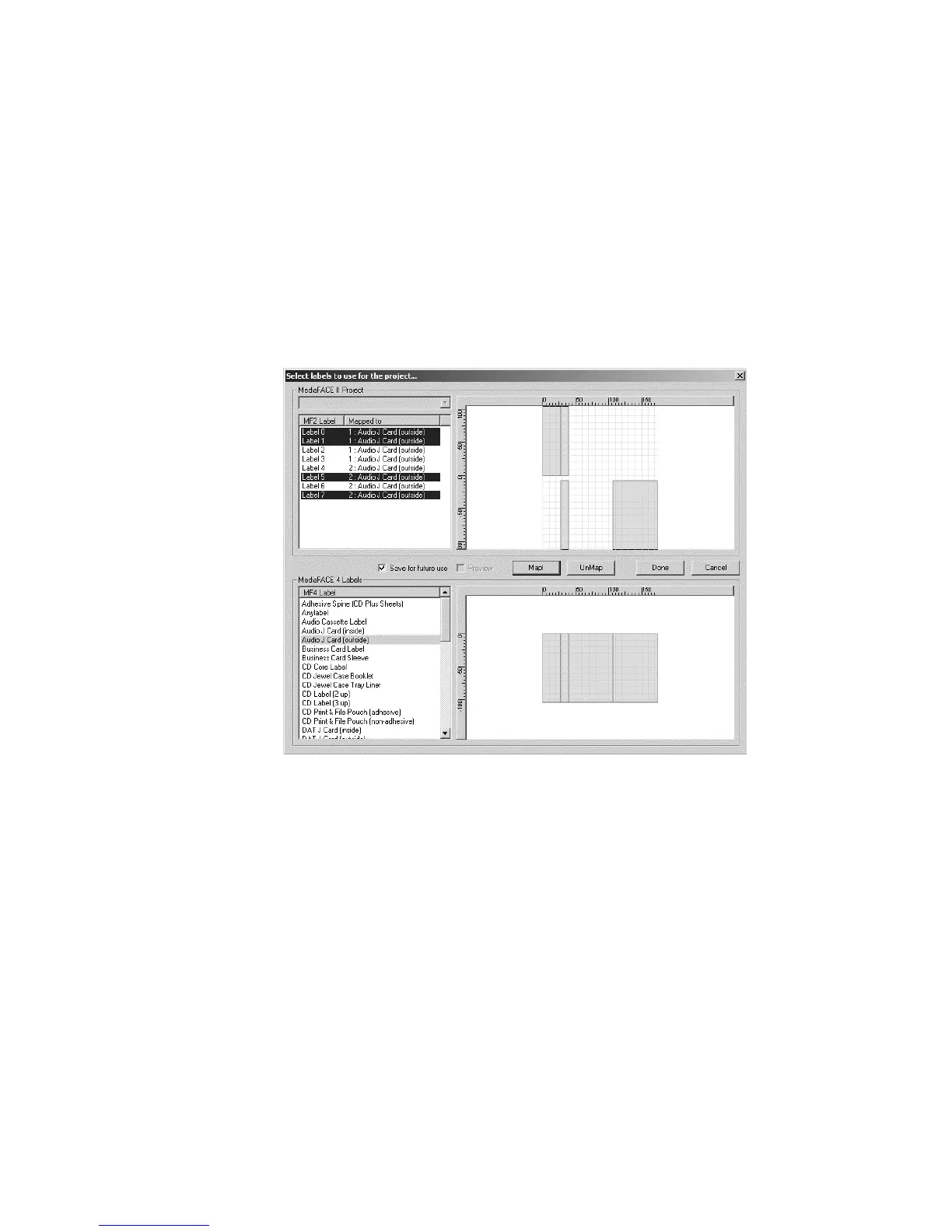
Select the MediaFACE II Project from the dropdown list
Select one or more labels from the MediaFACE II project. A preview of the
labels selected can be viewed in the display window to the right of the list.
Next, select a label in the MediaFACE® 4.01 list to find an exact match for
the labels selected above. The label preview is viewed in the same scale factor
to allow for a more accurate comparison.
When a match is found, click the Map! button. The label mapping is shown in
the ‘Mapped to’ column next to the list of MediaFACE II labels, as shown
below:
Figure 6.48 – Label Mapping dialog box
Label mappings are displayed in the format: <group number> :
<MediaFACE® 4.01 label name>. The group number is used to distinguish
between the sets of MFII labels mapped to the same MediaFACE® 4.01 label.
Therefore, labels listed in the ‘Mapped to’ column with the same group
number means that they are both mapped to a single MediaFACE® 4.01 label.
To remove an existing label mapping, select the label from the ‘Mapped to’
column and click the Unmap button. To delete an entire group of label
mappings, select one label from the group and click the Unmap button. A
warning message is displayed as shown below:



 To Next Page