24
Next, let’s add some custom text to our CD label.
To add custom text:
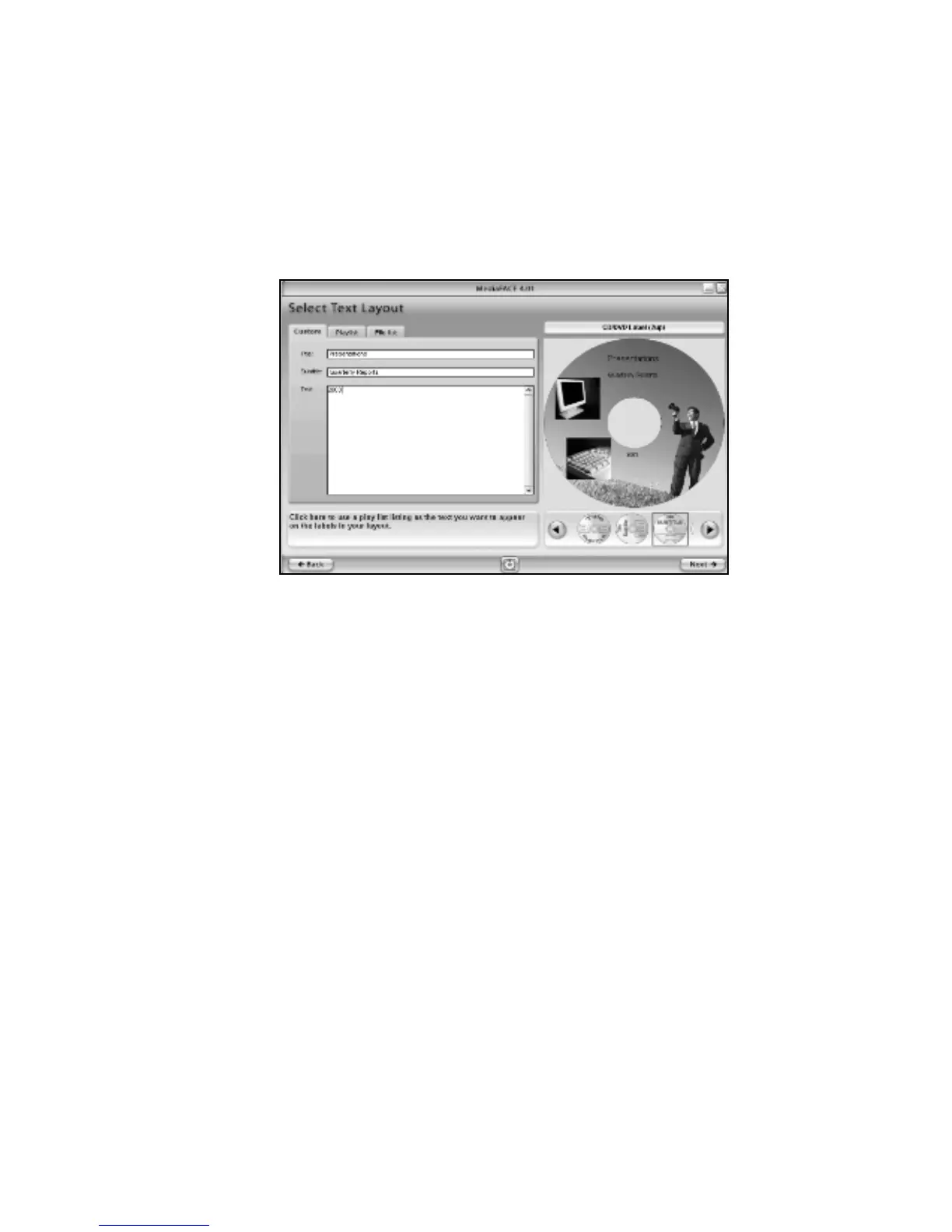
Click on the Custom tab.
Highlight the Title box. Type “Presentations” in the box.
Highlight the Subtitle box. Type “Quarterly Reports” in the box.
Highlight the Text box. Type “2003” in the box.
Figure 2.7 – Adding custom text
As you type in the text, you will see it instantly appear on the CD label in the Project
Workspace. The text will be displayed in a default font style and size. After predefined
text options are discussed below, we will look at additional options available to change
the appearance of the text on the label.
In addition to custom text, MediaFACE® 4.01 also allows you to add predefined text,
such as play lists and file lists. Play lists are added using Digital Finger Printing, which
reads the information from music CDs and adds it to your label. NOTE: You must be
connected to the Internet to use the Finger Printing feature. File Lists from
directories can be read from a disk or drive and inserted as text on your label. For both
options, the text is entered as a simple text field and can be edited and manipulated as
such. Steps for adding predefined text are included below:
To enter a Playlist from an audio CD:
Connect to the internet
Insert an audio CD into your drive.
Click on the PlayList tab (top row on right).
Click the Choose Directory button.
Select the drive containing the CD from the list and click OK.
Click the Finger Print button (bottom row on left). Artist, album name and
individual track information (name and duration) is downloaded and displayed
both in the Option Display Window and on your label.



 To Next Page