26
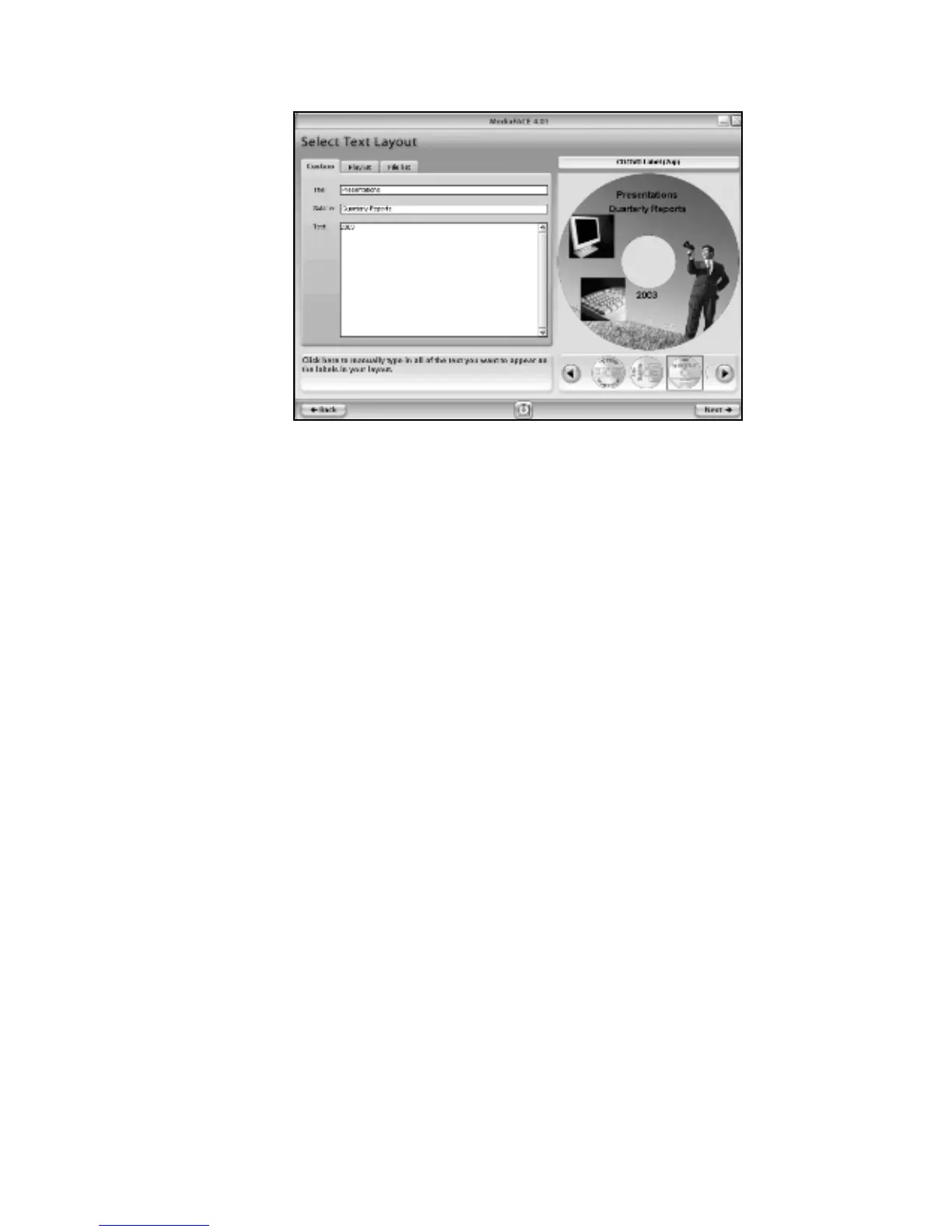
Figure 2.8 – Changing font style and size
To move a text field:
Left-click once to select the text field. The mouse pointer changes to the
Move/Edit tool.
Left-click once and hold down the mouse button while dragging the mouse.
Release the mouse button after you’ve moved the text field to its new location
on the label.
To resize a text field:
Left-click once to select the text field. The mouse pointer changes to the
Move/Edit tool and sizing handles will be displayed around the border of the
text field.
Next, move your mouse to one of the sizing handles. The mouse pointer
changes to a smaller Move/Edit tool.
Left-click and hold the mouse button down while dragging the handle in any
direction. Selecting different handles will have different stretching or
shrinking effects on the text field. As you resize the text field, the point
position (X and Y values) will be displayed.
To scale a text field, hold down the Shift key while dragging the handle.
Scaling a text field will retain its original proportions. As you scale the text
field, the percentage value its original size will be displayed.
To rotate a text field:
Double-click on the text field. The mouse pointer changes to a small cross-
hair.
Hold down the left mouse button while moving the mouse in a circular
motion. As you rotate the text field, the angle value will be displayed.
To delete a text field:
Left-click once to select the text field.



 To Next Page