71
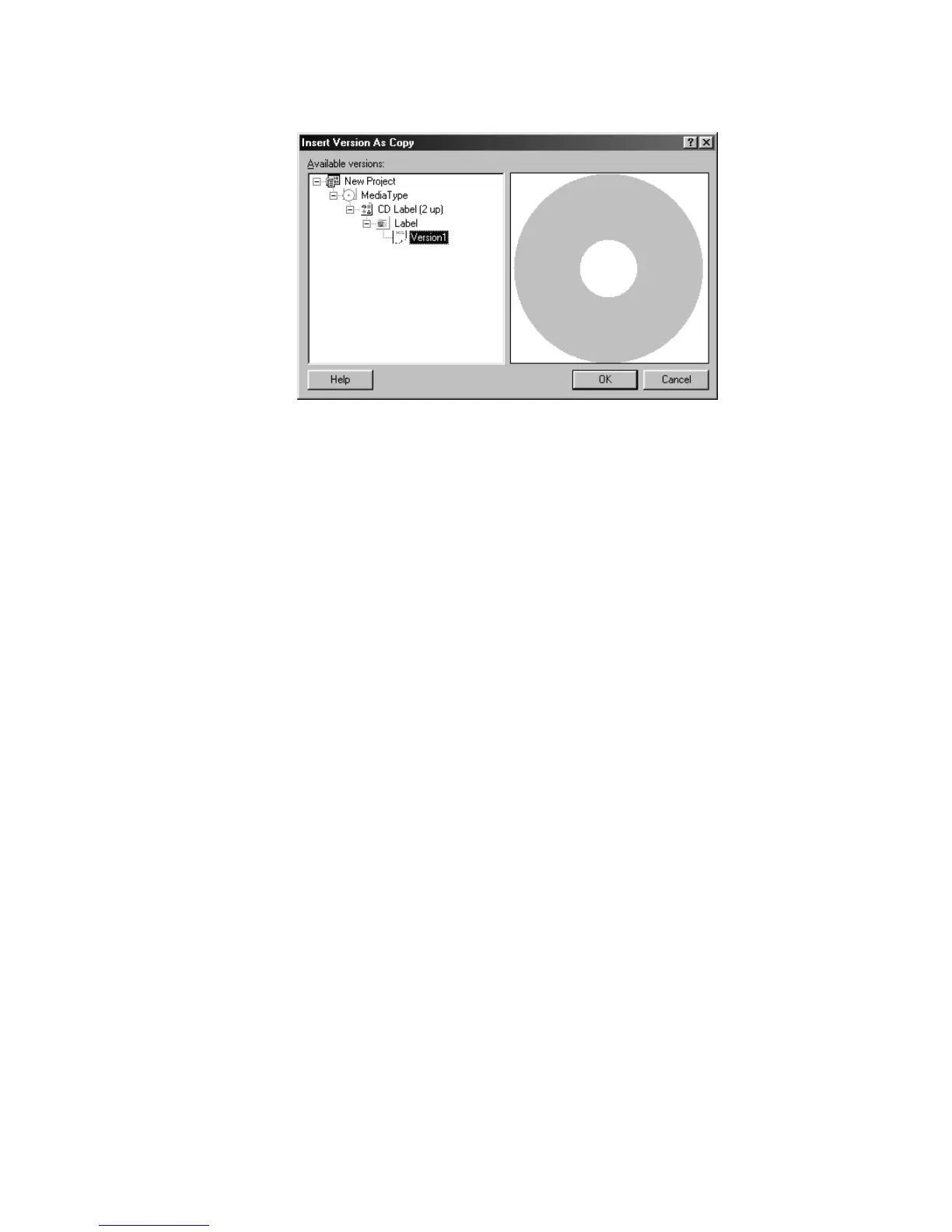
Figure 5.25 – Insert Version as Copy dialog box
Additional ways to create a new version:
Select Project>Insert>Version from the menu.
Select Blank or As Copy.
For Blank, enter a version name and click OK.
For As Copy, select the version you want to copy from the list and click OK.
Or, click on the New Blank Version icon or the Copy Version icon in the
Project toolbar.
When a new version is created, it will appear directly below any existing versions for that
label. Right-clicking on a version provides you with access to a shortcut menu for that
version. The shortcut menu includes the following options:
Create New Version – allows you to create new versions as blank copy or copy of
existing version.
Close – closes selection version. To reopen, double-click on version name.
Rename – allows you to rename selected version.
Delete – deletes selected version.
Share – allows you to share a selected version with another label in your project.
When a version is shared with another label, a new copy of the version is created and
displayed directly below the label. Special link icons are displayed to represent the
link established between the new and original items. Any changes in the original
version will automatically apply to the linked version and vice versa. You can later
choose to break this link in the Version Properties Dialog.
Print Version – allows you to print the selected version.
Save Version as Template – allows you to save selected version as a MediaFACE® 4.01
version template that can be selected when creating new labels in either the Design
Wizard or the New Project Wizard.
Properties – displays the properties dialog box for the selected version. From this
dialog box, you can rename or share the version, set the default version and apply a
background to the label version.



 To Next Page