83
At the bottom of the Text Style palette window, there are dropdown lists that allow you
to change the font type and size. Below these are toggle buttons to apply formatting to the
text – bold, italics, underline, strikethrough, upper case, foreground, background, shadow
and alignment options. To apply any of these changes to text directly in the palette
window, highlight the text first to select it for editing.
Highlighting the text in the palette window and right-clicking once can access additional
format options. A pop-up window that contains the copy/paste commands, paragraph
alignment and spacing, and numbering format options opens.
Text Effects
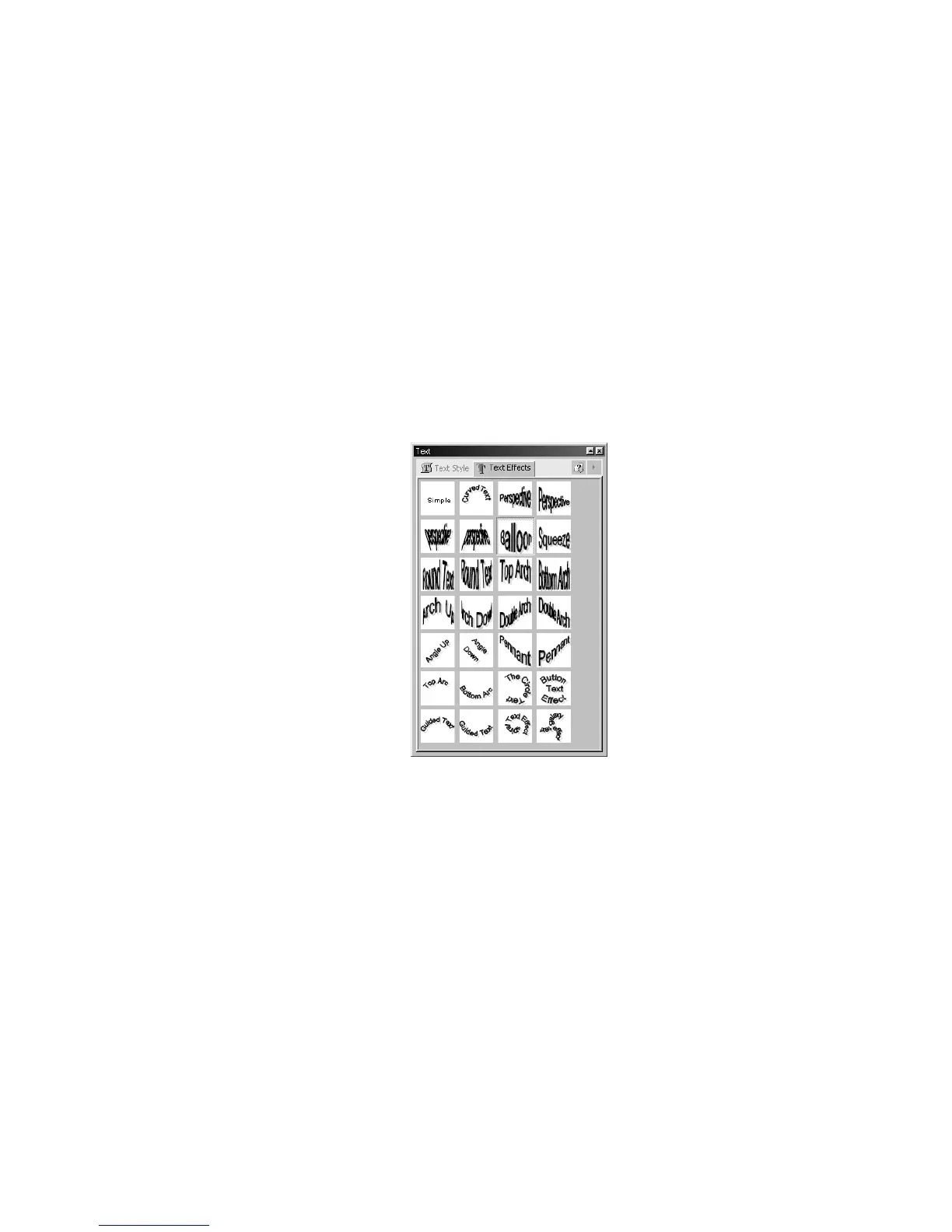
Text effects are visual effects applied to text, in addition to the standard font
modifications, in order to enhance its appearance. An example of each visual effect as it
appears in the Text Effects Palette is shown below:
Figure 5.27 – Text Effects Palette
To apply text effects:
Select Insert>Tools>Text from the menu.
Left-click and hold the mouse button down. Then drag the mouse diagonally
to insert the text field.
The Text Style/Text Effects Palette will open. Type your text in the Text
window.
Select the Text Effects tab. All available effects are shown here. The
appearance of your text will change as you select different effects.
Additional ways to insert text effects:
Click the Text Tool in the Objects Tools toolbar.
Left-click and hold the mouse button down. Then drag the mouse diagonally
to insert the text field.



 To Next Page