95
Using the Segment Tool:
Create a multi-segment line. See above section for steps involved.
Left-click once to select the line. The segment points will be displayed around
the shape.
Select the Segment Tool from the Object Tools toolbar.
Move the Segment Tool over one of the points. You will see a small curved
line appear to the bottom-right of the Segment Tool.
Left-click and hold as you drag the segment point and change the shape.
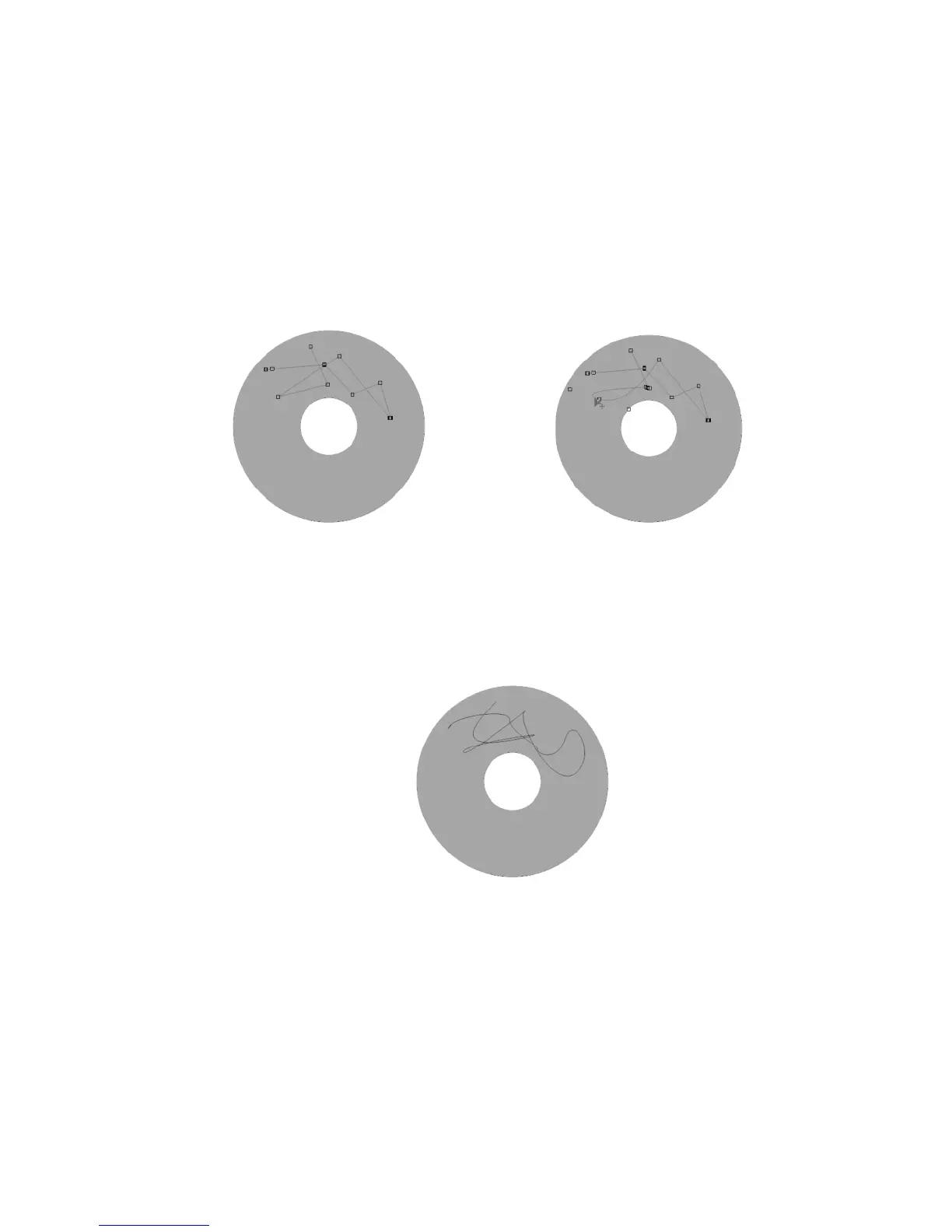
Original multi-segment line Using Segment Tool with segment point
Or, move the Segment Tool to the middle of one of the segments. You will
see a small curved line appear to the bottom-right of the Segment Tool.
Left-click and hold as you drag or twist the segment and change the shape.
Using Segment Tool with segments
You can also create unique closed shapes by connecting the first and last segment, or
other segments within the line:
To create a closed shape:
Select Insert>Tools>Line Tool from the menu.
Left-click and release the mouse where you want the line to start.
Move the mouse to the end of the first segment of the line, left-click and
release.



 To Next Page