FVA-IP Camera Installation and Operation Manual
Revision Date: June, 2019 P/N 06-523 (Rev. 5) 13
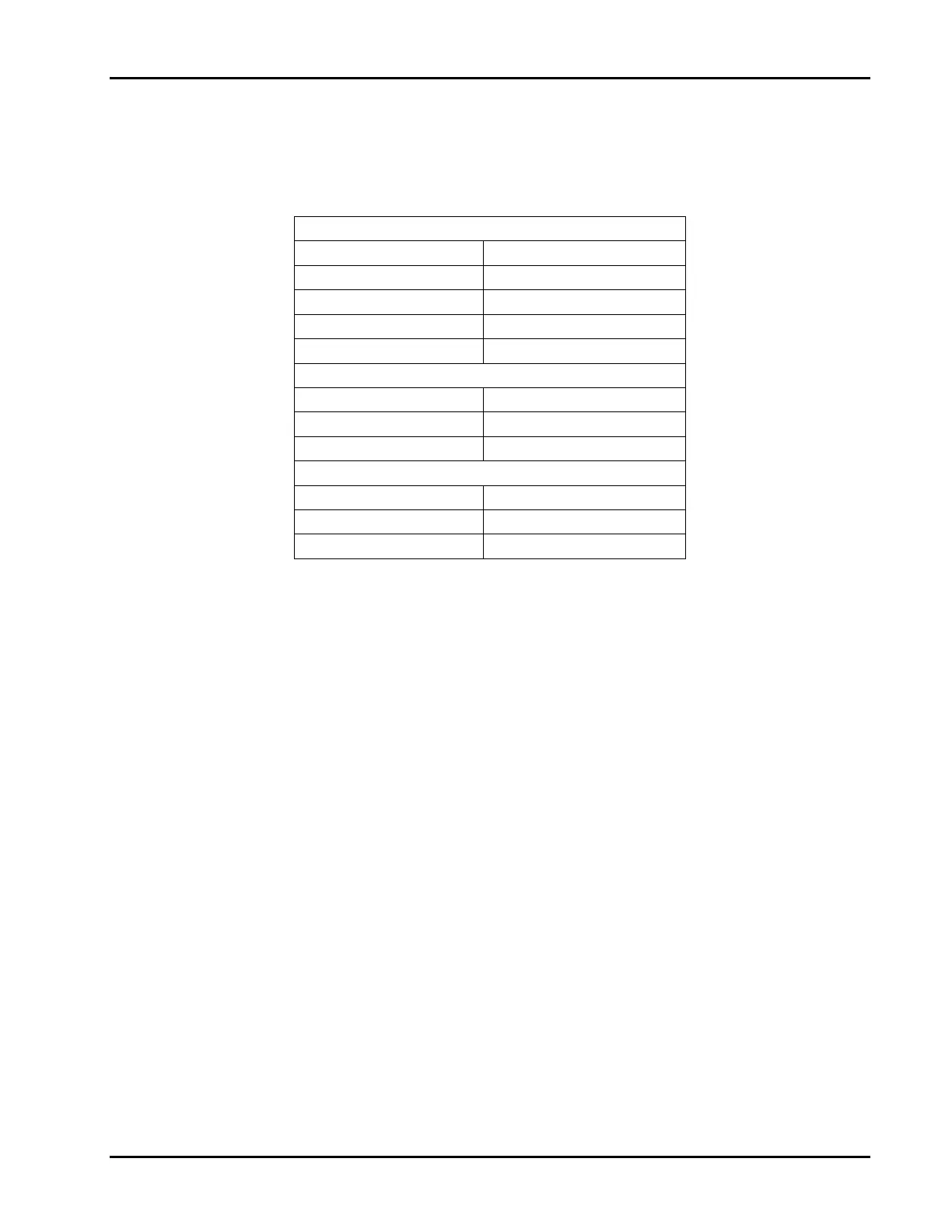
There are threeLED’s located on theFVA‐IP camera; front,rightrearandleftrear.Thecolorofthepulseandthe
resulting state are listed in Table 4. The Front LED provides the alarm condition ofthe camera. The left rear LED
indicates the condition of the network connection for trouble shooting purposes. The right rear LED indicatesthe
stateoftheimagecollectionandinternalprocessingoftheimagesbytheanalytics.
FrontLED
Color State
GreenPulse(1secinterval) Normal
GreenPulserapid Motion
YellowPulse Trouble
RedPulse Alarm
LeftRearLED(reffromrear)
GreenPulse Networknormal
RedPulse NetworkFailure
YellowPulse httpserverFailure
RightRearLED(reffromrear)
GreenPulse Every15
th
frame(Imagetask)
YellowPulse CameraControlTaskFailure
RedPulse ImageTaskFailure
Table4:ColorandStateofthethreeLED’slocatedontheIPcamera.
Torunthe FVA‐IPcamerainterfaceandconfigurethe cameraacomputer witheitherFireFoxor InternetExploreris
required.IfInternetExplorerisused,Javamustbeproperlyinstalledanduptodateinordertoseethevideofeed.
FireFoxcanbeeasilydownloadedandwillrunbothJavaandmultipartstreamvideofeedoptions.
InadditiontothewebbrowseranetworkconnectionwithafixedIPconfigurationmustbeestablished.TheFVA‐IP
cameracomespre‐configuredwithaFixedIPaddressof192.168.0.100.Thisrequiresthecomputerusedtoconfigure
thecamerabesettoa fixed IP to initially communicate withthecamera,forexample192.168.0.1.Oncetheinitial
communication is acquired, the camera can be configured to function on a DHCP or a Fixed IP Network and its IP
addresscanbechangedtospecificallyidentifythecamera.
3.2 Power&Computerconnections
TosetyourcomputertoafixedIP:
1. SelectStart>ControlPanel>NetworkandInternetConnections.
2. ClicktheNetworkConnectionsicon.
3. Right‐clicktheLocalAreaConnectioniconandselectProperties.TheLocalAreaConnectionPropertiesdialog
boxopens.


 To Next Page