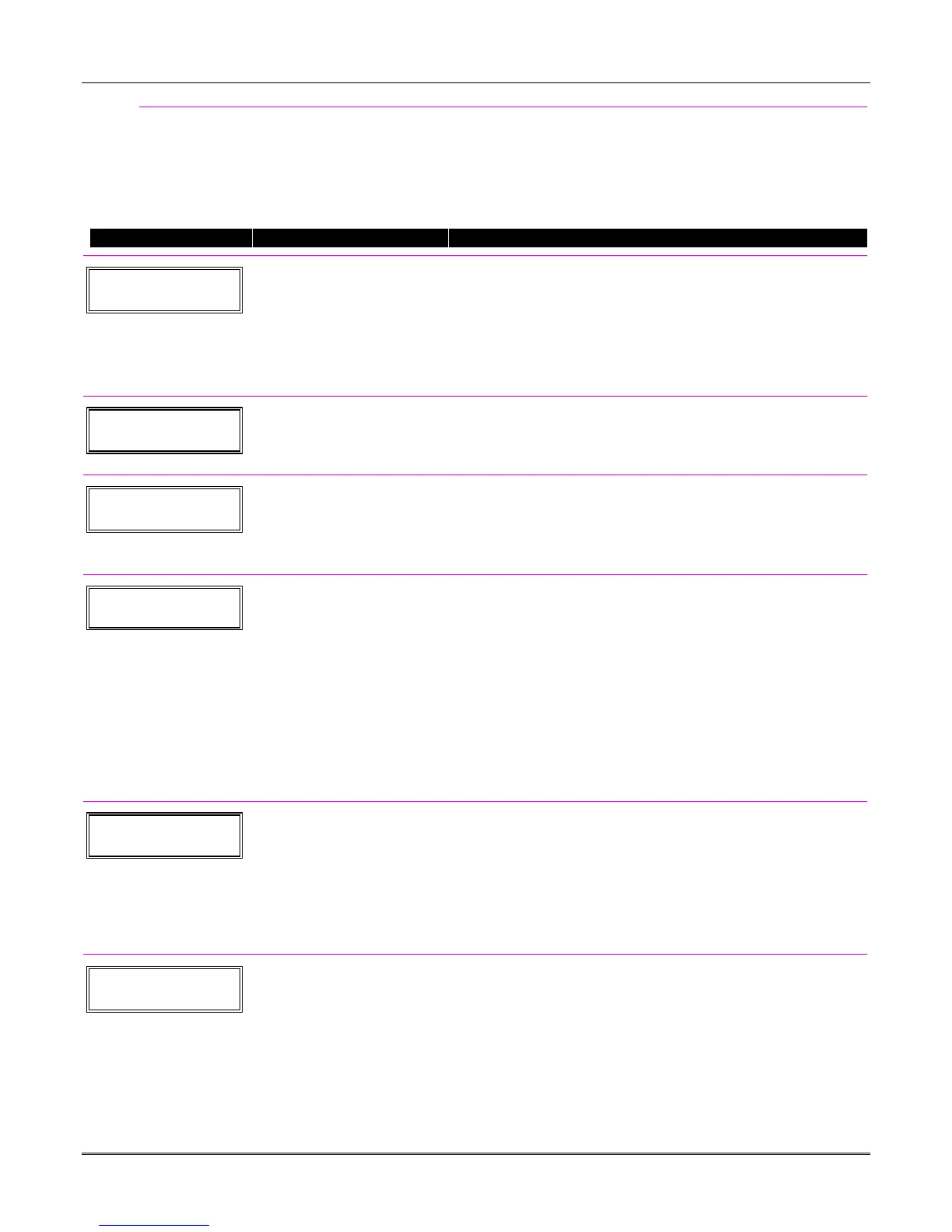
Wireless Key Programming Templates
This procedure programs the wireless keys, but a key is not active for arming/disarming until
it is assigned to a user number (see System Operation section, assigning attributes command).
If the D key was previously pressed (from *58 Menu mode) to program 5804 and/or 5804BD wireless
keys, the following screens appear.
PROMPT
VALID ENTRIES
EXPLANATION
TEMPLATE ?
1–6 1
Template Number
1–3 = 5804 templates
4–6 = 5804BD templates
[
∗
] to continue
1. Enter Template number 1–6 (from next page).
See the defaults provided for each template in the chart that
follows these procedures.
2. Select from templates. Press [
✱
] to display template (1 shown
selected).
NOTE
: If necessary, press [#] to back up and re-enter
template number.
3. If you want to return to the *58 Menu mode Summary Screen,
press [#].
L 01 02 03 04
T 23 22 21
23
Template Display
[
∗
] to continue
4. When [
✱
] is pressed, the selected template will be displayed.
Top line of display represents loop numbers, bottom line
represents zone type assigned for each loop.
5. Press [
✱
] to accept template.
PARTITION
1
Partition
1 = partition 1
2 = partition 2
3 = common partition
[
∗
] to continue
FA168CPS.
6. Enter the partition in which the key is to be active.
7. Press [
∗
] to continue.
ENTER START ZONE
00 = QUIT 36
Start Zone Number
[
∗
] to continue
8. The system will search for the highest available consecutive 4-
zone group (the four zones in the case of the 5804 and 5804BD),
and display the lowest zone number of the group.
If you want to start at a different zone, enter the zone desired,
and press [
✱
]. If that zone number is displayed, the system has
the required number of consecutive zones available, beginning
with the zone you entered. If not, the system will again display a
suggested zone that can be used.
If the required number of consecutive zones is not available at all,
the system will display “00”.
To quit this mode
and return to *58 Menu mode, enter 00 at
this prompt.
9. Press [
✱
] to accept.
INPUT S/N L
AXXX-XXXX –
Serial Number
[
∗
] to continue
10. Manually enter the serial number printed on the label for the
wireless key or press and release the button to transmit its serial
number.
11. Press [
✱
] to accept the serial number. The system will check for
duplicate.
12. If necessary, press the [#] key to back up without saving, and re-
enter the serial number.
Use the [A] key to move forward within the screen, and the [B] key to
move backward.
XMIT TO CONFIRM
PRESS
✱
TO SKIP
Confirm
[
∗
] to continue
13. If “Yes” was entered at the
SET TO CONFIRM?
prompt
previously (see first prompt following entry into the
∗
58 Expert
Programming Mode), the display on the left will appear. Confirm
serial and loop numbers by activating the wireless key.
IMPORTANT:
When confirmed, the key is not active for arming/disarming until it
is assigned to a user number (using the assigning attributes
command, attribute “4”). See
System Operation
section for
procedure.
Installation Instructions
5-6



 To Next Page