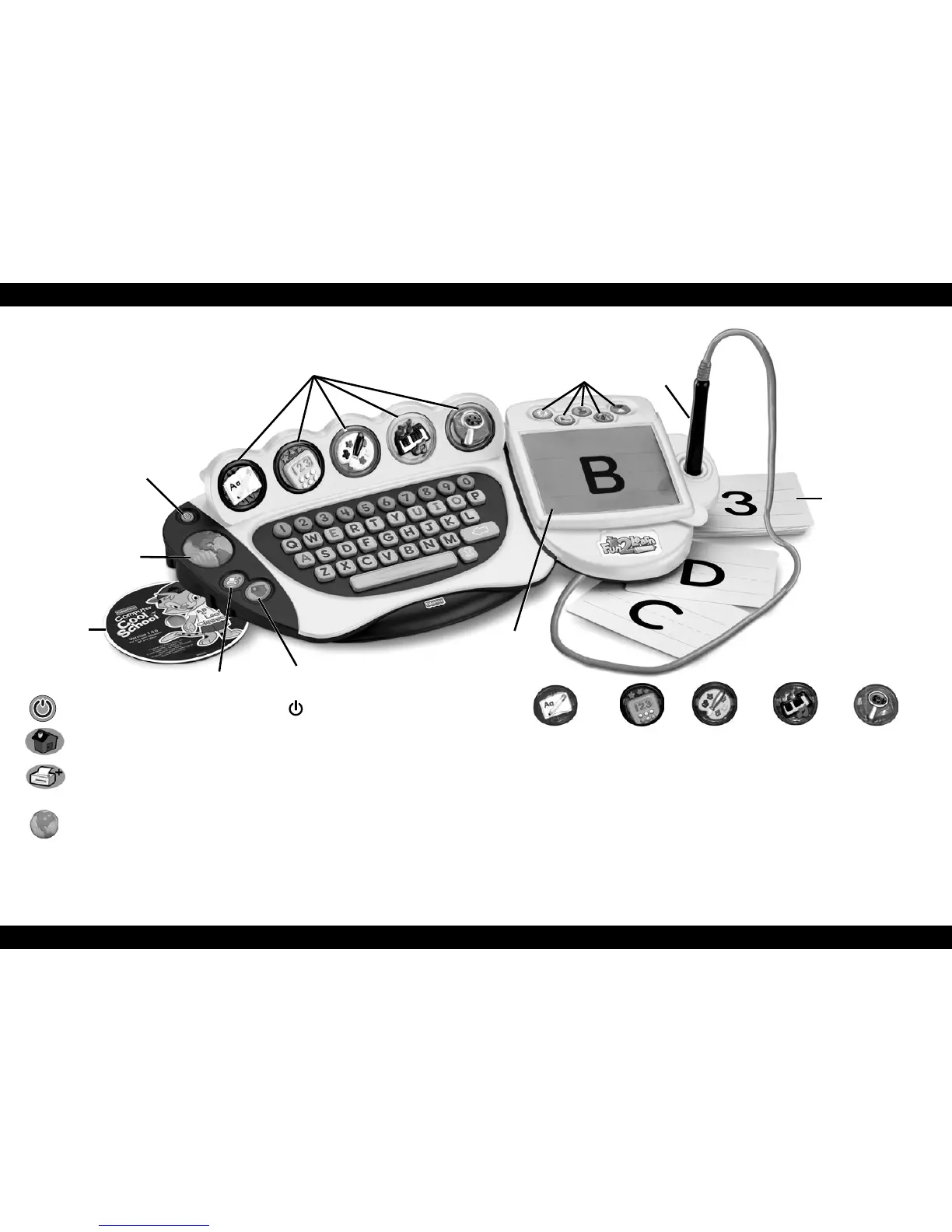
Learning Centre Buttons – Press any of these buttons for activities in that subject.
Note: You can only use the learning centre buttons to select a subject. You cannot
select learning centres with the pen or your computer mouse.
Art Tools – Press these buttons for Erase, Backgrounds, Stampers, Tools or Colours.
Note: These buttons do not work in every centre.
Templates
Practice writing letters and numbers with the templates in some activities. Place
a template under the writing tablet cover. Close the cover and trace the letter or
number with the pen.
Computer Cool School
™
Keyboard
System Launch Button
Software
Classroom Button
Field Trip Button
Print
+
Button
Writing Tablet
Templates
Pen
Art Tools
System Launch Button – Press this button
to start the software.
Classroom Button – Press this button to go to the classroom during
any activity.
Print + Button – Press this button to choose and print activity sheets for
learning on the go! Press this button to access Parental Controls and in the
Art Centre to save your work and access the art gallery.
Field Trip Button – Press this button to go on a fi eld trip!
Pen - Move the pen over the tablet. Push the tip of the pen straight down
and release to make selections.
Writing Tablet - Lift the cover on the writing tablet to put a template on the
tablet. Close the tablet cover to hold it in place.
Reading and Writing
Math Art Music Science
Learning Centre Buttons
12 13





 To Next Page