Set Parental Controls
8
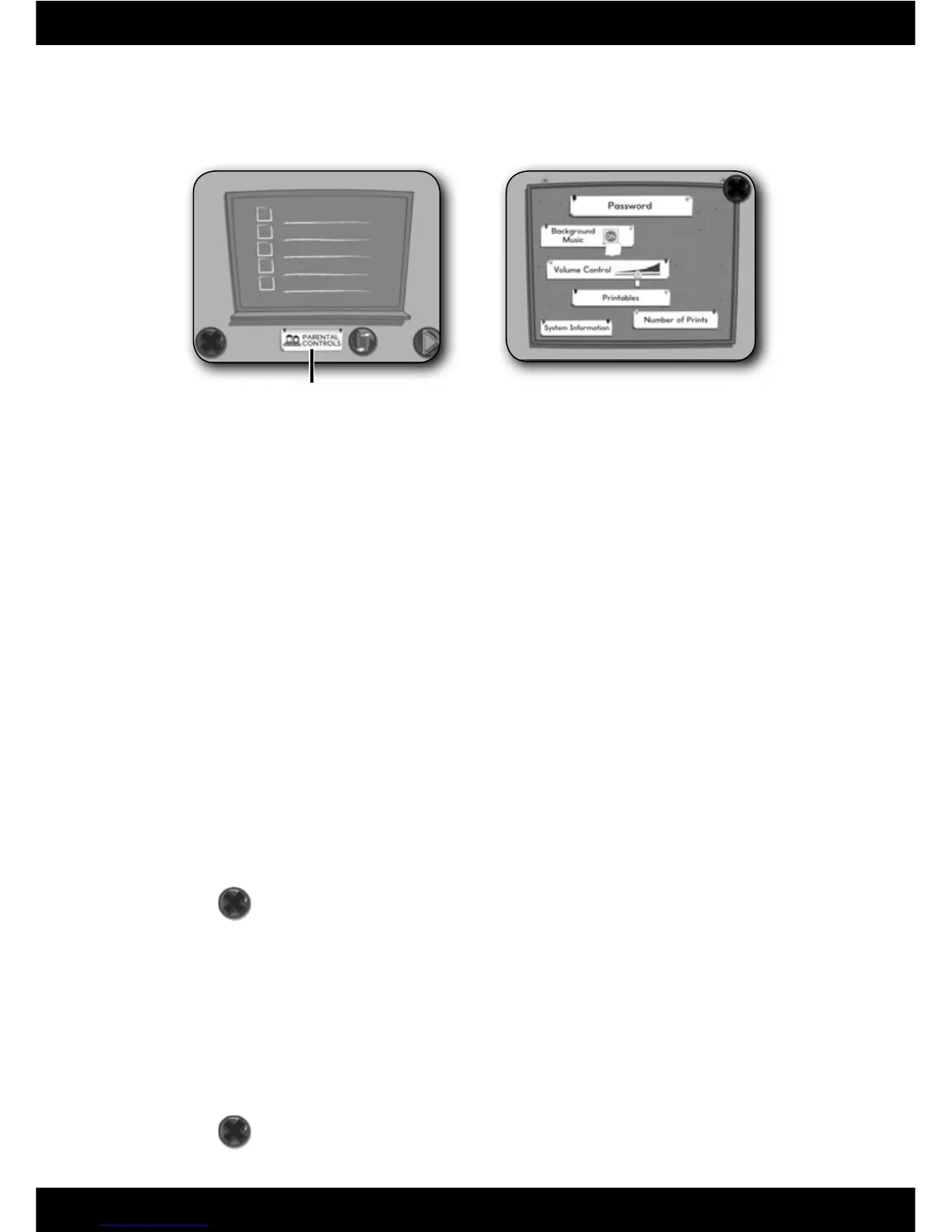
• To set-up or change parental controls, click on Parental Controls icon, located
on the Sign-In screen.
Parental Controls Icon
Set the following options on the parental controls screen:
• Protect access to your desktop and hard drive by setting a password.
• Type your password in the Password and Confi rm Password fi elds. Select a
hint to help you remember your password.
Note: If you set a password, you cannot enter Parental Controls or exit the
software without entering the password.
Background Music
• Click to turn the background music on or off.
Volume Control
• Click and drag the control button to turn the volume up or down.
Printables
• Select a subject on the bottom of the bulletin board to view printouts for
that subject. Click on the sheet you’d like to print. Click on the arrows to view
more printouts.
• Click on the
to go back to the Parental Controls.
Number of Prints
• Click on the arrows to select the number of printouts for each session. Choose
a number from 1 to 20 or select unlimited. If you do not make a choice, the
number of prints defaults to unlimited.
System Information
• View information about your software, operating system, fi rmware
and accessories.
• Click on the
to exit Parental Controls.
Parental Controls Screen





 To Next Page