9
Software Selection Screen
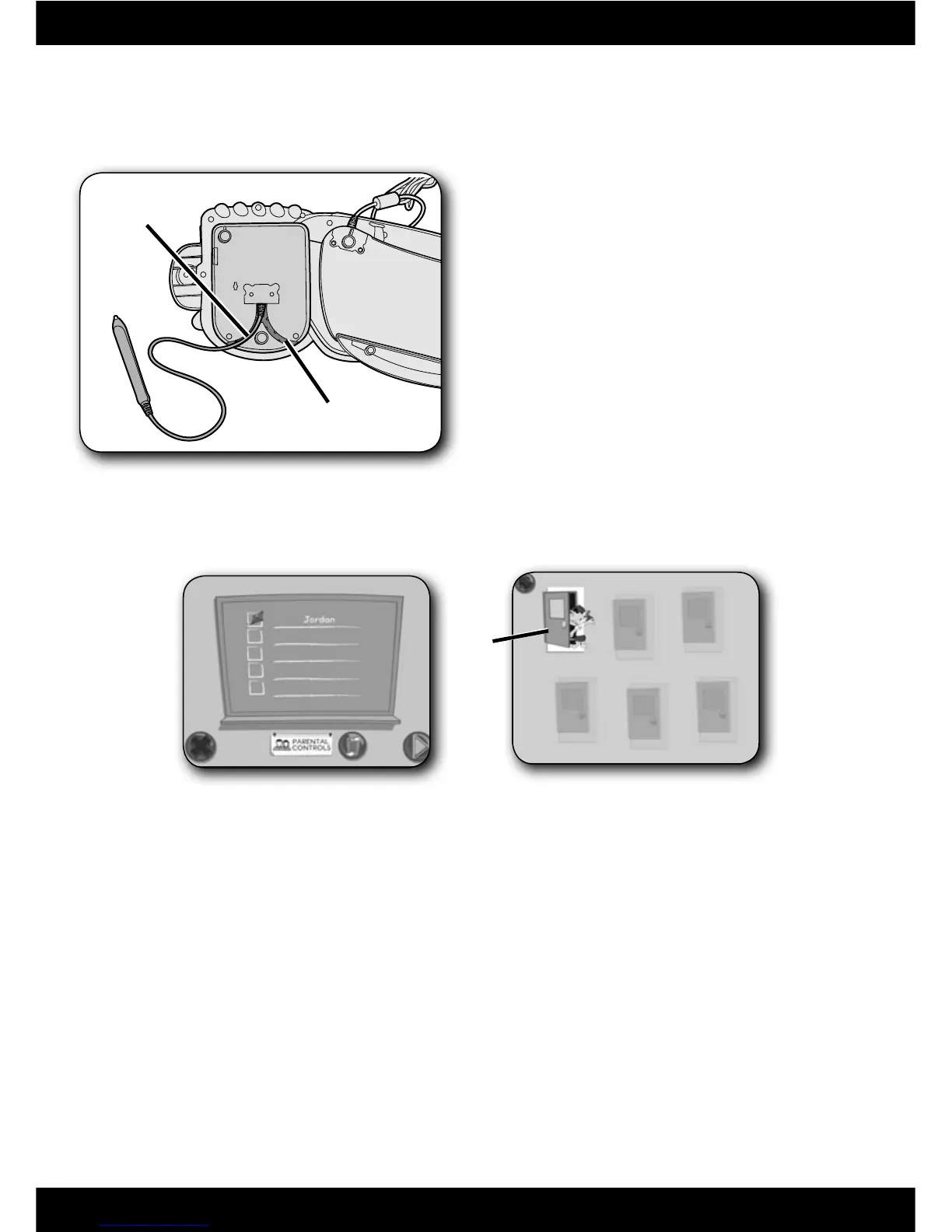
Sign-In
• First click on a highlighted area on the chalkboard.
• Then, type your name and click on a picture.
Note: If you have already created a sign-in, simply click on your name to enter the
main classroom. If you do not want to create a sign-in, click the green arrow to
enter as a guest. You will not be able to save any work when signed in as a guest.
• Click on the trash can to erase a name from the chalkboard. If you erase a name,
you will lose any work saved under that name.
• Click on Leo’s door to go to the classroom.
Note: The other doors on the software selection screen are only active if you have
purchased and installed additional software titles.
Leo’s
Door
Sign-In Screen
Groove for
“Lefties”
Groove for
“Righties”
Pen Preferences
• Adjust the pen cord to make writing
easier for “lefties” or “righties”!
• Turn the product over. Insert the
pen cord into the Y-shaped groove to
direct the cord to the left for
left-handed users or to the right for
right-handed users.











 To Next Page