19
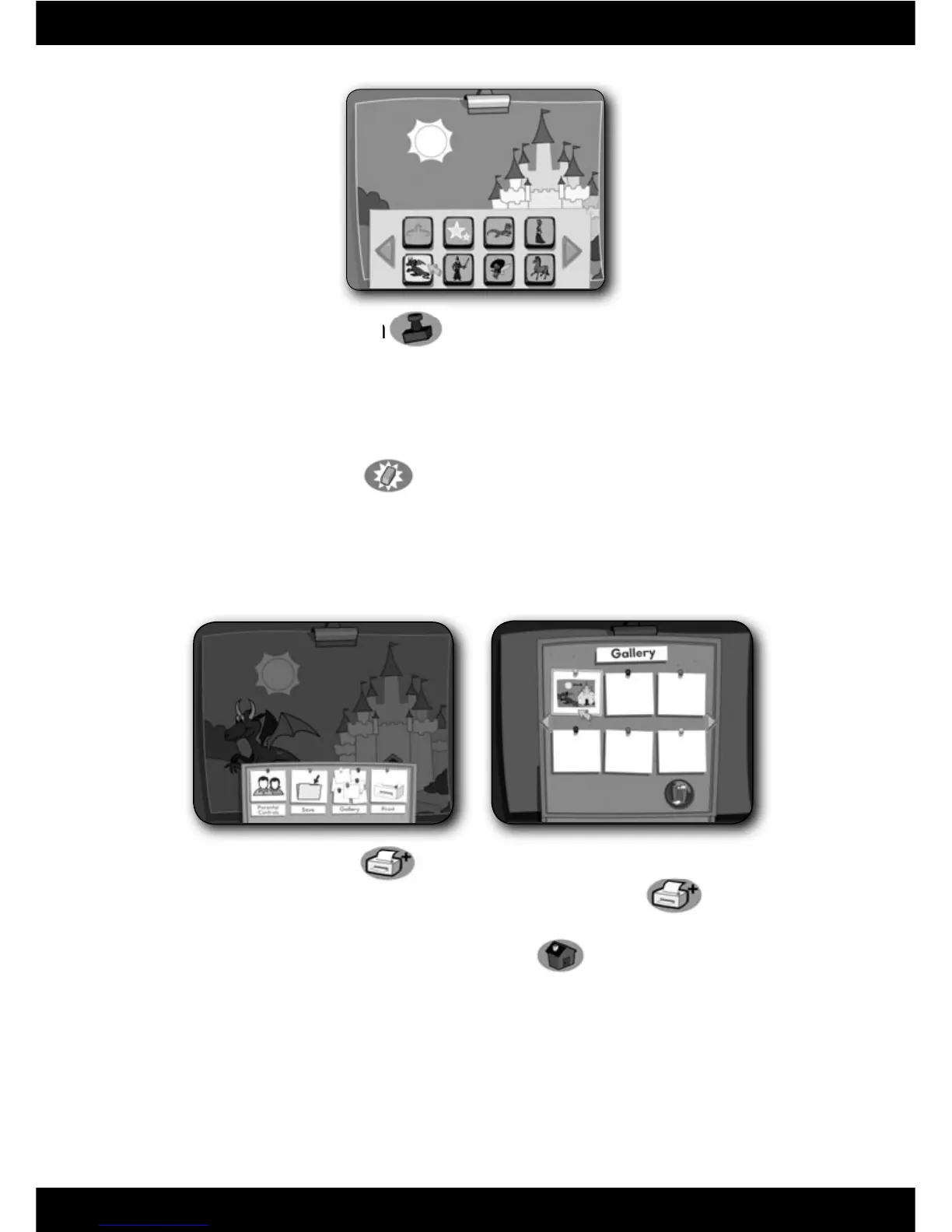
Stampers – Press this button to select different images to “stamp”
on your picture.
Hint: First, type letters or numbers on Computer Cool School™ keyboard.
Then click the pen to place your picture. You can also “stamp” letters or
numbers onto your picture .
Erase – Press this button
to erase your picture and start a new one.
Note: This button will erase the entire drawing. If you want to erase part of
your picture, press the Tools button and choose the pencil eraser.
Print
+
– Press this button to print your pictures or save them in the Gallery.
Note: To open a saved picture, press the Print + button
and click
on Gallery.
• When fi nished, press the classroom button
on the
Computer Cool School
™
keyboard to return to the classroom or press another
learning centre button for a different activity.





 To Next Page