Guider User Guide | www.ff3dp.com
perpendicular rings appear around the object Click one ring and rotate on the present
axis, you will see the rotation angle and direction in the center of circle. In this way,
you could make the model rotate on X/Y/Z axis.
Method 2: Click the [Rotate] icon on the left, and then enter into rotating
angel values in X/Y/Z axes positioning. Click [Reset] to reset rotating angel values.
Select the target object and scale the object by the following two methods:
Method 1: Click the [Scale] icon on the left, hold down the left mouse button
and scale the model. The corresponding values will display near the object..
Method 2: Click the [Scale] icon on the left and then enter into scale values
in X/Y/Z axes positioning. Click the [Maximum] button to get largest size possible
for building. Click [Reset] to reset the size of model.
Note: If the [Uniform Scaling] radio button is clicked, it will scale the model in equal
proportion when changing value in any positioning of the model. Otherwise it will
only change the value of the corresponding positioning.
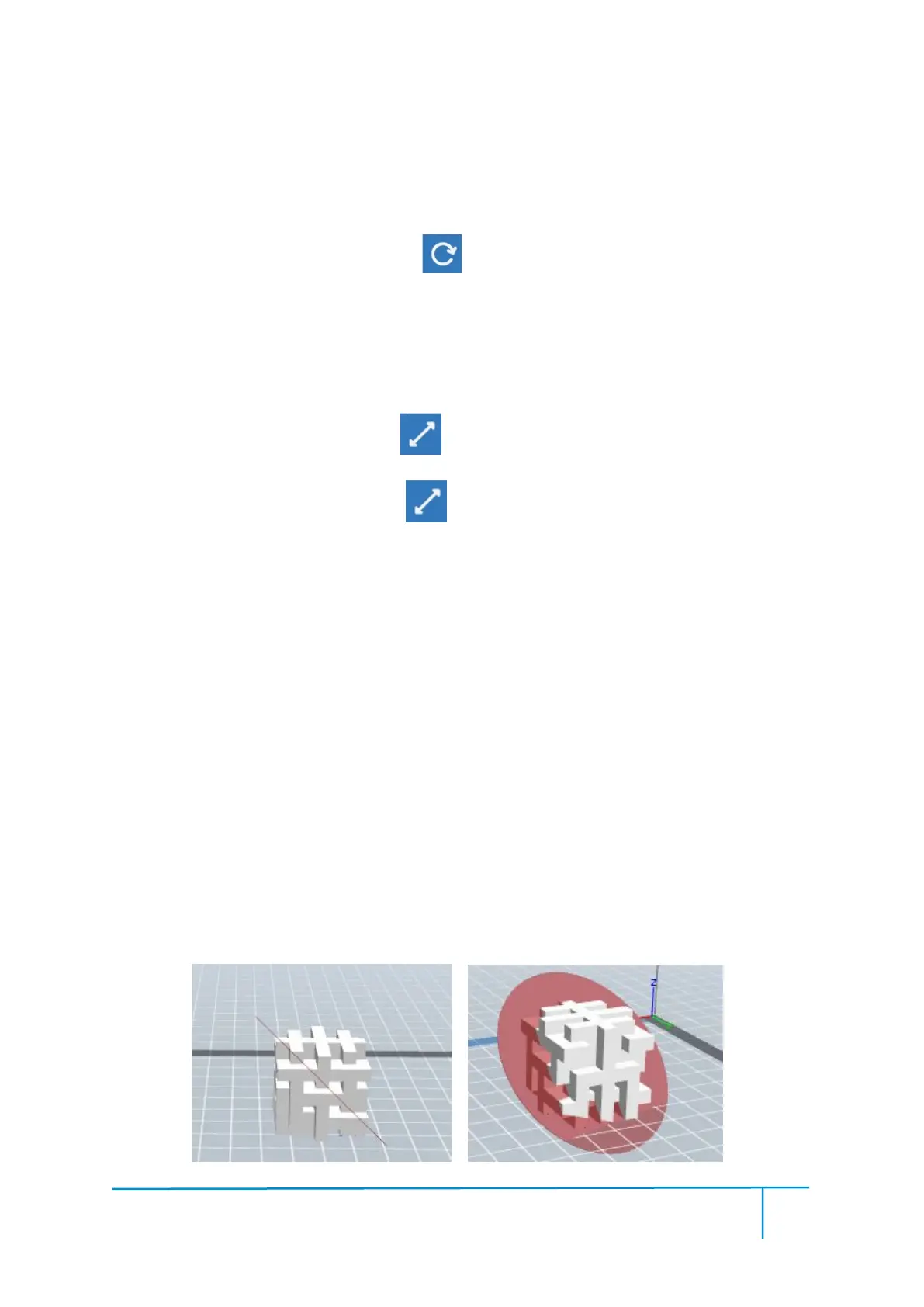
Left-click on the model to select it and double-click on the Cut icon to set the cut
plane. The direction and position are available for setting.







 To Next Page