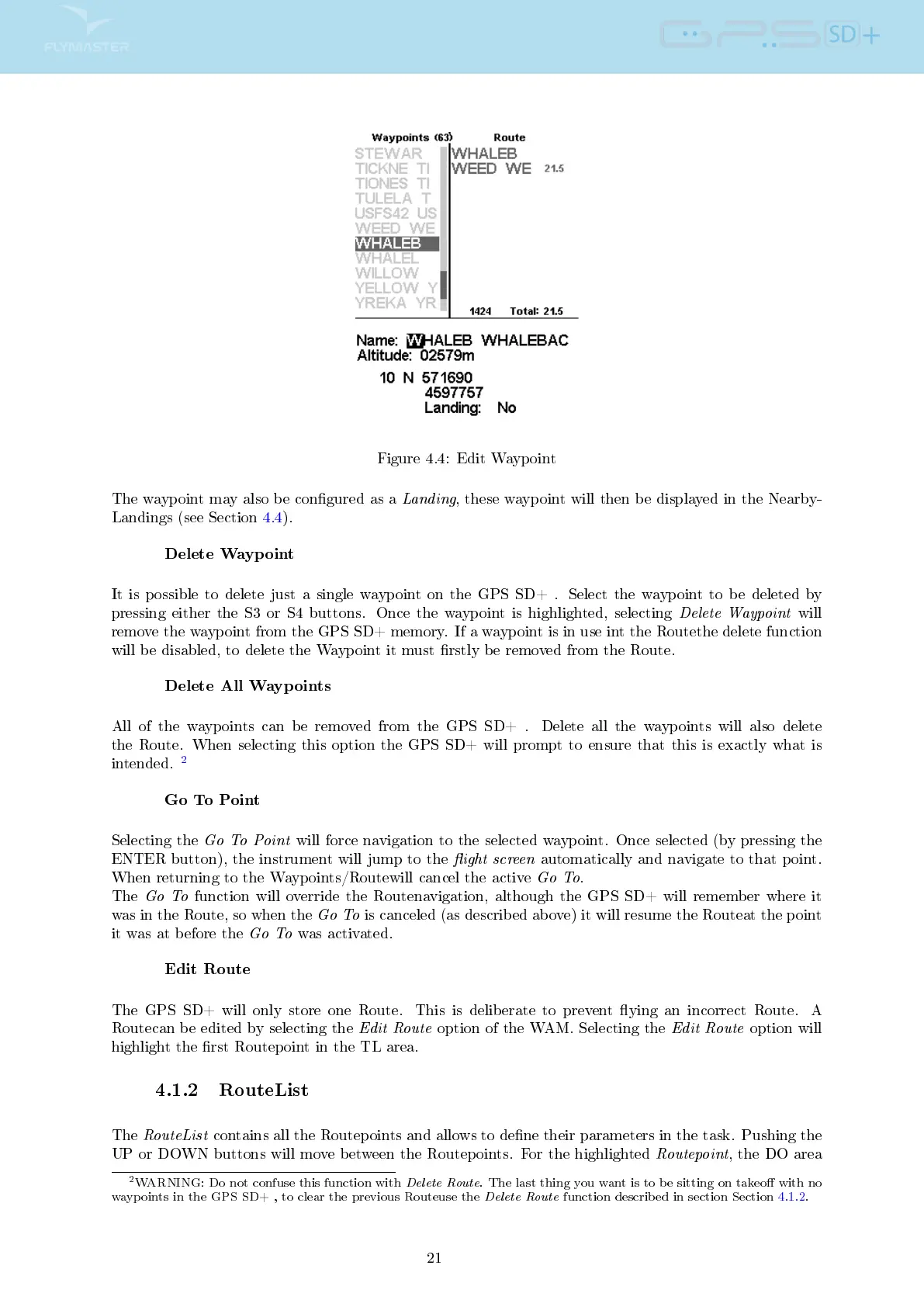
Figure 4.4: Edit Waypoint
The waypoint may also be congured as a
Landing
, these waypoint will then be displayed in the Nearby-
Landings (see Section 4.4).
Delete Waypoint
It is possible to delete just a single waypoint on the GPS SD+ . Select the waypoint to be deleted by
pressing either the S3 or S4 buttons. Once the waypoint is highlighted, selecting
Delete Waypoint
will
remove the waypoint from the GPS SD+ memory. If a waypoint is in use int the Routethe delete function
will be disabled, to delete the Waypoint it must rstly be removed from the Route.
Delete All Waypoints
All of the waypoints can be removed from the GPS SD+ . Delete all the waypoints will also delete
the Route. When selecting this option the GPS SD+ will prompt to ensure that this is exactly what is
intended.
2
Go To Point
Selecting the
Go To Point
will force navigation to the selected waypoint. Once selected (by pressing the
ENTER button), the instrument will jump to the
ight screen
automatically and navigate to that point.
When returning to the Waypoints/Routewill cancel the active
Go To
.
The
Go To
function will override the Routenavigation, although the GPS SD+ will remember where it
was in the Route, so when the
Go To
is canceled (as described above) it will resume the Routeat the point
it was at before the
Go To
was activated.
Edit Route
The GPS SD+ will only store one Route. This is deliberate to prevent ying an incorrect Route. A
Routecan be edited by selecting the
Edit Route
option of the WAM. Selecting the
Edit Route
option will
highlight the rst Routepoint in the TL area.
4.1.2 RouteList
The
RouteList
contains all the Routepoints and allows to dene their parameters in the task. Pushing the
UP or DOWN buttons will move between the Routepoints. For the highlighted
Routepoint
, the DO area
2
WARNING: Do not confuse this function with
Delete Route
. The last thing you want is to be sitting on takeo with no
waypoints in the GPS SD+ , to clear the previous Routeuse the
Delete Route
function described in section Section 4.1.2.
21



 To Next Page