the Distance to the CTR (see Section 4.7.13),
the Altitude which is the reference altitude for the airspace (see Section 4.7.13),
the oor of the airspace which is the lowest altitude of the airspace,
the ceiling which is the maximum altitude of the airspace.
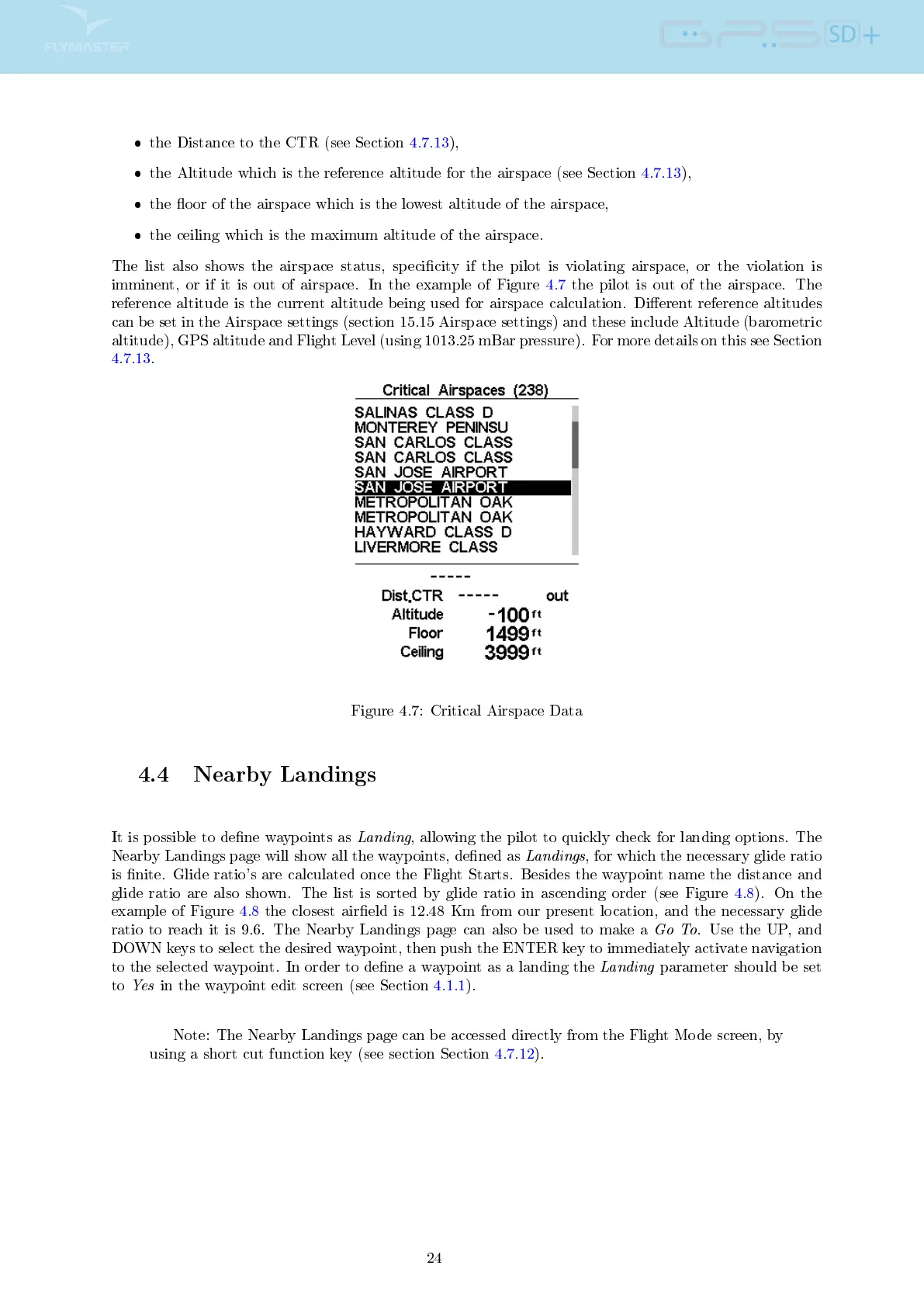
The list also shows the airspace status, specicity if the pilot is violating airspace, or the violation is
imminent, or if it is out of airspace. In the example of Figure 4.7 the pilot is out of the airspace. The
reference altitude is the current altitude being used for airspace calculation. Dierent reference altitudes
can be set in the Airspace settings (section 15.15 Airspace settings) and these include Altitude (barometric
altitude), GPS altitude and Flight Level (using 1013.25 mBar pressure). For more details on this see Section
4.7.13.
Figure 4.7: Critical Airspace Data
4.4 Nearby Landings
It is possible to dene waypoints as
Landing
, allowing the pilot to quickly check for landing options. The
Nearby Landings page will show all the waypoints, dened as
Landings
, for which the necessary glide ratio
is nite. Glide ratio's are calculated once the Flight Starts. Besides the waypoint name the distance and
glide ratio are also shown. The list is sorted by glide ratio in ascending order (see Figure 4.8). On the
example of Figure 4.8 the closest aireld is 12.48 Km from our present location, and the necessary glide
ratio to reach it is 9.6. The Nearby Landings page can also be used to make a
Go To
. Use the UP, and
DOWN keys to select the desired waypoint, then push the ENTER key to immediately activate navigation
to the selected waypoint. In order to dene a waypoint as a landing the
Landing
parameter should be set
to
Yes
in the waypoint edit screen (see Section 4.1.1).
Note: The Nearby Landings page can be accessed directly from the Flight Mode screen, by
using a short cut function key (see section Section 4.7.12).
24



 To Next Page