17
Pro Tools Connection
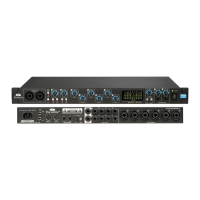
Confirm that Red 4Pre’s Host setting is set to ‘Pro Tools’, see Global Host Settings on page 19.
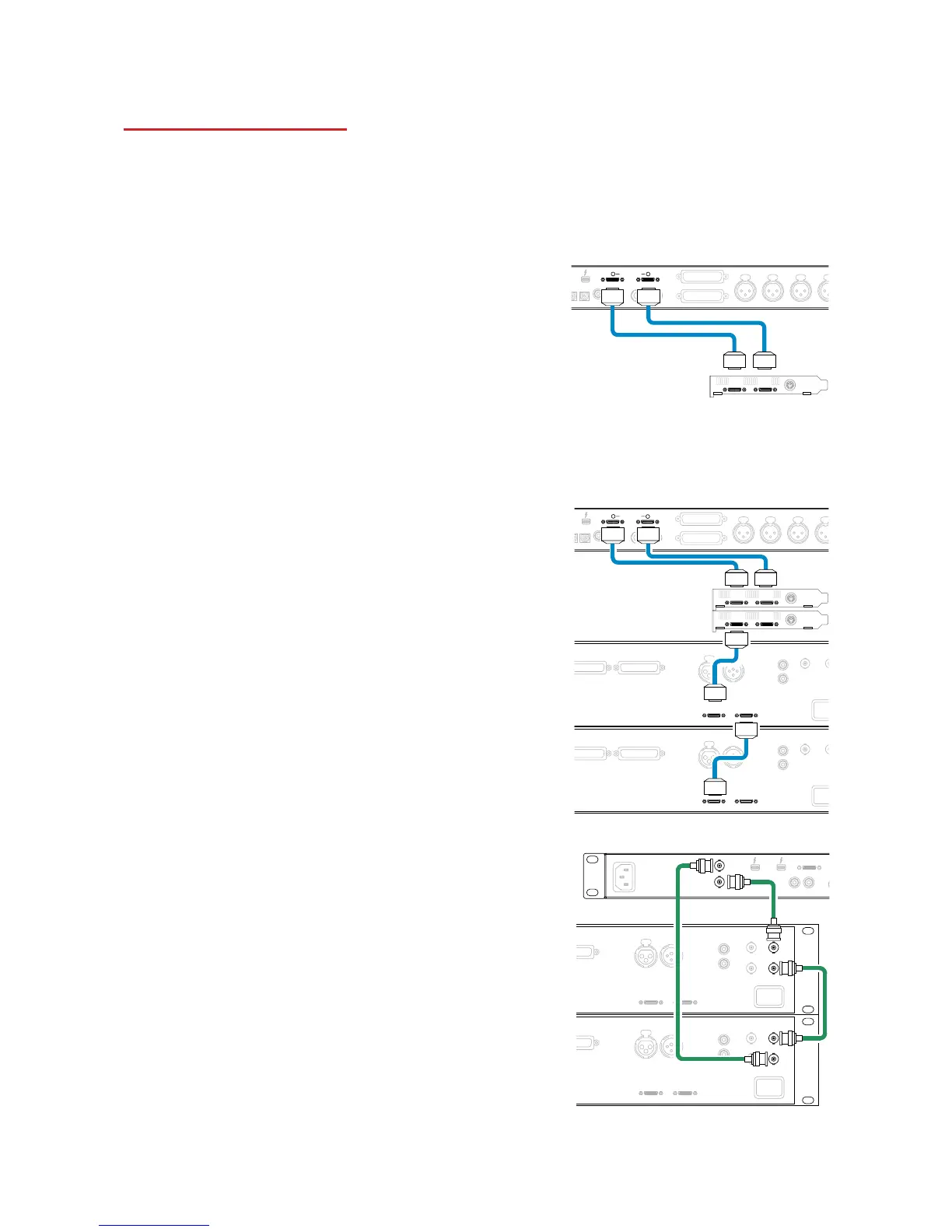
Connect both rear panel PRIMARY ports to a Pro Tools | HDX card using Mini DigiLink cables.
Each Pro Tools | HDX PCI/PCIe card provides two Mini DigiLink ports (giving the card a capacity of 64
inputs and 64 outputs), thus one Red 4Pre may be connected to each card.
A Red 4Pre will appear as four devices in Pro Tools:
A: 1-16
B: 1-16 (Port 1)
C: 1-16
D: 1-16 (Port 2)
A maximum of 3 Red 4Pre units can be connected, giving a
total I/O capability of 174 inputs and 192 outputs.
Note that both Red 4Pre ports are Primary connectors; this means that an additional Pro Tools interface cannot be
added in series – Red 4Pre does not operate in Expansion mode
Using Red 4Pre with other Pro Tools | HD
interfaces
Pro Tools | HD I/O audio interfaces may be used on the same
Pro Tools system as Red 4Pre. Pro Tools interface units can
be added by using additional Pro Tools | HDX PCIe interface
cards.
Connection to a Pro Tools | HD system would require the use of DigiLink
-to- Mini DigiLink adapter cables.
Loop Sync
It is important when using additional I/O units that the Loop
Sync connection is complete between all units:
• Using 75Ω BNC cables, connect each LOOP SYNC OUT
connector to the LOOP SYNC IN connector on the next
I/O unit
• Complete the chain by connecting LOOP SYNC OUT on
the final I/O unit back to LOOP SYNC IN on the first unit




 To Next Page