14
Audio source select
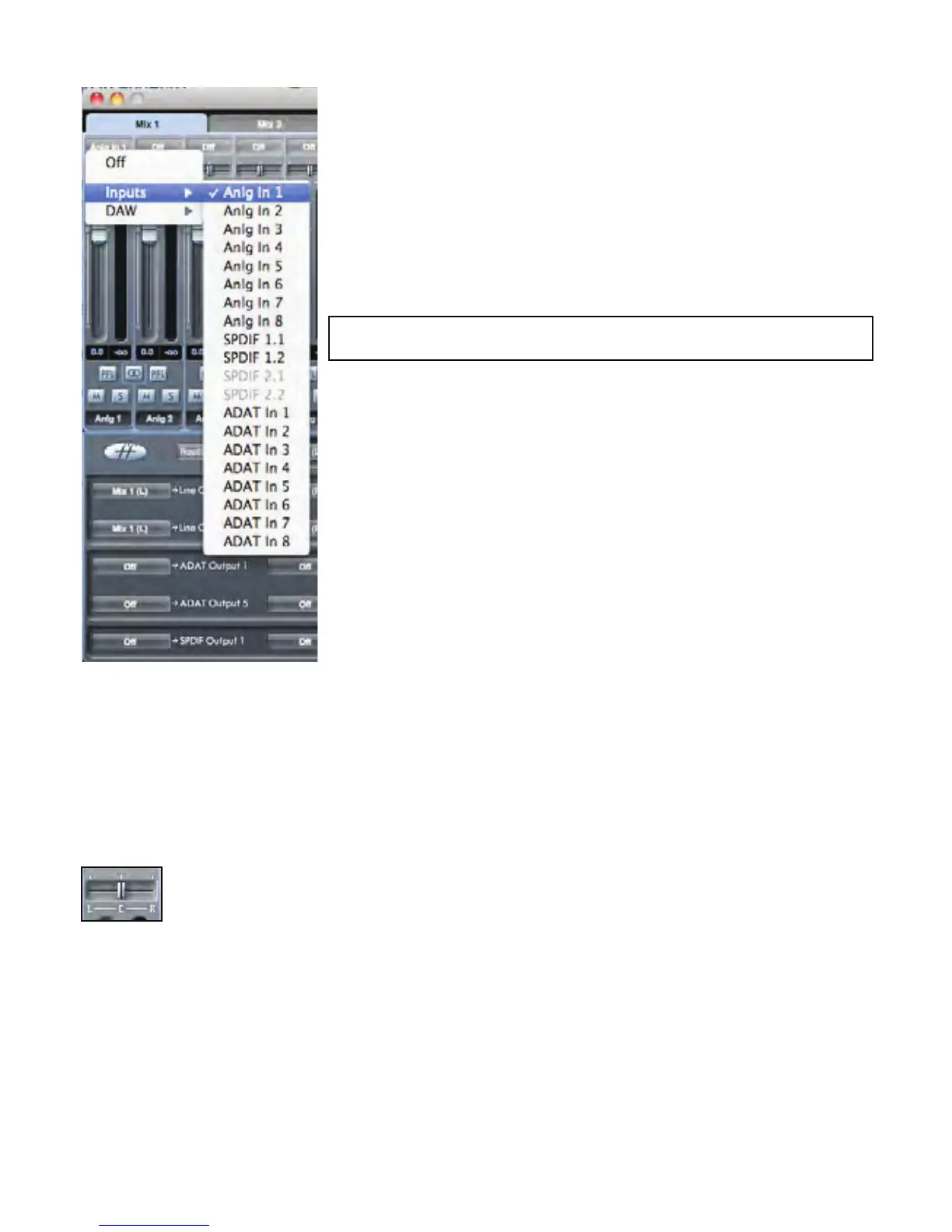
When there is no input to a mixer channel, it will display “off”.
Clicking on the “off” region brings up a list of all available inputs that can be fed to the
channel. All analogue (labelled ‘Line’) and digital inputs, and DAW outputs are available.
When selecting a source on a stereo channel, if an odd numbered input is chosen for the
left channel, the next even number input is auto selected for right, and Vice Versa
Note that if an input has already been taken, it will be greyed out and you cannot select
it again. The input needs to be deselected from the track where it is already taken, and
then re-selected on the desired track.
To get your sounds from your DAW or other computer applications into the mixer, you
should select ‘DAW 1’ and ‘DAW 2’ on a stereo input track.
Pan Slider
A Pan Slider is used to position the audio signal anywhere between the left and right channels.
Moving the horizontal slider from left to right will move the audio signal from left to right within the stereo field, i.e., the signal is
faded between two audio outputs such as monitor L and R.
When used with a stereo track, the slider affects the audio signal such that when fully left, only the left channel is heard, and when
fully right, only the right channel is heard.




 To Next Page