19
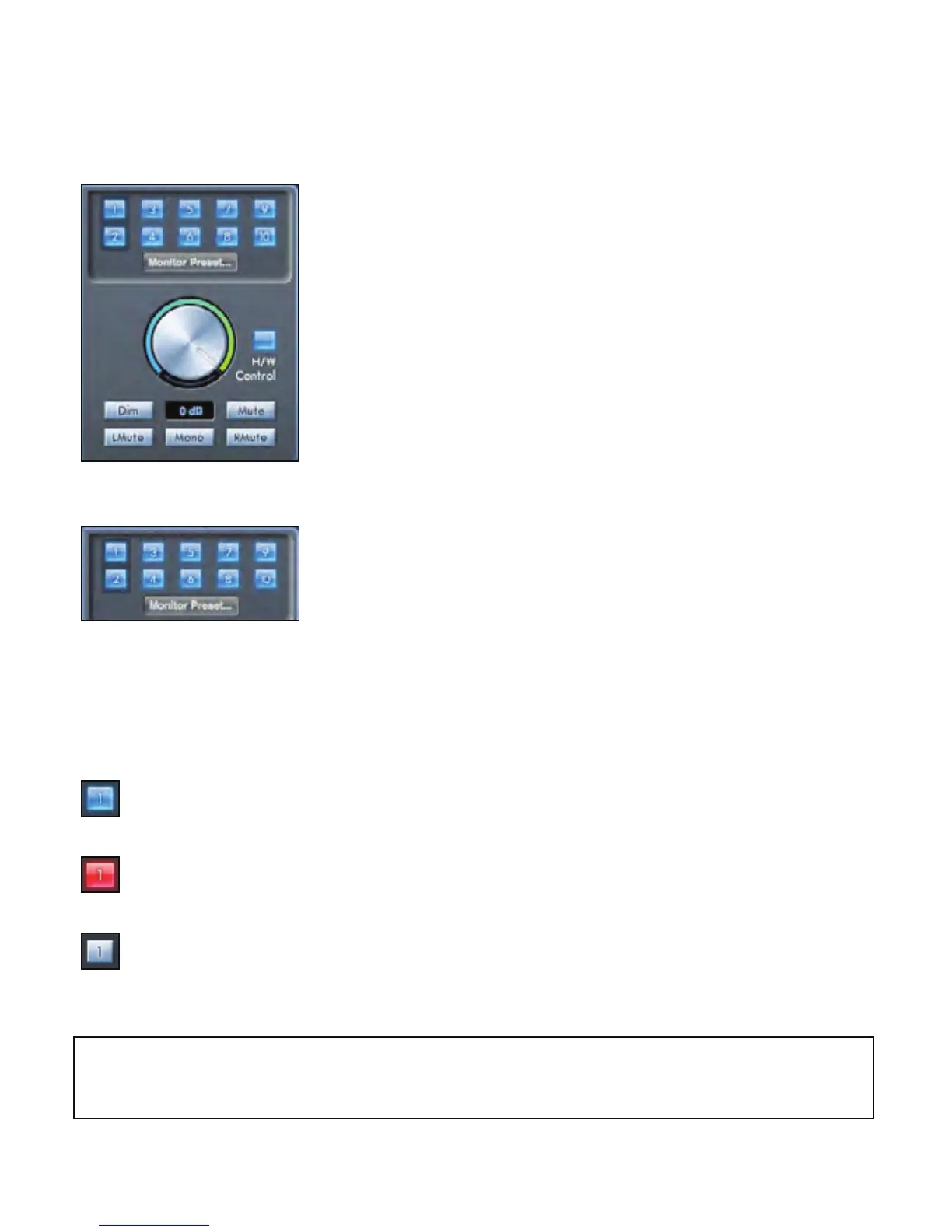
Monitor Section
The output levels of the monitor outputs and line outputs are configured in the Monitor Section. You can set up your Saffire PRO
40 so that the hardware ‘Monitor’ knob on the Saffire PRO 40s front panel will control the desired outputs, such as your stereo
monitors, your surround sound system. Alternatively the hardware ‘Monitor’ knob be deactivated for specific outputs e.g. when
hardware volume control is required for a pair of monitor speakers, but not for additional outputs being sent to e.g. an external
compressor. Additional controls such as mute, dim and mono are available.
Monitor control enable buttons (1 to 10)
The monitor control enable buttons indicate which outputs are controlled by the monitor section on the GUI directly below the ten
buttons. The Saffire PRO 40 can be set up so that you have hands-on control of volume levels, and depending on your monitoring set-
up, you may control no speakers, just a single pair of speakers, or up to 10 speakers simultaneously.
(All digital output levels are unaffected by Saffire MixControl. Use the output levels of the DAW to control digital output levels.)
Each button can be set to 1 of 3 possible states:
Blue - this output is controlled by the below monitor section.
Red - this output is not controlled by the below monitor section and it is muted.
Grey - this output is not controlled by the below monitor section and it is at full level.
To set a button to its Grey state, SHIFT + Click the button.
WARNING: When a Monitor control button is set to ‘Grey’, the signal routed to that output will be played back at full level.
This may potentially result in a very loud signal being sent to your monitor speakers, headphones or other equipment.
Be cautious when setting your levels (in your DAW or the Saffire MixControl Mixer) before setting the monitor button to Grey.




 To Next Page