4
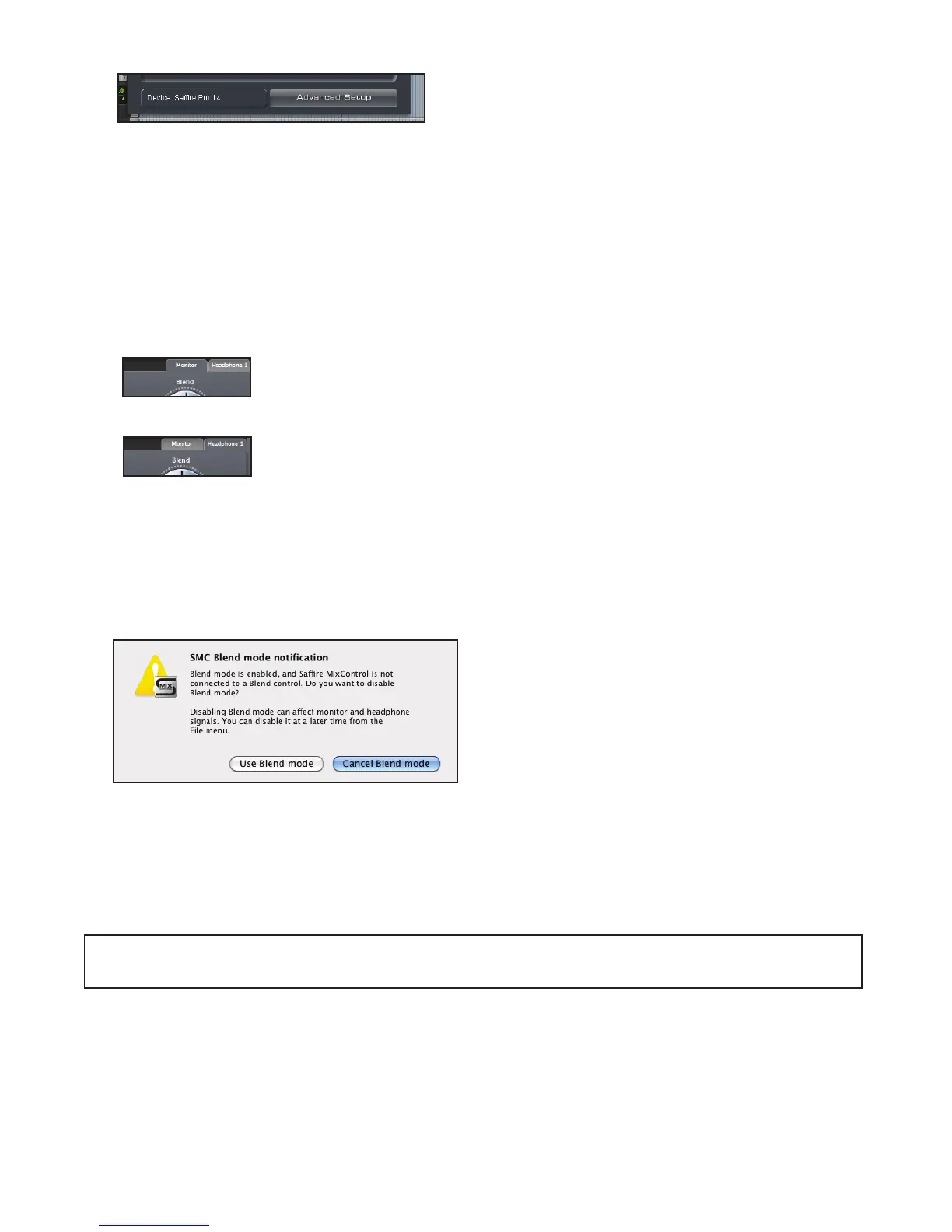
Advanced Setup
The Advanced Setup button launches Saffi re MixControl allowing for more complex routing setups. The mix tabs and routing panel
can be setup as desired and the blend option in RTAS MixControl will operate in the same way, blending between input signal and
DAW playback channels.
Using Blend in Advanced Mode
The Blend control is only applied to monitor outputs and headphones 1 and 2 (where applicable)
For Blend Enable to work correctly in Advanced mode:
Blend control in the Monitor Mix tab
The mix output in Saffi re MixControl must be set exclusively to Monitor - L and/or Monitor R.
Blend control in the Headphone 1 tab
The mix output in Saffi re MixControl must be set exclusively to Headphone 1 - L and/or R.
Blend control in the Headphone 2 tab
The mix output in Saffi re MixControl must be set exclusively to Headphone 2 - L and/or R
Saffi re MixControl blend mode notifi cation
When you open Saffi re MixConrol after closing a Pro Tools session you may be presented with the above message. If RTAS Mix
Control has been used to create a blend of inputs and DAW outputs.
Select Use Blend mode to continue using Saffi re Mix Control with the previously used blend setting. Note that you can only change
the blend setting by reloading RTAS Mix Control in Pro Tools.
Select Cancel Blend mode to remove any previously used blend setting.
You may experience large changes in output level sent to monitor or headphones, so ensure that you turn down the outputs before
selecting Cancel Blend mode.




 To Next Page