5
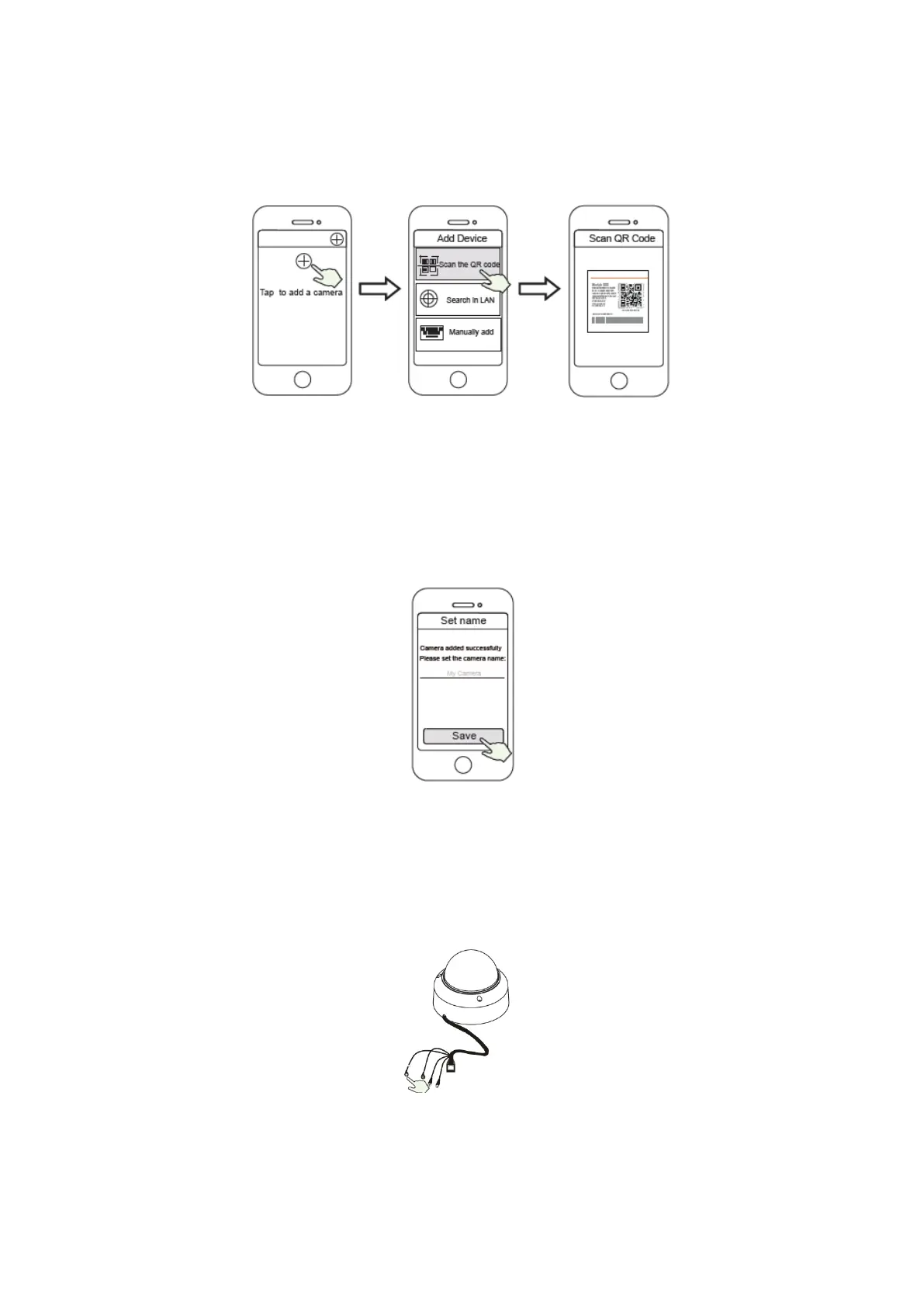
5. After logging into Foscam APP, select “Tap to add a camera” or “+” icon on the upper
right corner, then select “Scan the QR code” and scan the QR code that labeled at the
bottom of your camera.
Tap + icon select “Scan the code” Scan the QR code
which is located at the
bottom of your camera.
6. Wait for a few seconds and then you can set the camera name and tap “Save” IN “Set
name” interface.
Camera added successfully and
name has been set
NOTE: If the adding process fails, please reset your camera and try adding again
according to the above method.
Reset Button


 To Next Page