earphone or speakers that connected with PC.
5----- Snapshot Click it to make snapshot and it pop-up a window which picture you snapshot, right click in
the window and save the picture to anywhere you want.
6----- Record Click the icon and the camera start recording, you can see a green dot in the live
window. Click again and stop recording. The default storage path is C:\IPCamRecord. You can change the
storage path: Go to Settings- >Record->Storage Location panel.
7------Full Screen Click it to make full-screen, or you can double click the surveillance screen to make
full-screen. Double click again and exit full-screen.
Onscreen Mouse Control
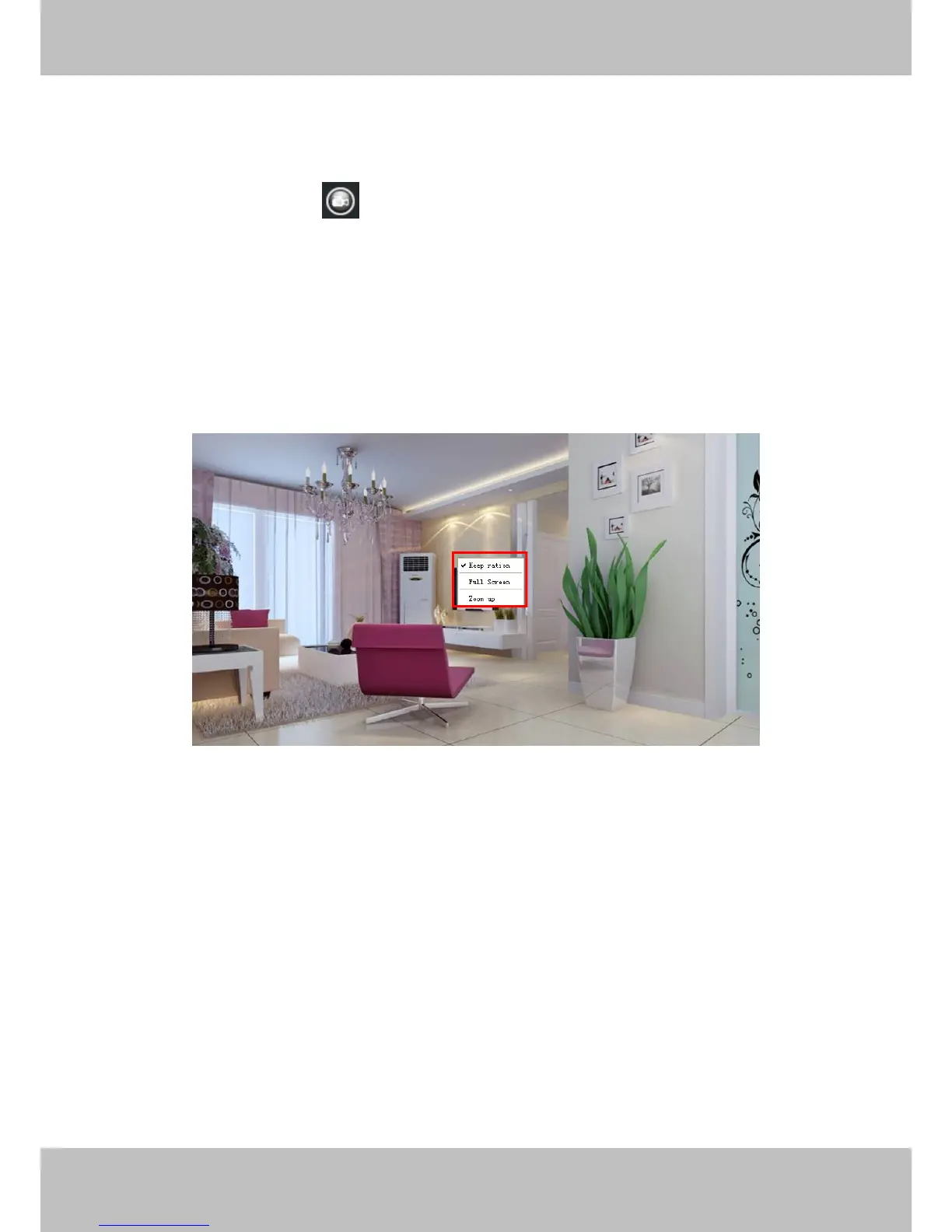
Right click the mouse and you can adjust the screen ration, full screen and Zoom up.
Figure 3.10
Keep ration: Select it and the camera will adjust the size of live window based on the the computer monitor
automatically. Sometimes there is a black border around the video, please select Keep ration to get a better
visual quality .
Full Screen: Select it and Click it to make full-screen, press ESC and exit full-screen.
Zoom up: Select it and you can see a bigger screen than before.
First Method: Here is a convenient and fast solution to Zoom up/down screen by clicking Video Screen and
adjusting Mouse pulley, or by press the CTRL key and click the mouse left button.
Second Method: Click it and the live view will be digital zoomed up, then click Zoom Down and the live view
back to original size.



 To Next Page