subnet.
NOTE :
The security mode of router cannot be WEP, or else the WPS settings may be failed.
2.3 Access the Camera in WAN
2.3.1 Static IP Addresses
Users who have static IP addresses do not need to set DDNS service settings for remote access. When you
have finished connecting the camera using the LAN IP address and port forwarding, you can access the
camera directly from the Internet using the WAN IP address and port number.
How to Obtain the WAN IP address from a public website
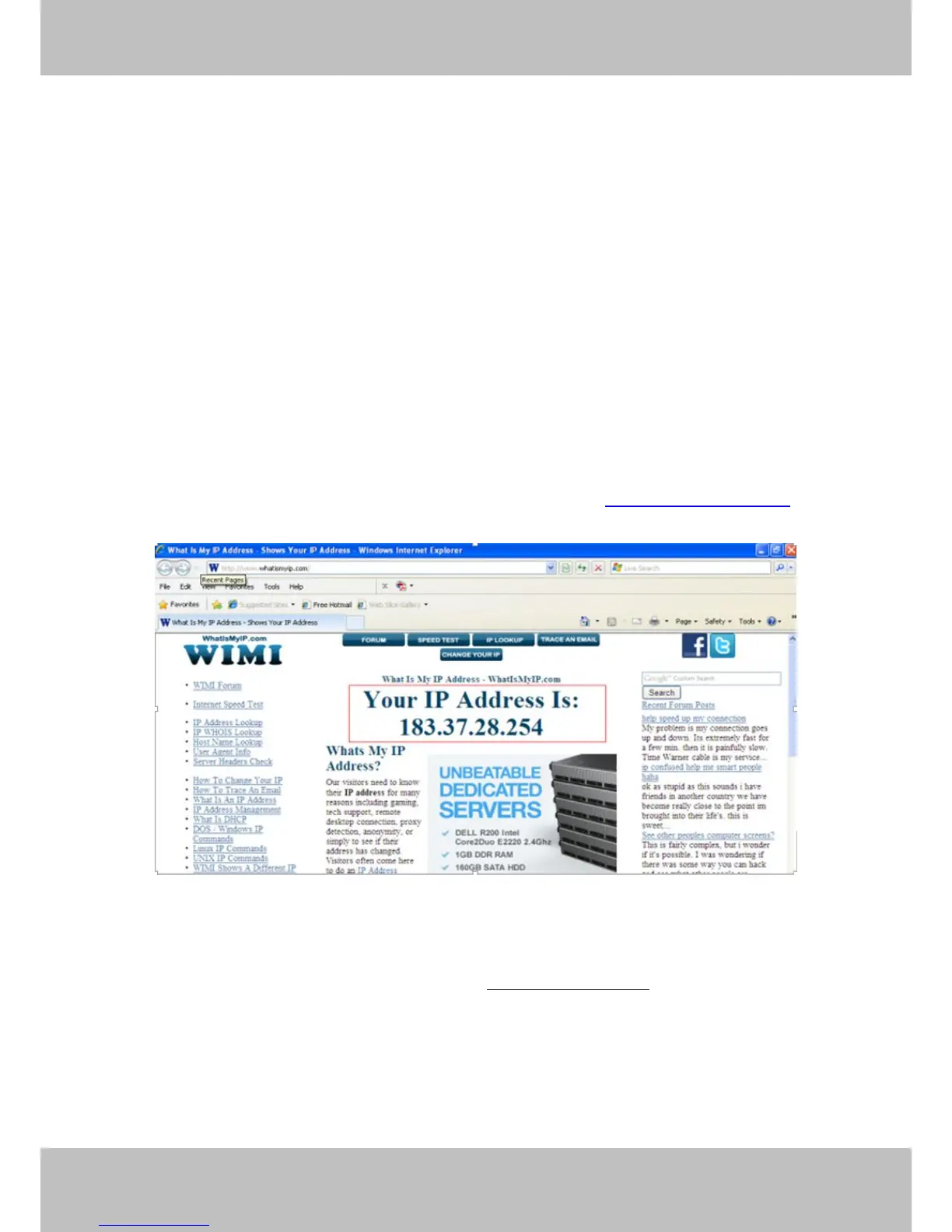
To obtain your WAN IP address, enter the following URL in your browser: http://www.whatismyip.com.The
webpage at this address will show you the current WAN IP.
Figure 2.5
Access your IP Camera from the Internet
You can access the IP Camera from the Internet (remote access). Enter the WAN IP address and port number
in your standard browser. For example, you would enter http:// 183.37.28.254:85
NOTE:
Make sure port forwarding is successful. You can do port forwarding two ways.



 To Next Page