EasyManua.ls Logo

Fostex X-28 - Adding Live Parts to Ping-Pong Recording

Fostex X-28
36 pages
Print Icon
To Next Page IconTo Next Page
To Previous Page IconTo Previous Page
Loading...
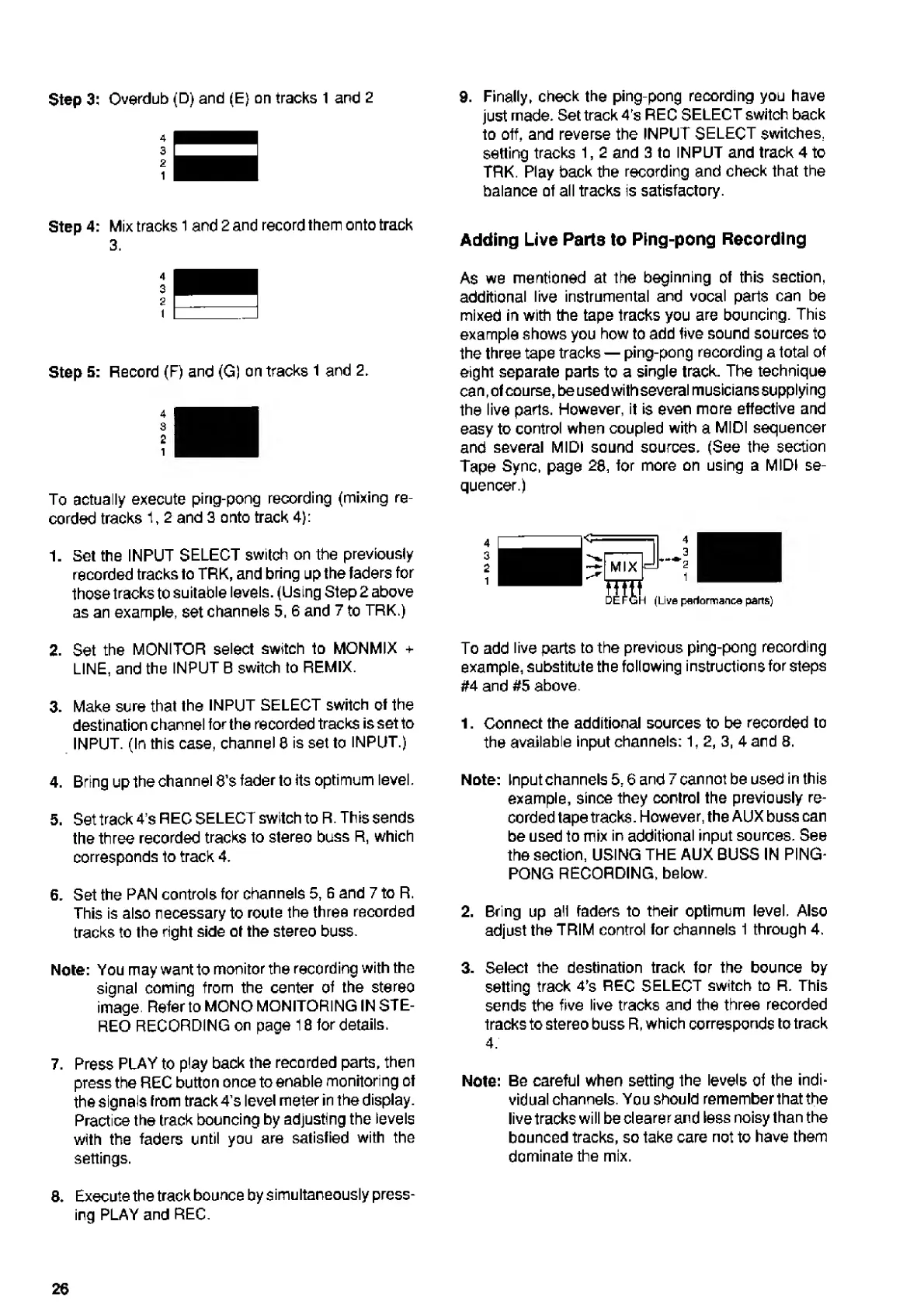
Step
3:
Overdub
(D)
and
(E)
on
tracks
1
and
2
4
3
2
1
Step
4:
Mix
tracks
1
and
2
and
record
them
onto
track
3.
4
3
2
\
Step
5:
Record
(F)
and
(G)
on
tracks
1
and
2.
4
3
2
i
To
actually
execute
ping-pong
recording
(mixing
re¬
corded
tracks
1,
2
and
3
onto
track
4):
1.
Set
the
INPUT
SELECT
switch
on
the
previously
recorded
tracks
to
TRK,
and
bring
up
the
faders
for
those
tracks
to
suitable
levels.
(Using
Step2
above
as
an
example,
set
channels
5.6
and
7
to
TRK.)
2.
Set
the
MONITOR
select
switch
to
MONMIX
+
LINE,
and
the
INPUT
B
switch
to
REMIX.
3.
Make
sure
that
the
INPUT
SELECT
switch
of
the
destination
channel
for
the
recorded
tracks
is
set
to
INPUT.
(In
this
case,
channel
8
is
set
to
INPUT.)
4.
Bring
up
the
channel
8’s
fader
to
its
optimum
level.
5.
Set
track
4’s
REC
SELECT
switch
to
R.
This
sends
the
three
recorded
tracks
to
stereo
buss
R,
which
corresponds
to
track
4.
6.
Set
the
PAN
controls
for
channels
5,
G
and
7
to
R.
This
is
also
necessary
to
route
the
three
recorded
tracks
to
the
right
side
of
the
stereo
buss.
Note:
You
may
want
to
monitor
the
recording
with
the
signal
coming
from
the
center
of
the
stereo
image.
Refer
to
MONO
MONITORING
IN
STE¬
REO
RECORDING
on
page
18
for
details.
7.
Press
PLAY
to
play
back
the
recorded
parts,
then
press
the
REC
button
once
to
enable
monitoring
of
the
signals
from
track4’s
level
meter
in
the
display.
Practice
the
track
bouncing
by
adjusting
the
levels
with
the
faders
until
you
are
satisfied
with
the
settings.
8
.
Execute
the
trackbounce
by
simultaneously
press¬
ing
PLAY
and
REC.
9.
F
i
n
ally,
check
the
ping-pong
recording
you
have
just
made.
Set
track
4’s
REC
SELECT
switch
back
to
off,
and
reverse
the
INPUT
SELECT
switches,
setting
tracks
1,
2
and
3
to
INPUT
and
track
4
to
TRK.
Play
back
the
recording
and
check
that
the
balance
of
all
tracks
is
satisfactory.
Adding
Live
Parts
to
Ping-pong
Recording
As
we
mentioned
at
the
beginning
of
this
section,
additional
live
instrumental
and
vocal
parts
can
be
mixed
in
with
the
tape
tracks
you
are
bouncing.
This
example
shows
you
how
to
add
five
sound
sources
to
the
three
tape
tracks
ping-pong
recording
a
total
of
eight
separate
parts
to
a
single
track.
The
technique
can,
of
course,
be
used
with
several
musicians
supplying
the
live
parts.
However,
it
is
even
more
effective
and
easy
to
control
when
coupled
with
a
MIDI
sequencer
and
several
MIDI
sound
sources.
(See
the
section
Tape
Sync,
page
28,
lor
more
on
using
a
MIDI
se¬
quencer.)
To
add
live
parts
to
the
previous
ping-pong
recording
example,
substitute
the
following
instructions
for
steps
#4
and
#5
above.
1.
Connect
the
additional
sources
to
be
recorded
to
the
available
input
channels:
1,
2,
3,
4
and
8.
Note:
Input
channels
5,6
and
7
cannot
be
used
in
this
example,
since
they
control
the
previously
re¬
corded
tape
tracks.
However,
the
AUX
buss
can
be
used
to
mix
in
additional
input
sources.
See
the
section,
USING
THE
AUX
BUSS
IN
PING-
PONG
RECORDING,
below.
2.
Bring
up
all
faders
to
their
optimum
level.
Also
adjust
the
TRIM
control
for
channels
1
through
4.
3.
Select
the
destination
track
for
the
bounce
by
setting
track
4’s
REC
SELECT
switch
to
R.
This
sends
the
five
live
tracks
and
the
three
recorded
tracks
to
stereo
buss
R,
which
corresponds
to
track
4.
Note:
Be
careful
when
setting
the
levels
of
the
indi¬
vidual
channels.
You
should
remember
that
the
live
tracks
will
be
clearer
and
less
noisy
than
the
bounced
tracks,
so
take
care
not
to
have
them
dominate
the
mix.
26

Related product manuals