PERSONALISING
YOUR MYSTAR
TECHNICAL HELP
& SPECIFICATIONS
PUTTING THE “HD”
INTO MYSTAR HD
PERSONALISING
YOUR MYSTAR
YOUR PLANNER
WATCHING YOUR
RECORDINGS
RECORDING
WITH MYSTAR
HOW TO FIND
YOUR MYSTAR
REMOTE CONTROL
MYSTAR – WHAT’S
CONTENTS
PERSONALISING
YOUR MYSTAR
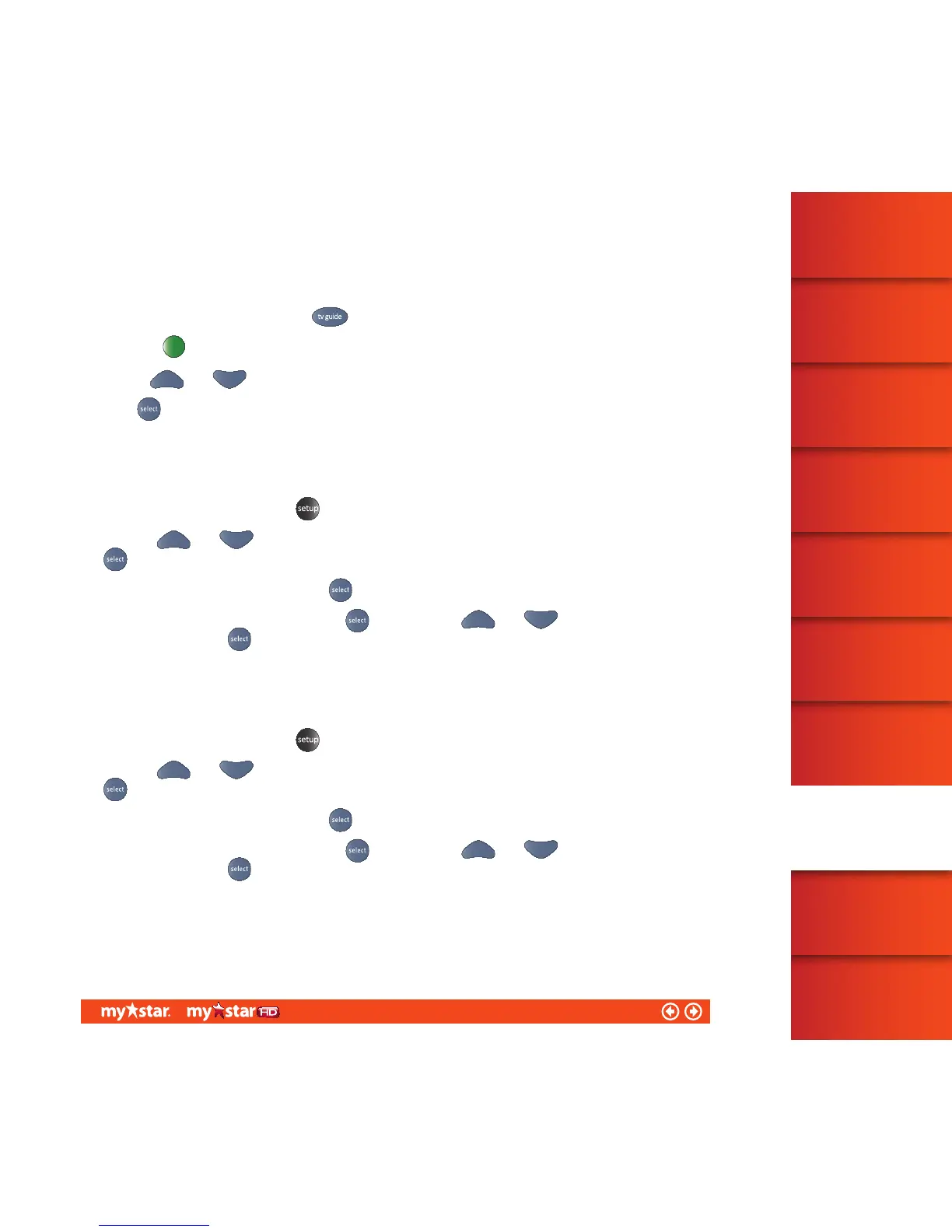
Removing Favourite Channels
To edit your favourite channels:
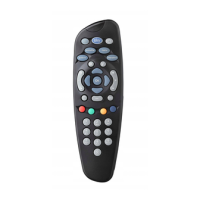
Access the TV Guide by pressing the
button on your MyStar remote control
Select the
button for ‘Channel Settings’.
Use the
and arrows to scroll through the channel names
Press
to remove a channel from your ‘Favourites’
To protect all Box Office orders with your Parental Control PIN:
Launch the Setup menu, press the
button on the MyStar remote control
Use your
and arrows to move the on-screen highlighter to ‘Parental Control’ and then press the
button
Highlight ‘Box Office’ and then press the
button, you will need to enter your Parental Control PIN
Highlight ‘Purchase PIN’ and then press the
button. Use the and arrows to select your
option and then press
to confirm your selection
To hide Adult movies from displaying within Box Office:
Launch the Setup menu, press the
button on your MyStar remote control
Use your
and arrows to move the on-screen highlighter to ‘Parental Control’ and then press the
button
Highlight ‘Box Office’ and then press the
button. You will need to enter your Parental Control PIN
Highlight ‘Adult Options’ and then press the
button. Use the and arrows to select your
option and then press
to confirm
This also hides the titles from appearing in the on-screen TV Guide.
56/81


 To Next Page