Frama Matrix F22
16
7. Press Activation PIN. Enter the five-digit FramaOnline activation PIN using
the numeric keypad displayed and confirm your input by pressing Enter.
There is no need to enter the FramaOnline activation PIN again. Take care
to enter the PIN correctly otherwise it will be rejected by the Matrix F22 or
the FramaOnline data centre.
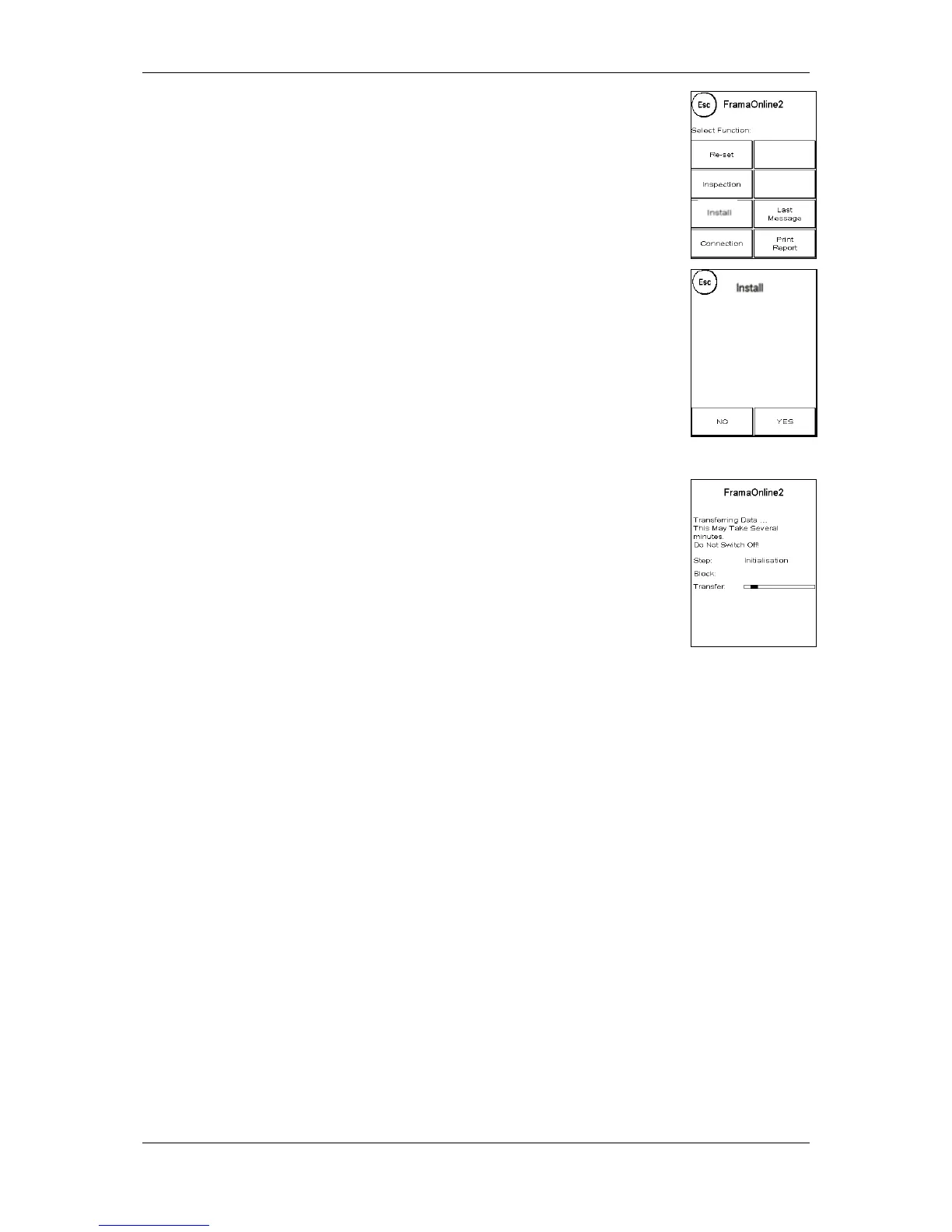
8. Select Install. Confirm the process by pressing YES.
9. Your Frama Matrix F22 will now establish a connection to the FramaOnline2
data centre. This process can take up to 2 minutes. Please check your
network setup if the connection cannot be established. Refer to section 9.4.
Connection.
10. You have now registered with the FramaOnline2 data centre.
11. The display is shown for 8 seconds. Touch the screen to quit the message.
You will then be returned to the FramaOnline2 menu.
12. Press ESC to enter Setup menu 1. Press Start up/Log off to go to Select Cost Centre.
2.6. Installing the ink jet cassette
Follow the instructions on page 26 to install the ink jet cassette correctly.
2.7. Loading credit (postage) from FramaOnline2
You must load postage credit into the franking system before you can frank mail with your Frama
Matrix franking system.
Follow the instructions on page 17. This concludes the installation.



 To Next Page