QUANTUM™ LX/HD SYSTEM INTERFACE PANEL
INSTALLATION-OPERATION-MAINTENANCE
090.030-IOM (OCT 13)
Page 19
TOUCHSCREEN DESCRIPTION
The Quantum™ SIP utilizes an 8-wire resistive touch-
screen interface to facilitate operator interaction. It con-
sists of a transparent sheet of glass, which covers the
entire display area, and has numerous rows and columns
of micro wires embedded into its surface. Touching any-
where on the glass will cause an adjacent row and column
of these micro wires to sense the pressure, and signals
the control electronics that a connection has occurred,
and converts the signal to a cursor location. The action is
very similar to the way a computer mouse would be uti-
lized, in that manipulating a mouse moves a cursor around
on the screen, but in the case of a touchscreen, a fi nger
tip causes the cursor to move. The touchscreen allows
the operator to simply touch active areas of the display for
the purpose of changing setpoints, selecting menus, and
accessing other operational features.
If for any reason, the touch screen either doesn’t re-
spond to your touch, or can’t be suffi ciently calibrated
as described previously, a short term solution for screen
navigation can be achieved by using a standard USB style
computer mouse until repairs can be made.
To use a USB compatable computer mouse:
NOTE: Always be aware of the presence of live AC
voltage within the control enclosure!
Open the control panel door, then use the fol-
lowing instructions:
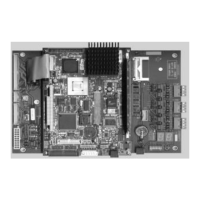
Locate the two USB connections on the Q5
control board, and plug the USB end of the
mouse cable into either one.
The external USB mouse is now active and
ready to use.
If using a mouse, note that by moving it, the on-
screen cursor will track it’s movement. Simply
navigate the cursor using the mouse to simulate
a fi nger tip. Click on the screen areas that you
wish to access by pressing the left hand mouse
button. Use the on-screen data and keyboard
entry boxes that appear to enter values and text.



 To Next Page