EasyManua.ls Logo

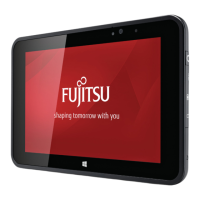
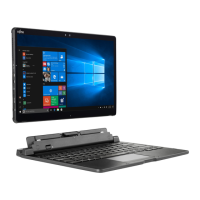
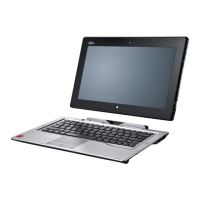
Fujitsu STYLISTIC V727 - User Manual

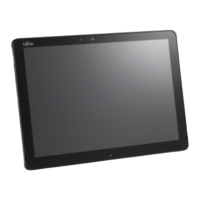
Fujitsu STYLISTIC V727
87 pages
Print Icon
To Next Page IconTo Next Page
Loading...
System
Operating manual
FUJITSU Tablet STYLISTIC V727

Table of Contents

Other manuals for Fujitsu STYLISTIC V727

Questions and Answers

  • L
    leegregorySep 23, 2025
    What to do if I see 'CMOS battery bad' message on Fujitsu STYLISTIC V727 Tablet?
    • D
      David KempSep 23, 2025
      If the error message 'CMOS battery bad' occurs repeatedly on your Fujitsu Tablet, the buffer battery in the Tablet PC is flat. Contact your sales outlet or our customer service centre.
  • C
    Christine GonzalesAug 23, 2025
    What to do if my Fujitsu Tablet PC stops working?
    • J
      Jim KimAug 25, 2025
      If your Fujitsu Tablet PC stops working, it may be in energy-saving mode; exit this mode to resume normal operation. If an application program is causing the malfunction, close the application or restart the Tablet PC by restarting the operating system or switching the device off and back on again. If the battery is dead, charge it, insert a charged battery, or connect the mains adapter to the Tablet PC.
  • L
    Lisa GomezAug 25, 2025
    Why is the battery charging indicator not lit on my Fujitsu STYLISTIC V727 Tablet?
    • D
      David MurphyAug 26, 2025
      If the battery charging indicator is not lit on your Fujitsu Tablet PC, ensure the Tablet PC is connected to a mains outlet using the mains adapter. Note that the battery will only be charged again when its capacity is less than 90%.
  • A
    Alan ParkerAug 26, 2025
    Why is pen input not working on my Fujitsu Tablet?
    • J
      Joseph CalderonAug 27, 2025
      If pen input is not working on your Fujitsu Tablet, the pen may be in power-saving mode. Press the pen button gently to wake it. If that doesn't work, the pen battery may be completely discharged; insert the pen fully into its slot on the Tablet PC to charge it.
  • A
    Alexander AlexanderAug 27, 2025
    What to do if the external monitor remains blank when connected to my Fujitsu STYLISTIC V727?
    • W
      Wayne GarzaAug 27, 2025
      If the external monitor remains blank, first ensure it is switched on. If it is on, power saving mode may be activated; press a key on the external keyboard or tap the Tablet PC's touchscreen. Also, adjust the monitor's brightness if it's set too low. Check the graphics driver settings to ensure the screen output is correctly configured and that the external monitor is detected. Finally, power off both the Tablet PC and the external monitor, verify the power and data cables are properly connected, and then power them back on.
  • A
    arthurharrisSep 16, 2025
    What does 'Press to resume, to SETUP' mean on Fujitsu Tablet?
    • H
      heatherhansenSep 16, 2025
      If you see the error message 'Press to resume, to SETUP' on your Fujitsu Tablet, press the volume up button to start BIOS Setup, or if you are using an external keyboard, press the F1 or F2 key on the keyboard.
  • L
    lopezcourtneySep 13, 2025
    How to troubleshoot keyboard controller error on Fujitsu STYLISTIC V727?
    • K
      Keith HahnSep 13, 2025
      If you encounter a keyboard controller error on your Fujitsu Tablet, switch off your Tablet PC using the ON/OFF button, wait 3-5 seconds, and then switch it back on.
  • M
    Mrs. Elizabeth KellySep 14, 2025
    What to do if there is a keyboard error on my Fujitsu Tablet?
    • J
      jaclyn28Sep 14, 2025
      If you are using an external keyboard with your Fujitsu Tablet and encounter a keyboard error, check the connection and reboot the Tablet PC.
  • K
    Katherine FrazierSep 5, 2025
    Why is the SmartCard reader not recognised on my Fujitsu STYLISTIC V727 Tablet?
    • B
      Brandi HoldenSep 5, 2025
      If the SmartCard reader is not recognized on your Fujitsu Tablet, ensure the SmartCard is inserted correctly with the chip facing upwards/downwards, depending on the device. Verify that the SmartCard complies with the ISO standard 7816-1, -2, -3, and -4.
  • S
    stevensamySep 3, 2025
    What to do if the printer does not print from my Fujitsu STYLISTIC V727 Tablet?
    • J
      Jeremy DavisSep 3, 2025
      If the printer does not print from your Fujitsu Tablet, ensure the printer is switched on and ready for operation, referring to its documentation. Check that the data cable connecting the Tablet PC to the printer is properly connected. Also, verify that the correct printer driver is loaded, referring to the printer documentation.

Summary

Innovative Technology Features

Further Information Resources

Details on where to find additional product information and software.

Notational Conventions Guide

Explanation of symbols and text formatting used in the manual.

Ports and Controls Identification

Important Safety and Usage Notes

General Safety Guidelines

Essential safety precautions for device operation and handling.

Travel and Transport Precautions

Guidelines for safe travel, transportation, and use in different countries.

Cleaning Procedures

Instructions on how to clean the tablet PC safely and effectively.

First-Time Device Setup Guide

Unpacking and Initial Inspection

Steps for unpacking the device and checking for any shipping damage.

Location and Power Connection

Guidance on choosing a safe location and connecting the power adapter.

Initial Power-On Procedure

Instructions for turning on the device for the very first time.

Operating Your Fujitsu Tablet PC

Status Indicators

Explanation of the LED indicators for power, battery, and wireless status.

Touchscreen and Pen Input Methods

Using the touchscreen, handwriting recognition, finger input, and stylus pen.

Battery and Power Management

Procedures for charging, maintaining, storing the battery, and power-saving features.

Memory Card and SIM Card Usage

Instructions for inserting and removing memory and SIM cards.

Optional Accessories Guide

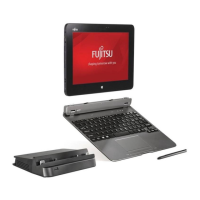
Cradle Connectivity

Connecting and disconnecting the tablet PC to and from its optional cradle.

Magnetic Keyboard Usage

Connecting and disconnecting the tablet PC to and from the magnetic keyboard.

Flip-Cover Stand Installation

Instructions for inserting the tablet PC into the flip-cover stand.

Tablet PC Security Features

Fingerprint Sensor Setup

Guide to installing and using the fingerprint sensor for security.

BIOS and Boot Passwords

Configuring supervisor and user passwords for BIOS and system boot.

Hard Disk and TPM Security

Setting up hard disk passwords and enabling/disabling the Trusted Platform Module.

Smart Card Reader Usage

Information on using the Smart Card reader and inserting a Smart Card.

Connecting External Devices

Monitor Connections

Connecting displays via Display Port and VGA monitor ports.

USB and Type-C Connectivity

Connecting USB devices, including USB Type-C with charging function.

Audio and Headset Port

Connecting headphones, microphones, and headsets to the combo port.

BIOS Setup Utility Configuration

Starting and Navigating BIOS

How to enter and navigate the BIOS Setup Utility menus.

Exiting BIOS Options

Saving changes, discarding changes, and loading default settings.

Troubleshooting Common Issues

Problem Diagnosis and Support

Steps to take when encountering faults and information to provide support.

Display and Input Issues

Resolving issues with the touchscreen, external monitor, and pen input.

System and Connectivity Problems

Addressing problems with startup, application errors, printing, and wireless connections.

Error Messages and System Restore

Understanding error messages and restoring the system to its original state.

Technical Data

Tablet PC Specifications

Specifications for processor, memory, display, cameras, dimensions, and ports.

Screen Resolution Support

Supported screen resolutions for integrated and external displays.

Battery and Power Specifications

Technical details for the rechargeable battery and mains adapters.

Manufacturer Notes

Disposal and Recycling Guidelines

Information on proper disposal and recycling of the device.

Safety Certifications

Details on electrical safety, ergonomic requirements, and SAR limit value.

Fujitsu STYLISTIC V727 Specifications

General IconGeneral
BrandFujitsu
ModelSTYLISTIC V727
CategoryTablet
LanguageEnglish

Related product manuals