1-10-2 E434AFW
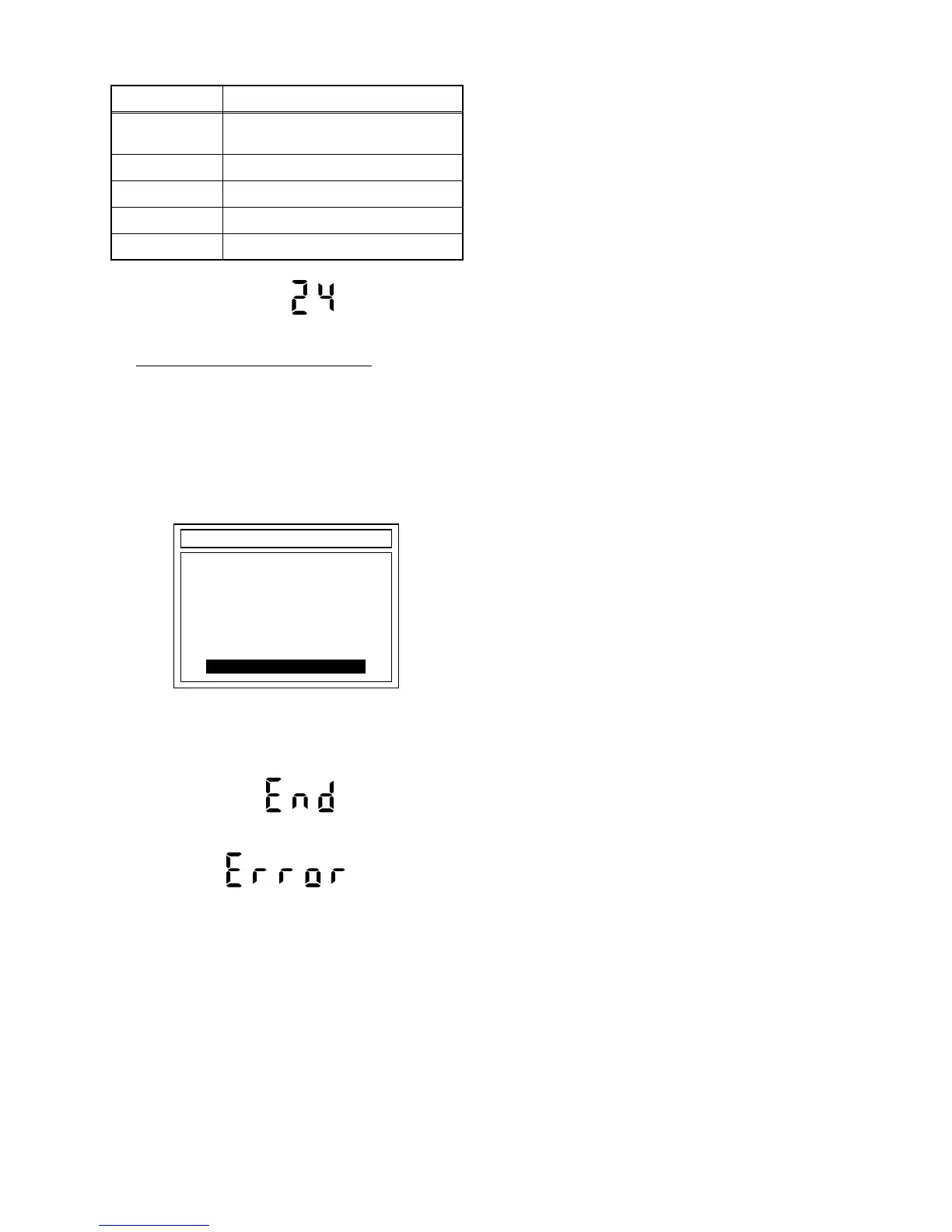
The status displayed in *2 is as shown below.
Fig. e: VFD Display during update
Re: the VFD display shown in Fig. e.
When the TV screen displays "Firmware
Updating... XX% Complete," the VFD will indicate
"XX"%.
6. When completing update, the tray will open
automatically.
The TV screen will display Fig. f.
Fig. f: TV Display when completing update
If the update is completed correctly, the VFD will
indicate Fig. g.
Fig. g: VFD Display when completing update
Fig. h VFD Display when completing update with error
In this case, all button operations will be invalid
except [STANDBY-ON] button.
7. Press [STANDBY-ON] button to turn the power off
and press [STANDBY-ON] button again to turn the
power on and finish updating.
3. How to Verify the Firmware
Version
1. Turn the power on and remove the disc in the tray.
2. To switch the DVD/VCR with HDD recorder into
the HDD mode, press [HDD] on the remote control
unit.
3. Press [VARIABLE SKIP] and [1], [2], [3] buttons on
the remote control unit in that order within 3
seconds. The Firmware version appears on the TV
screen.
4. Press [STANDBY-ON] button to reset the unit.
Display Status
EXECUTING
Loading F/W from Update Disc or
writing to Flash memory
OK Update successful
ERROR Error during Flash memory writing
FILE ERROR Check SAM error in F/W file
READ ERROR Error during F/W file reading
DISC UPDATE
DISC UPDATING 100% Complete
PLEASE PUSH POWER BUTTON
TARGET: B/E
STATUS: OK
*FIRMWARE version will differ depending on the
model. Fig. f is an example.



 To Next Page