4
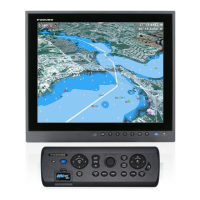
1.1.2 Mounting procedure for display control unit DCU12
The Display Control Unit DCU12 can be flush mounted in a console or panel, or mounted on a
desktop or the overhead.
Flush mounting
1. Prepare a cutout in the mounting location using the template sheet (supplied) for the DCU12.
2. Remove the front panel from the DCU12 by unfastening the catches at the rear of he panel, in
the order as shown in the figure below.
Note: Detach the panel carefully to prevent breakage of the panel.
3. Attach the mounting sponge to the DCU12.
4. Fix the DCU12 by using four self-tapping screws (supplied).
5. Attach the front panel to the DCU12.
How to detach the front panel from the mounting place
To detach the front panel after mounting the unit, use the remover (supplied) as below. Note that
the front cover may be damaged if you do not follow the methods below.
1. Set the remover to a notch on the lower side of the unit.
Mounting
sponge
Front panel
Cutout
Display unit
(ex. MFD12)
Self-tapping screws
(4 pcs.)
MFD, rear view
(Location of catches and
order to unfasten them)
1
2
3
4
5
6
7
1
8


 To Next Page
 Loading...