MorphoAccess Installation Guide | Edition 11 | April 2019
Copyright © Gallagher Group Limited Page 10
5.5 Installing the VERIF Dongle MACI License
A VERIF dongle is required on each enrolment location (server or workstation) that will be capturing
biometrics.
1. Plug in the dongle and biometric enrolment device.
An “Installing device driver software” notification icon displays in the Windows taskbar, (in the
notification area, next to the clock), indicating that Windows has detected a new USB device.
2. Wait while Windows identifies the driver software and installs the necessary files. This may take
some period of time depending on the version of Windows you are running.
Installing the MACI License on VERIF USB Dongle
The license file will be sent to you as part of your order of part number C864401. To install the
license follow these steps:
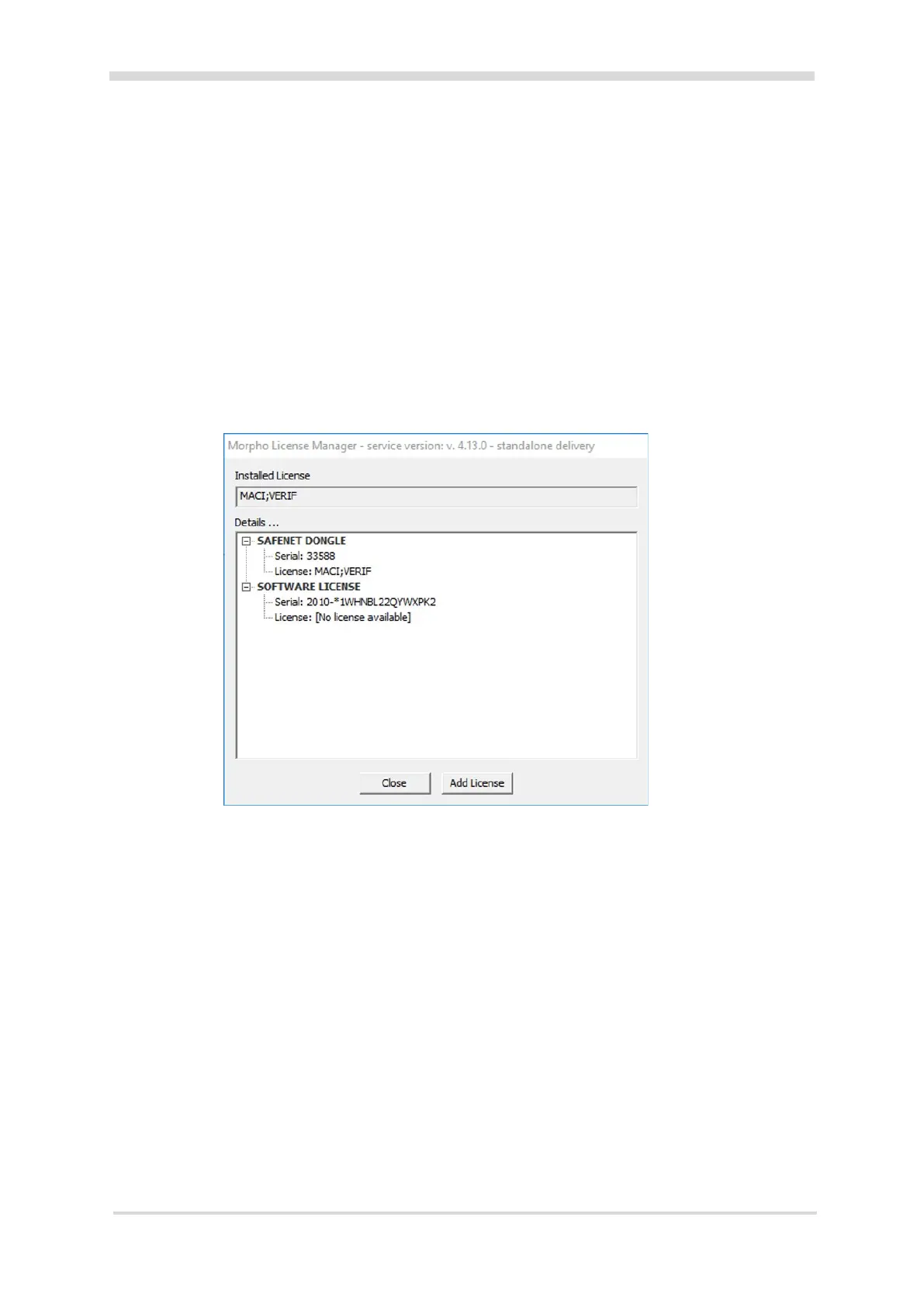
1. Click Start > All Programs > Morpho > License Management 4.13.0 > Manager 4.13.0 (GUI).
2. Click the Add License button.
The “Add a new license” dialog displays.
3. Click the Browse button.
The “Open” dialog displays.
4. From the license files provided with the dongle, select the appropriate license file for the
dongle plugged into the PC, and click the Open button.
The message “License has been correctly set” displays.
5. Click the OK button.



 To Next Page