MorphoAccess Installation Guide | Edition 11 | April 2019
Copyright © Gallagher Group Limited Page 6
5 Installation
Note: This section provides step-by-step instructions for installing all the necessary MorphoAccess
components. Additional information is available in the Morpho License Manager User’s Guide (Morpho
License Manager UG.pdf), located in the ‘Morpho Utilities\Documentation’ folder of the
Command Centre installation files, if required.
5.1 Installing the USB Dongle / MSO Drivers
The Biometric Dongle Driver must be installed on the Command Centre server and any workstation that
will be capturing biometrics. Either of the following dongle drivers work with Gallagher Command Centre:
- SafeNet Dongle: USB VERIF (Part No. C864401) or USB IDENT (Part No. C864403/C864405)
- Morpho ACS Dongle: V2 USB VERIF (Part No. C864510) or USB IDENT (Part No. C864515)
Command Centre version v7.80 (or later) no longer requires a "VERIF Dongle" on the server unless
Biometric enrolments are also performed from the server. (Duplicate template check will continue to
require an "IDENT Dongle".)
5.1.1 SafeNet - Verif / IDENT Dongle Type
IMPORTANT: Do not plug your dongle before installing drivers otherwise your dongle might not
be detected.
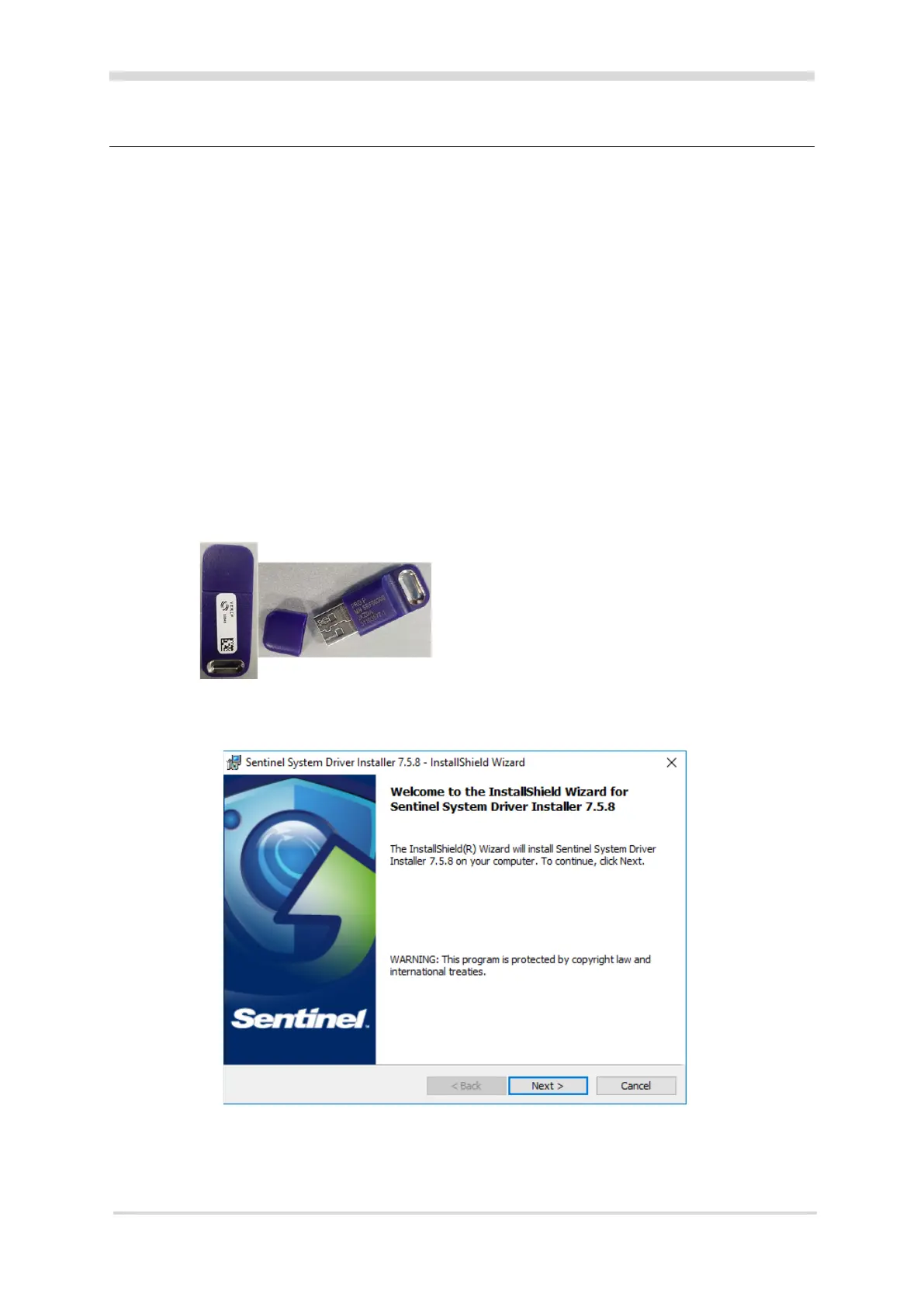
1. Locate and run Sentinel System Driver Installer 7.5.8.exe in the ‘Morpho Utilities\
Device Drivers\SafeNet Dongle’ folder of the Command Centre installation files.
The Welcome screen of the InstallShield Wizard displays.
2. Click the Next button.
The License Agreement screen displays.
3. Click the I accept the terms in the license agreement radio button, and then the Next button.
The Setup Type screen displays.



 To Next Page