MorphoAccess Installation Guide | Edition 11 | April 2019
Copyright © Gallagher Group Limited Page 11
6 Installing MorphoAccess Readers
6.1 Configuring a Biometric Reader
Readers must be configured with their IP address to be available on the network.
6.1.1 Configuring IP Address - Finger Vein Readers
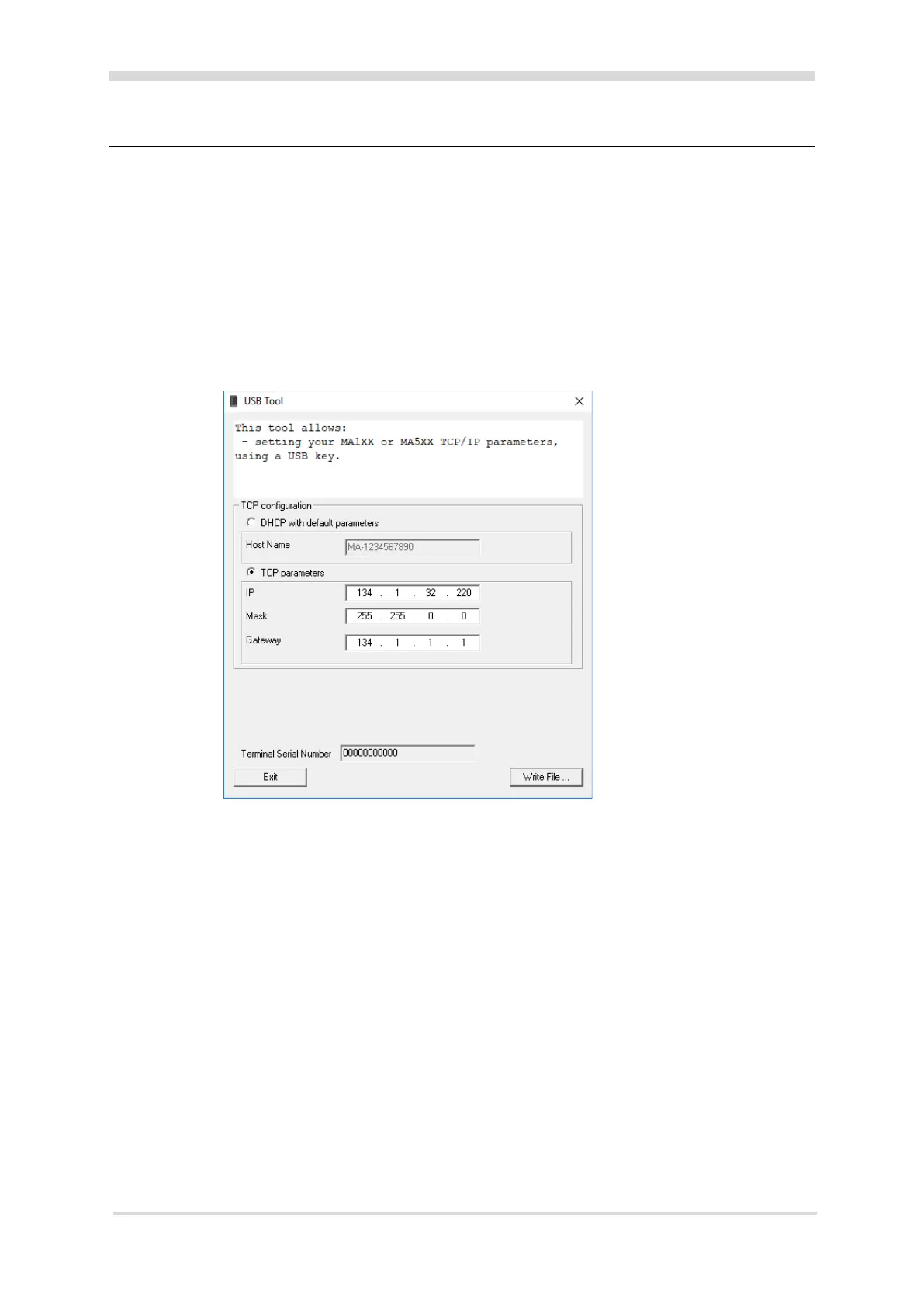
Finger Vein Readers can be configured by writing files onto a USB memory stick using the USB
Network Tool, as follows:
1. Locate and run USB_Network_Tool.exe in the ‘Morpho Utilities\Legacy
Configuration Tools\USB Network Tool’ folder of the Command Centre
installation files.
2. Enter the IP, Mask and Gateway for your Finger Vein Reader, and click the Write File… button.
A ‘Save As’ dialog displays.
3. Path your way to the USB drive and click the Save button.
The ‘Save As’ dialog closes.
4. Click the Exit button.
The USB Tool closes.
5. Power on the MAVP Reader, and plug the USB drive into the Finger Vein Reader.
It beeps and flashes once the files transfer is complete. The USB drive can be removed.
The reader will indicate when the USB memory stick is plugged in and will give a single beep
before restarting.
6. Unplug the USB memory stick from the MA Sigma Series reader when the reader restarts.
The MA Sigma Series reader should now be ready to be connected to the same network as
the Gallagher Command Centre system.



 To Next Page