MorphoAccess Installation Guide | Edition 11 | April 2019
Copyright © Gallagher Group Limited Page 12
6.1.2 Configuring IP Address – Sigma and Wave Readers using MA5G Native
Mode
Sigma Readers using MA5G (native) mode can be configured using the Web Browser, as follows:
1. Open an Internet Browser, (e.g. Internet Explorer).
2. Enter the IP address of the reader in the Address field at the top, and press <Enter> on your
keyboard (Default = 192.168.1.10).
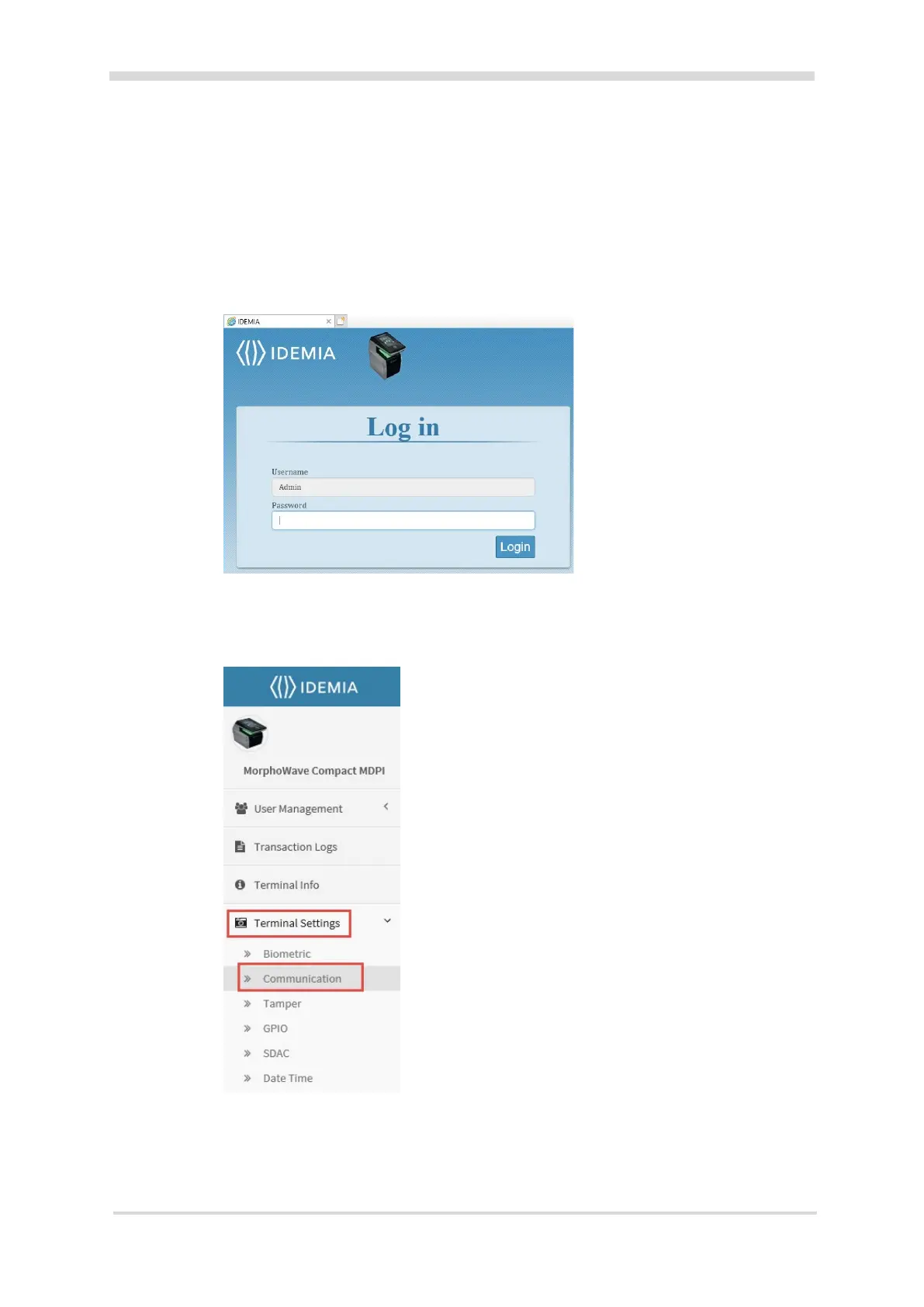
The IDEMIA Log in screen displays. The reader type will determine what Morpho reader icon
is shown on this screen.
3. Enter the default Username, (i.e. Admin) in the Username field.
4. Enter the default password, (i.e. 12345) in the Password field, and click the Login button.
5. Click on Terminal Settings to expand the list below it, and then click Communication.
6. Enter the IP Address, Subnet Mask and Gateway for your reader, and click the Save button.



 To Next Page