MorphoAccess Installation Guide | Edition 11 | April 2019
Copyright © Gallagher Group Limited Page 16
6.3 Upgrading the MorphoAccess Reader Firmware
To upgrade the firmware version on the MorphoAccess readers, follow the appropriate steps below:
Sigma and MorphoWave Readers
• If the reader is encrypted, it will need to be unencrypted before upgrading.
See 11.4 Unencryption (on page 48) for further detail.
• Do not upgrade the reader via the USB method.
Installing the MoprhoBioToolBox
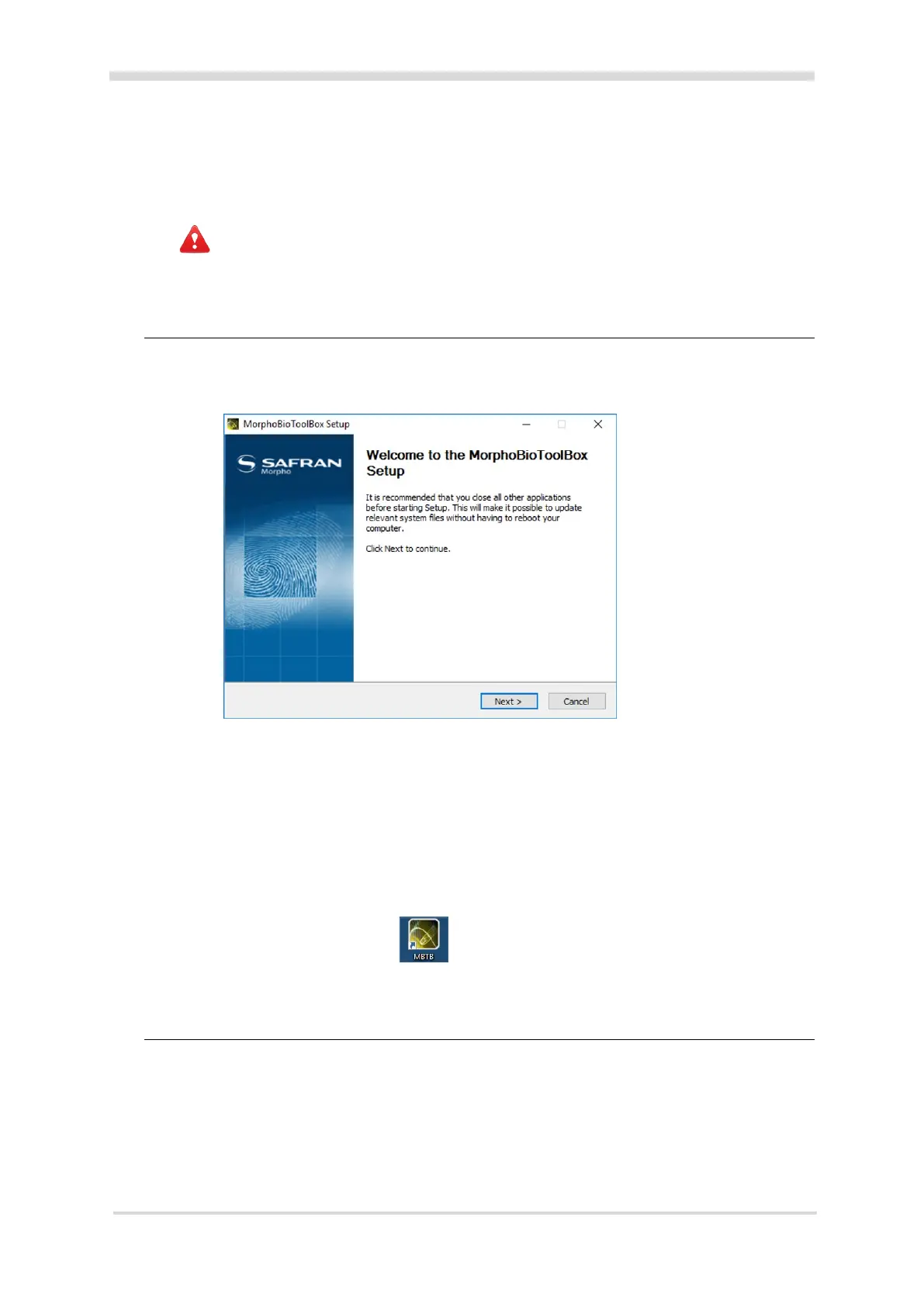
1. Copy the executable MBTB_Setup_V4.1.2.exe from the ‘Morpho Utilities\
MorphoBioToolBox’ folder to an arbitrary directory on your local hard drive, and execute it.
The Welcome screen of the MorphoBio ToolBox Setup Wizard displays.
2. Click the Next button.
The License Agreement screen displays.
3. Click the I Agree button.
The Choose Install Location screen displays.
4. Choose the Destination Folder of MBTB installation, and click the Install button to start the
proper installation.
The Completion screen displays when the product is successfully installed.
5. Click the Finish button.
6. Double-click the MBTB icon on your desktop.
Upgrading the Firmware
1. From the MorphoBioToolbox Connection screen, select the Tools button.
2. Click the Firmware Upgrade tab.



 To Next Page