MorphoAccess Installation Guide | Edition 11 | April 2019
Copyright © Gallagher Group Limited Page 17
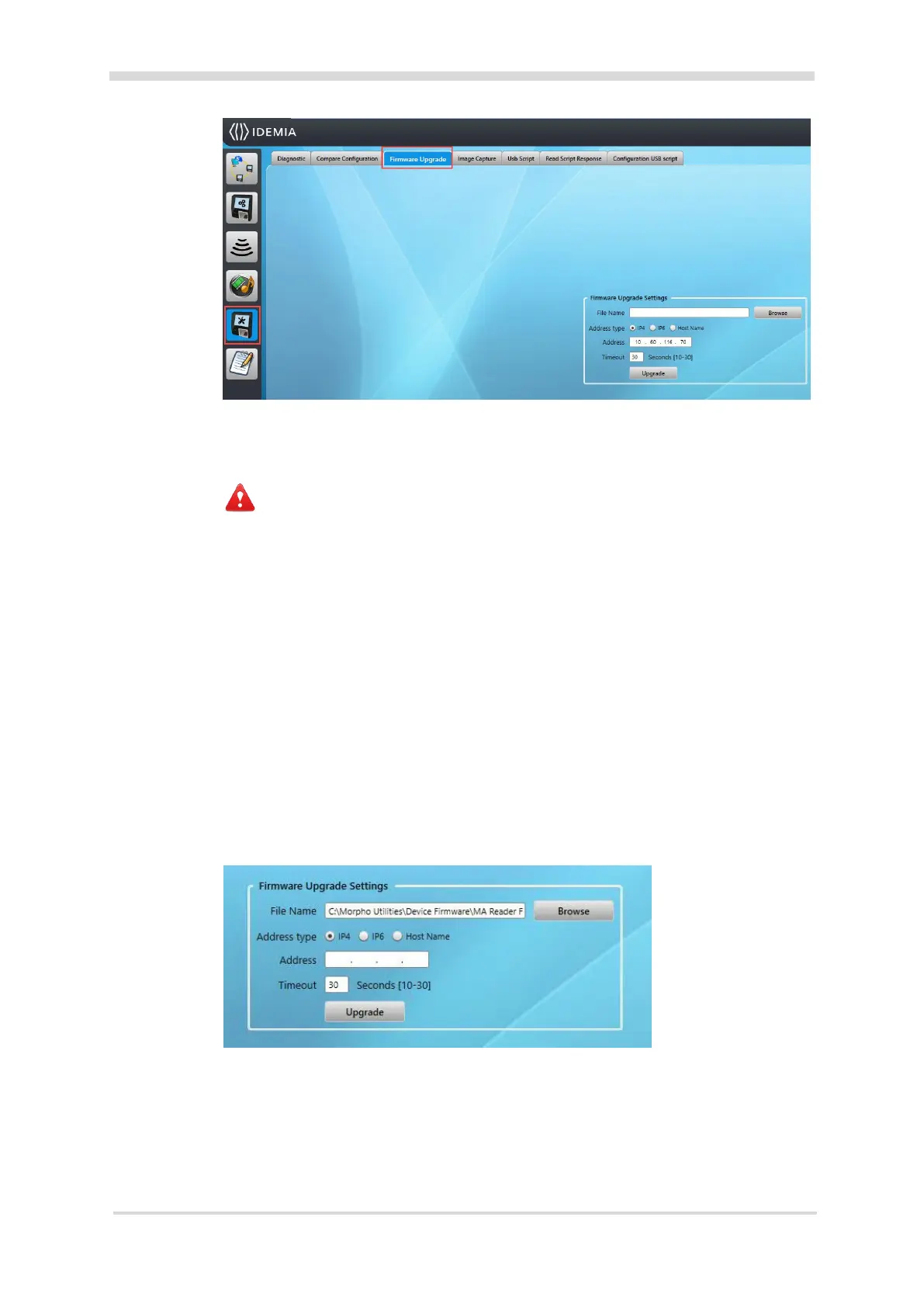
3. Click the Browse button, and navigate to the ‘Morpho Utilities\Device Firmware\
MA Reader Firmware’ folder.
4. Select the Firmware folder specific to the Morpho Reader type.
Note: There are two variants of firmware available fro the Sigma Readers. The
firmware determines the reader mode. MA5G Native Mode or MA2G Legacy Mode.
Morpho Utilities\Device Firmware\MA Reader Firmware\MA SIGMA Lite FW 4.5.1
• Firmware-upgrade-malite_MA5G.4.5.1-prod.bin (Native Mode Firmware)
• Firmware-upgrade-malite_MA2G.4.5.1-prod.bin (Legacy Mode Firmware)
Morpho Utilities\Device Firmware\MA Reader Firmware\MA SIGMA Lite Plus FW 4.5.1
• Firmware-upgrade-malite_MA5G.4.5.1-prod.bin (Native Mode Firmware)
• Firmware-upgrade-malite_MA2G.4.5.1-prod.bin (Legacy Mode Firmware)
Morpho Utilities\Device Firmware\MA Reader Firmware\MA SIGMA Series FW 4.5.1
• Firmware-upgrade-masigma_MA5G.4.5.1-prod.bin (Native Mode Firmware)
• Firmware-upgrade-masigma_MA2G.4.5.1-prod.bin (Legacy Mode Firmware)
5. Click the Open button.
6. Enter the IP Address of the reader.
7. Click the Upgrade button.
Note: You may get prompted for an interim firmware version if your current version is
significantly older than the version you are attempting to upgrade to.



 To Next Page