MorphoAccess Installation Guide | Edition 11 | April 2019
Copyright © Gallagher Group Limited Page 8
5. Click the Install button.
Once installation has successfully completed, the Completed screen displays.
6. Click the Finish button.
The installation wizard closes.
7. You can plug your MorphoDongle in a USB port of your computer.
5.2 Installing MSO300 and MSO FVP Drivers
IMPORTANT: Do not plug your MSO dongle before installing drivers otherwise your MSO might
not be detected.
1. Path your way to the ‘Morpho Utilities\Device Drivers\MorphoSmart’
folder of the Command Centre installation files.
2. Open the appropriate folder for you operating system, i.e.
‘x64’
for a 64 bit operating system, OR
‘x86’ for a 32 bit operating system
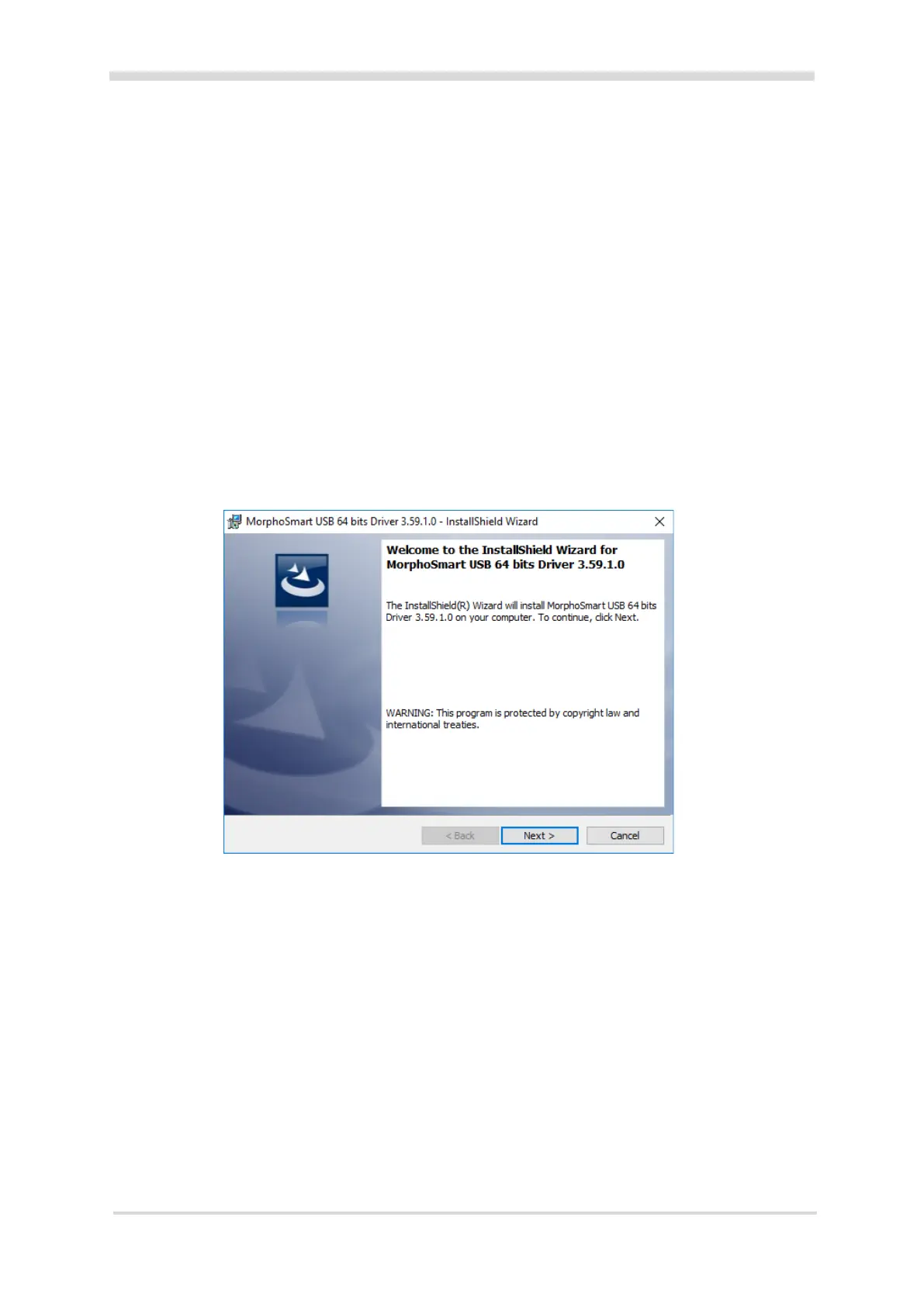
3. Run the Setup.exe executable.
The Welcome screen of the InstallShield Wizard displays.
4. Click the Next button.
The Destination Folder screen displays.
5. If you want to change installation directory for MorphoSmart Drivers click the Change…
button and select another directory, otherwise click the Next button.
The Ready to Install the Program screen displays.
6. Click the Install button.
Note: You may then be asked to validate installation of driver.
Once installation has successfully completed, the Completed screen displays.
7. Click the Finish button.
The installation wizard closes and a ‘Restart PC’ pop-up displays.
8. Click the No button.
A restart of the PC does not need to be done until after you install the License Manager.



 To Next Page